Timeline
Use a timeline to compare record schedules across a continuous date range and adjust start and end dates in place.
Understand a timeline
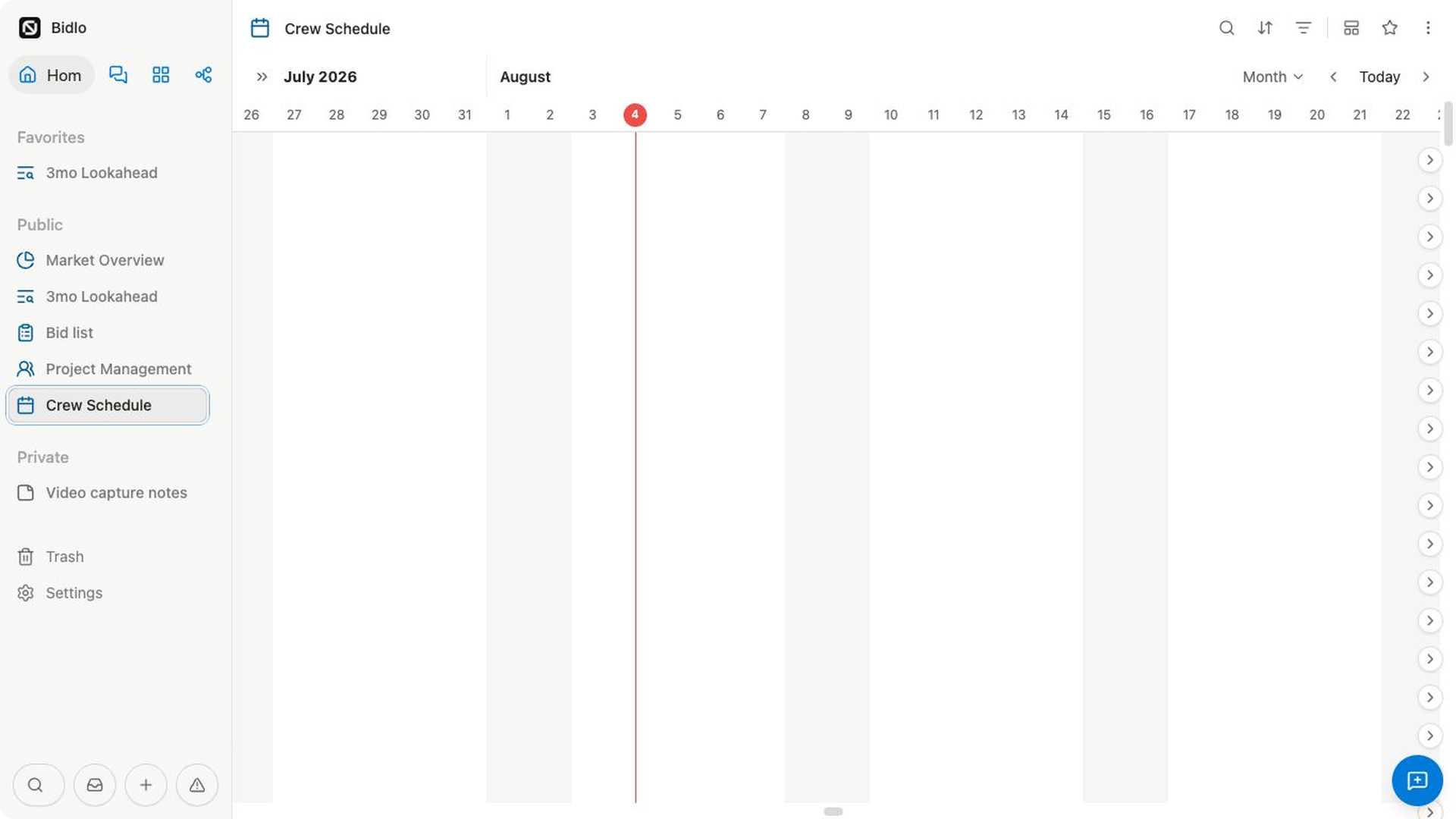
A timeline plots each record as a horizontal bar. The bar's position shows its start, and its width shows how long the record lasts.
You can build those bars from one date field that includes an end date, or from separate start and end date fields. A red vertical line marks today.
Choose the timeline dates
Use one date field when that field already stores a date range. Use separate fields when your collection has distinct values such as Start date and `End date`.
Use one date field
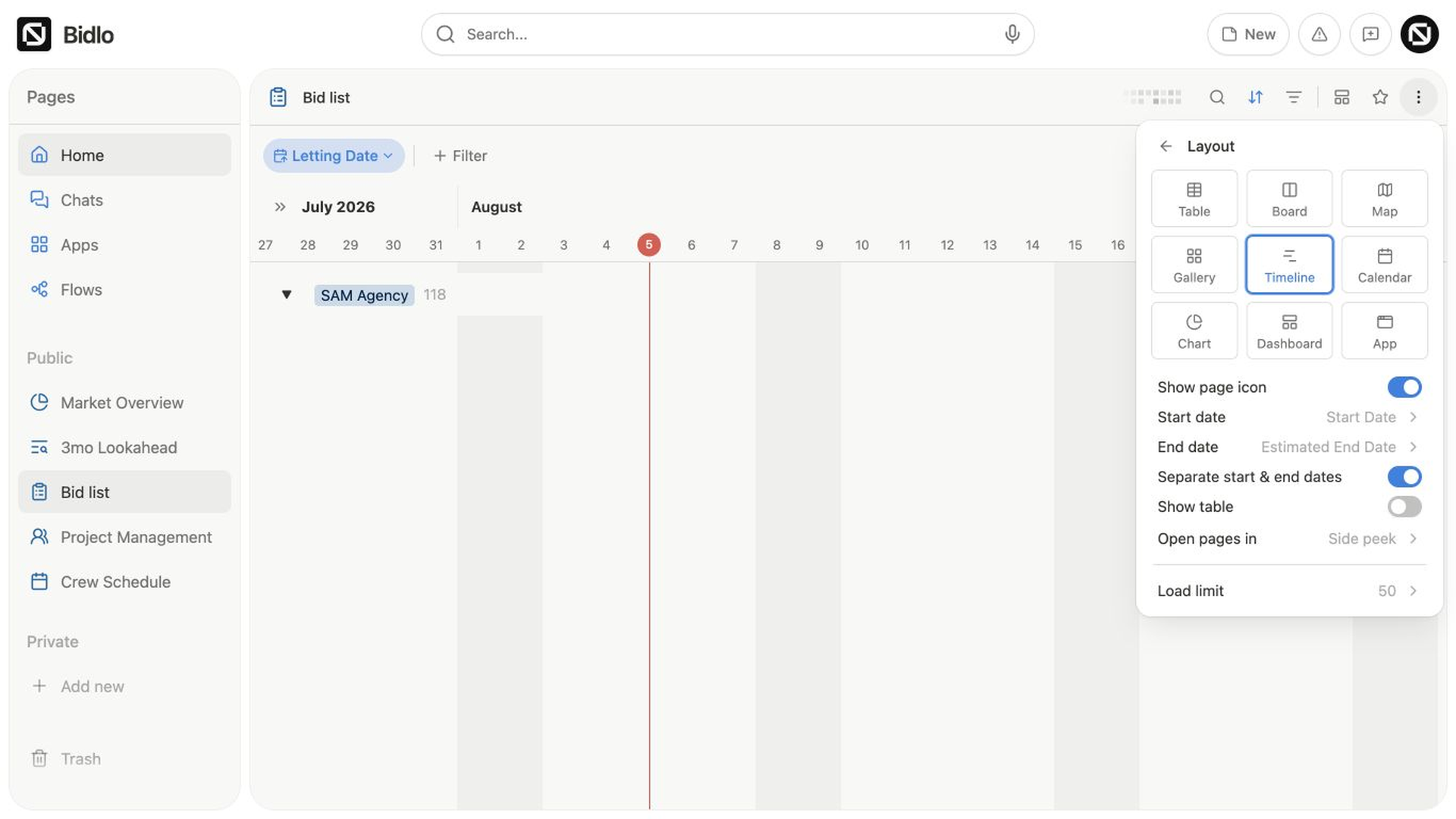
- Open the view settings menu.
- Select
Layout. - Confirm that
Timelineis selected. - Turn off
Separate start & end dates. - Under
Show timeline by, choose the date field.
The timeline uses the field's date as the beginning of the bar and its saved end date as the end.
Use separate start and end fields
- Open
Layoutfor the timeline. - Turn on
Separate start & end dates. - Under
Start date, choose the field that begins the bar. - Under
End date, choose the field that ends it.
The timeline redraws using both fields.
Change the time scale
Use the zoom selector above the timeline to choose how much time each portion of the canvas represents:
DayWeekBi-weekMonthQuarterYear
The timeline keeps the visible date near the center when you change zoom. Use the left and right arrows to move through the timeline, or select Today to return to the current date.
Add a scheduled record
The final row in each timeline section creates records.
- Move your pointer across the empty creation row.
- Position the preview bar on the date where the record should start.
- Select the canvas.
- Enter the record name.
Bidlo creates the record with dates based on the selected position and current zoom. If the name table is visible, you can also select New there to create a record beginning around today.
When the timeline is grouped, creating in a section also assigns that section's group value.
Move and resize a bar
Drag a bar left or right to move the full date range while keeping its duration.
To change only one edge:
- Hover over the bar.
- Drag the handle on the left edge to change the start.
- Drag the handle on the right edge to change the end.
A date tooltip follows the pointer while you drag. Bidlo prevents the start from moving after the end and the end from moving before the start.
Show the name table and fields
The name table keeps record names visible at the left of the timeline.
- Select the table toggle above the timeline to
Hide tableorShow table. - Open the view settings and select
Fieldsto control the information used by the record cards. - Turn
Show page iconon or off inLayout. - Use
Open page into chooseSide peek,Center peek, orFull page.
When a bar is outside the visible date range, an arrow appears at the edge of its row. Select the arrow to jump to that record's dates.
Group a timeline into sections
Use Group in the view settings to create timeline sections from a field. Each section keeps its own records and New row. Select a section heading to collapse or expand it.
Filters and sorts continue to control which records appear and how the rows are ordered. These settings affect this timeline without changing other views of the same collection.
Related pages
FAQs
Why does a record have no timeline bar?
It needs a usable start date in the field selected for the timeline. Records without plotted dates can remain in the name table without a bar.
Does moving or resizing a bar update the record?
Yes. It changes the underlying date field or fields, and other views using those dates will reflect the change.