Dashboards
Build a dashboard to place tables, boards, charts, maps, and other views side by side around one workflow or decision.
Understand dashboard cards
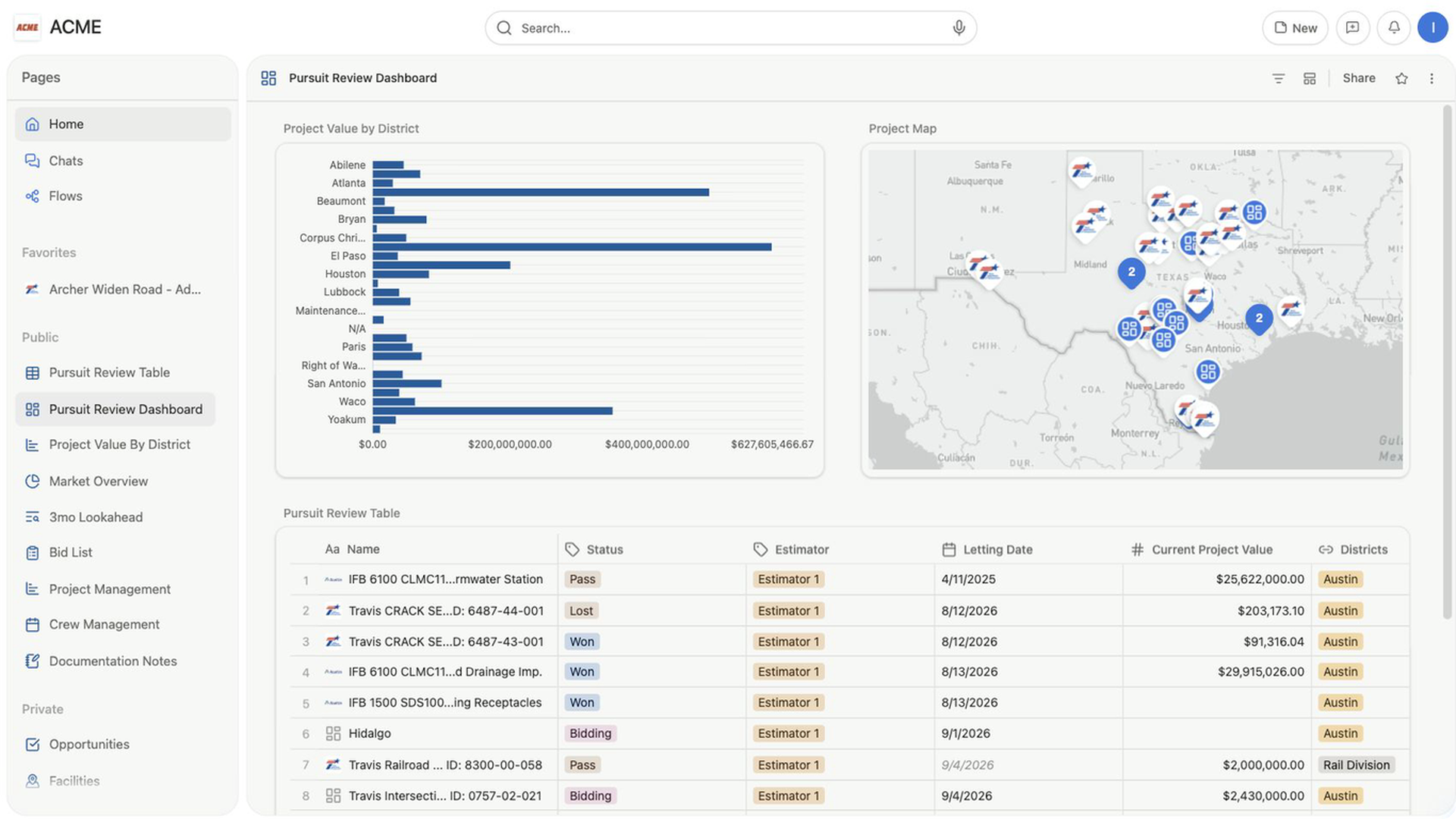
A dashboard is a grid of view cards. Each card has its own dataset, layout, fields, filters, sorts, groups, and display settings.
For example, a bid-planning dashboard could combine:
- a number chart that counts upcoming projects;
- a table of bids due this week;
- a board grouped by bid status;
- a map of project locations.
The cards remain connected to their source records. A dashboard arranges and filters those views; it doesn't make copies of their data.
Create an empty dashboard
Use this path when you want to choose every card deliberately.
- Select
Newin the team toolbar. - Select
Dashboard. - Rename the new page.
- Select
Add viewin the empty dashboard. - On
Choose data source, choose the dataset for the first card. - On
Choose layout, choose a recently visited view, a layout, or a template.
The first card fills the dashboard width. Its title comes from the selected view or dataset, and you can rename it from the card header.
The Choose layout screen offers:
Recently visited viewsfor reusing a view you opened recently;Layoutsfor configuring a fresh table, board, map, gallery, timeline, calendar, chart, or other available view;Templatesconnected to the selected dataset.
Turn an existing view into a dashboard
Use this path when an existing table, board, map, or chart should become the starting point.
- Open the view.
- Select the
Dashboardcontrol in the page header. - Review the existing view, which now appears as the first dashboard card.
- Select
Addto add more cards. - Select
Donewhen the dashboard is arranged the way you want.
While the first conversion is still open, Cancel returns the page to its previous layout. Selecting Done finishes the conversion.
Return a dashboard to a single view
After you select Done, use the layout settings to change the page back to a single view:
- Move the card whose data and view settings you want to keep to the first position in the dashboard—the top-left card in the grid.
- Open the dashboard's view settings.
- Select
Layout. - Choose
Table,Board,Map,Gallery,Timeline,Calendar,Chart, or another non-dashboard layout.
Bidlo uses the first dashboard card as the page's view and applies the layout you chose. The dashboard configuration remains saved, so choosing Dashboard again restores its cards and global filters.
Add another card
- Select
Edit dashboardto enter editing mode if the dashboard is not already being edited. - Select
Add. - Choose a data source.
- Choose a recent view, layout, or template.
- Rename the card from its title field.
- Select
Done.
New cards start on their own full-width row. You can resize and place them beside other cards while editing.
Arrange and resize cards
Dashboard layout changes are available in editing mode.
- Select
Edit dashboard. - Drag a card by its header to move it.
- Drag a lower corner to resize it.
- Repeat until the most important information appears first.
- Select
Done.
Bidlo saves the resulting grid. In a narrow dashboard, cards stack in their saved reading order and drag or resize controls are unavailable.
Configure a card
Select Edit dashboard, then open a card's settings to change only that card.
Available settings depend on its layout and can include:
LayoutColumnsorFieldsFiltersSortGroupConditional colorDataset
Card-level filters and sorts stay with that card. Search is available from the card header for supported layouts; charts use their chart settings instead.
You can edit the title directly in the card header. At the bottom of the card settings, use:
Duplicateto add a copy on a new row;Removeto take the card off the dashboard.
Filter the whole dashboard
Global filters let one choice update every card that uses the same dataset.
This is useful for questions such as “Show only projects in this district” or “Show bids due this month.”
- Select the dashboard's global filter control.
- Under the dataset you want to filter, add a filter.
- Choose the field, condition, and value.
- Add another filter when the dashboard needs a narrower result.
- Close the settings.
The filter bar appears above the cards. Use the global filter control to show or hide that bar after filters have been configured.
When a dashboard contains cards from several datasets, Bidlo keeps global filters in separate sections for each dataset. A Projects filter applies to cards that use Projects; it doesn't automatically filter a Contractors card.
Related pages
FAQs
Does adding or removing a dashboard card copy or delete records?
No. Cards remain connected to their source data. Removing a card removes it from the dashboard, not from its dataset.
Why doesn’t a dashboard filter affect every card?
Global filters are scoped by dataset. A Projects filter applies to cards using Projects and does not automatically filter a Contractors card.