Conditional formatting
Use Conditional color rules to make records stand out when their field values meet conditions you choose.
Understand conditional color
Each rule has four parts:
- A field to evaluate.
- A condition, such as
Contains,Greater than, orIs empty. - A value, when the condition needs one.
- A color to apply when the condition matches.
The colored area depends on the layout:
- A table can color the entire row or only the rule's field.
- Card-based layouts color the record's card background.
- A map colors the matching record's marker.
Rules belong to the selected view. They don't change the record's field value or the appearance of another view.
Create a color rule
When the view has no color rules yet:
- Open the view settings menu.
- Open the layout's
Moremenu. - Select
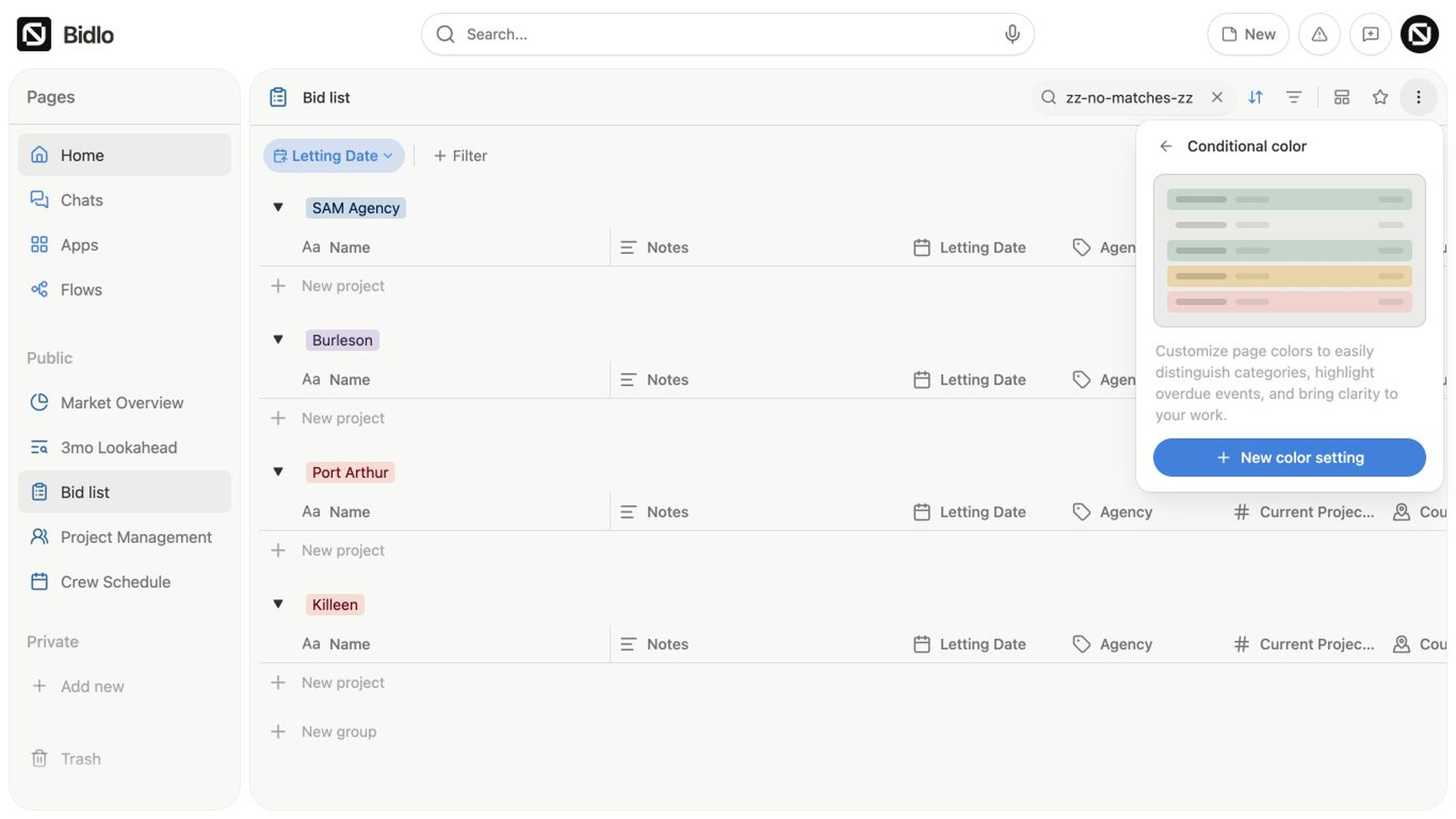
Conditional color. - Select
New color setting. - Choose the field you want to evaluate.
- Choose the condition and enter or select its value.
- Choose the color.
- In a table, choose
Entire roworThis propertyunderApply to.
The view applies the color to matching records. Once a rule exists, Conditional color appears directly in view settings with the number of rules.
Add and prioritize rules
Select Add another to create more rules. Drag the rule cards to change their order.
Rule order matters: Bidlo uses the first matching rule for a record. Put the most specific conditions above broader conditions. For example, place Priority is Critical above a general Status is not empty rule.
In a table, a matching This property rule takes visual priority over a matching Entire row rule in that cell. The row color still appears in the other cells.
Edit or remove rules
Open Conditional color in view settings to manage the rules:
- Select the field, condition, value, or color in a rule card to change it.
- Change
Apply tobetweenEntire rowandThis propertyin a table. - Drag a rule to change its priority.
- Select the trash button on a rule to remove only that rule.
- Select
Clearto remove every color rule from the view.
Removing a rule removes the automatic color it supplied. It doesn't delete or edit any records.
Choose useful rules
Use a small set of colors with consistent meaning. For example:
- Red for work that needs immediate attention.
- Orange or yellow for approaching dates or incomplete values.
- Green for ready or complete work.
- One neutral color for records that need review but aren't urgent.
Color should reinforce the field value, not replace it. Readers still need the written status or date to understand the record without relying on color.
Related pages
FAQs
What happens when more than one color rule matches?
Rule order matters: Bidlo uses the first matching rule for a record. Put specific conditions above broader ones.
Does removing a color rule delete or edit records?
No. It removes the automatic color supplied by that rule and leaves the records and their field values unchanged.