Board
Use a board to organize records into columns and move work through stages, owners, categories, or other grouped values.
Understand a board
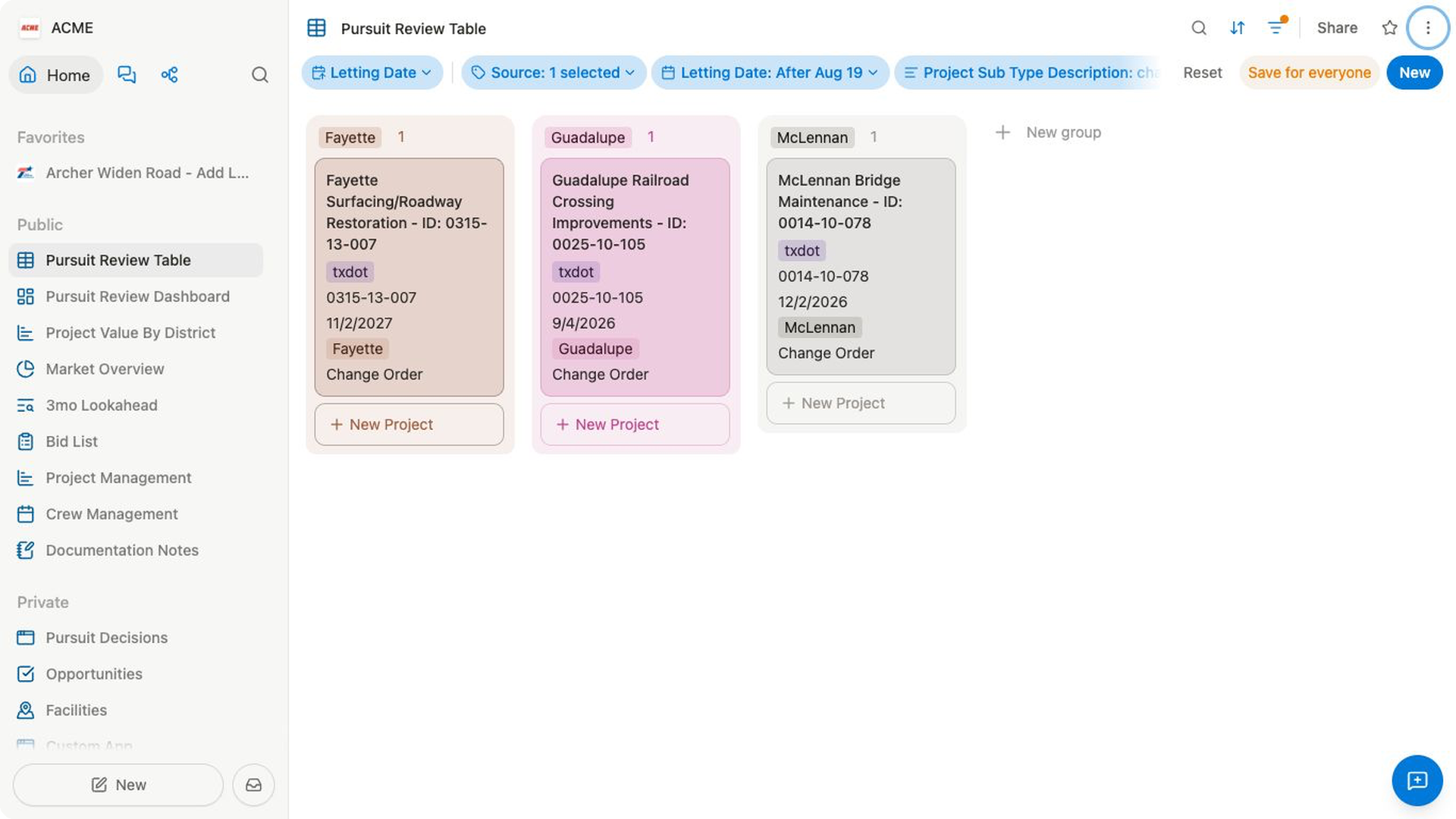
A board shows each record as a card. Columns come from the field selected for the view's group, so a board grouped by status might have columns such as Not started, In progress, and Complete.
Moving a card to another column changes that record's value for the grouped field. The same update appears anywhere else that uses the collection.
Choose the board columns
Use a field whose values match the stages or categories you want to see across the board.
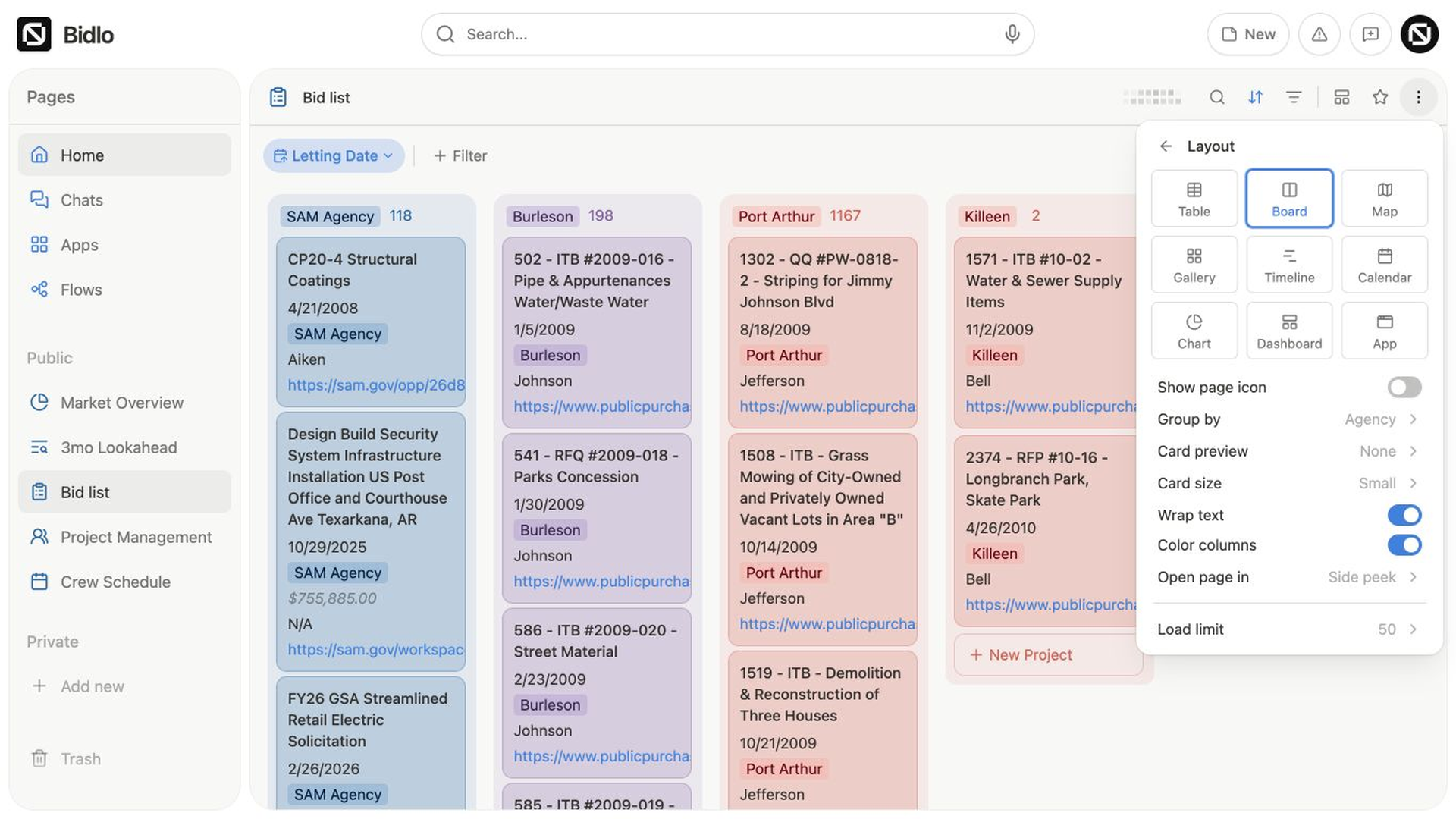
- Open the view settings menu.
- Select
Layout. - Confirm that
Boardis selected. - Select
Group by. - Choose the field that should define the columns.
The board redraws with one column for each visible group value.
You can also open Group from the main view settings to manage the same grouping. If the board shows No groups to show, check the grouping, filters, and view search.
Add and open cards
Each column has a New {collection} action, such as New project. Creating from a column starts the new record with that column's grouped value.
- Find the column where the record belongs.
- Select
New {collection}. - Enter the record name.
- Complete any other fields shown on the card.
The new card appears in that column.
Select a card to open the record. The Open page in layout setting controls whether it opens in Side peek, Center peek, or Full page.
When available, New group creates another value for the grouped field and adds a column for it. This action only appears for group fields that support creating a new referenced value.
Move and reorder cards
Drag a card to change its place on the board.
- Drag within a column to change its manual order.
- Drag to another column to update the grouped field.
- Select several visible cards before dragging to move them together.
- When the board has a supported sub-group, drag a card into the matching section inside its destination column.
The drop line shows where the card will land.
You can also drag column headings when the group is using manual order.
Choose what cards show
Open the view settings menu, select Layout, and adjust the card settings:
| Setting | What it controls |
|---|---|
Show page icon | Shows or hides each record's icon. |
Card preview | Uses None, Icon, Banner, Street View, or Map Marker above the card details. |
Location field | Chooses the location used by Street View or Map Marker previews. |
Card size | Sets cards to Small, Medium, or Large. |
Wrap text | Allows longer card text to continue onto more than one line. |
Color columns | Uses supported group colors to distinguish columns and their cards. |
Open page in | Opens records in Side peek, Center peek, or Full page. |
Load limit | Controls how many records the view requests at once. |
Use Fields in the main view settings to choose which record fields appear on each card and drag them into the order you want. Empty fields stay hidden until you edit the card.
Filter, sort, and sub-group a board
Board views support the same view-level organization tools as other layouts:
Fieldscontrols the information shown on every card.Filterslimits which records reach the board.Sortorders cards by one or more fields.Groupcontrols the columns.Sub-groupdivides every column into a second set of horizontal sections when a supported grouping is active.Conditional colorcan make matching records stand out.
These settings belong to this view. Another view of the same collection can use different columns, fields, filters, and sorts without changing the board.
Related pages
FAQs
Why can’t I drag a card?
Search, some grouping configurations, or an active sort can disable manual movement. Clear search and review the view’s group and sort settings.
What happens when I move a card to another column?
The record’s value for the grouped field changes. Other views that use that field will reflect the new value.