Calculations & summaries
Add calculations to a table or grouped view to answer common questions without exporting the records.
Understand calculation scope
A calculation summarizes the records currently included in its part of the view:
- A table footer summarizes the records in that table.
- A footer inside a group summarizes only that group's records.
- A group-header summary uses the same calculation across each visible group.
Filters and view search change the records being summarized, so the results update with the view.
Add a calculation to a table
To add the first calculation for a field:
- Open the field's column menu.
- Select
Calculate. - Open a calculation family.
- Choose the calculation.
Bidlo adds a calculation row to the bottom of the table and shows the result in that field's column.
After the calculation row appears, hover over another field's footer and select Calculate to add a second result. Select an existing calculation in the footer to change it, or choose None to remove it.
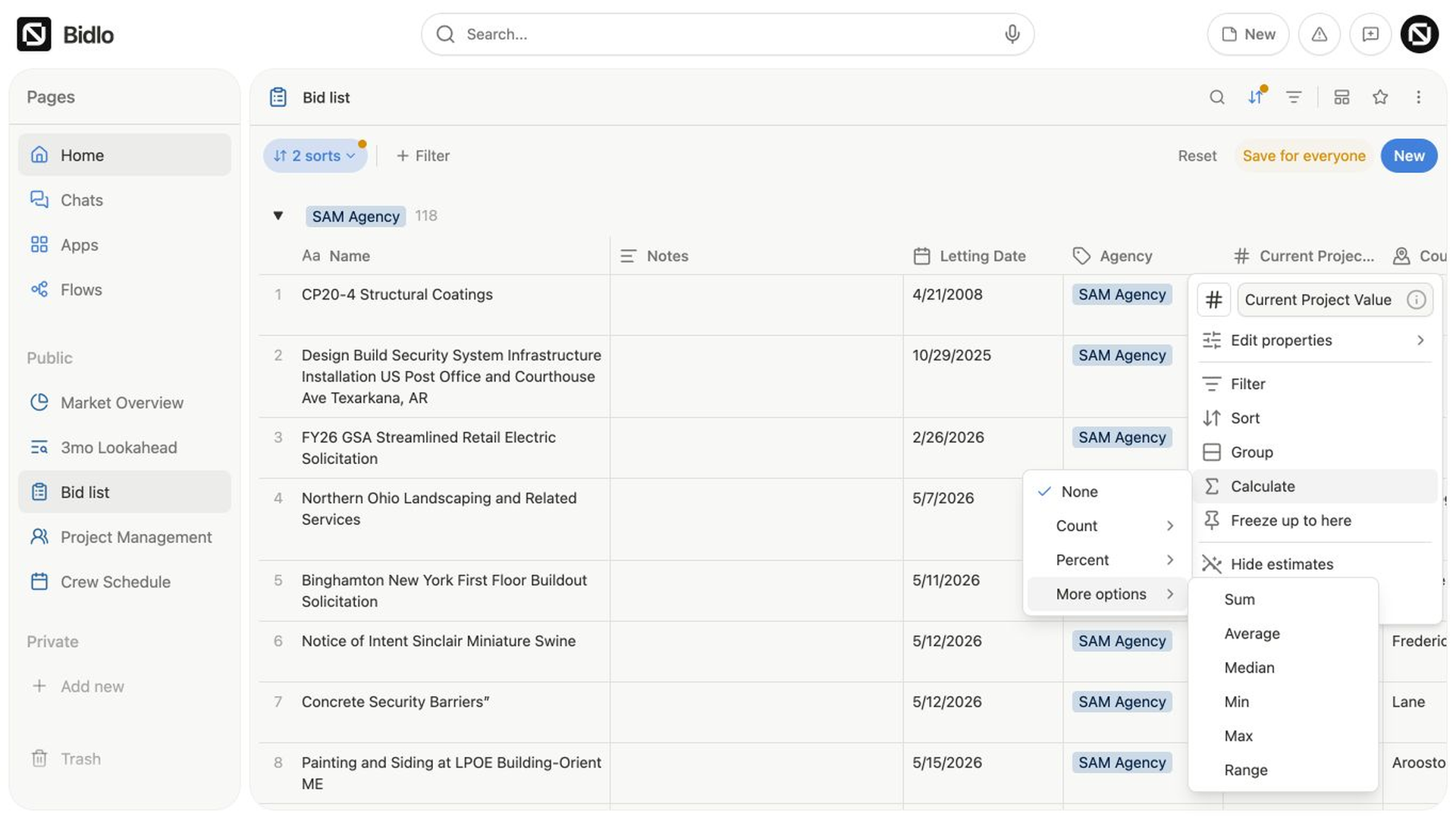
Choose a calculation
Table footer options depend on the field:
| Family | Calculation | What it shows |
|---|---|---|
Count | Count all | All records in scope |
Count | Count values | Records with a value in the field |
Count | Count unique | Distinct values in the field |
Count | Count empty | Records without a value |
Count | Count not empty | Records with a value |
Percent | Percent empty | Share of records without a value |
Percent | Percent not empty | Share of records with a value |
More options | Sum | Total of a number field |
More options | Average | Mean of a number field |
More options | Median | Middle number after sorting the values |
More options | Min | Smallest number |
More options | Max | Largest number |
More options | Range | Difference between the largest and smallest number |
Count and Percent work on supported fields. More options appears for number and material fields, including formulas whose output is a number.
Bidlo formats numeric results to match the field where possible, including number separators, percentages, and currency.
Change the summary shown in group headers
A grouped view shows the record count beside each group by default. You can replace it with another calculation:
- Select the number beside any group heading.
- Open
Count,Percent,More options, orDate. - Choose a calculation.
- Choose the field to summarize.
The same calculation appears for every group, using only the records in that group.
Group-header summaries include the table calculation families plus:
Earliest dateLatest dateDate range
Date range shows the span in days. Open a group's actions menu and select Hide aggregation to hide the summary from the group headers. Select `Show aggregation` to restore it.
Related pages
FAQs
Which records does a calculation include?
It summarizes records in its current view context. A group footer uses only that group’s records, and filters can reduce the included set.
Does a blank formula result mean zero?
Not always. A value can remain blank while a formula result is still being prepared, so wait for it to finish before treating it as an exact zero.