Gallery
Use a gallery to browse records as cards when images, locations, icons, and a small set of details matter more than a dense grid.
Understand a gallery
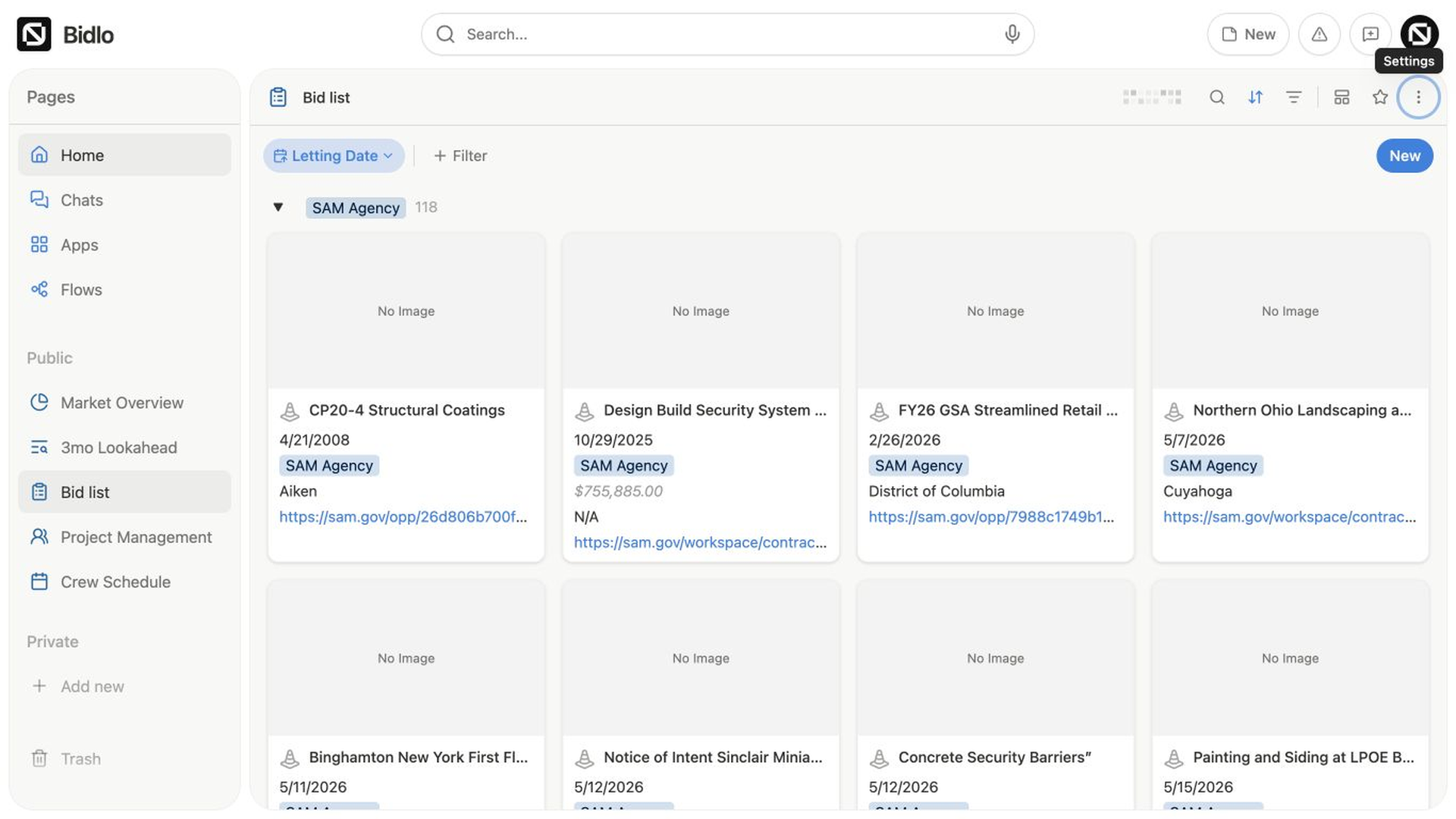
Each gallery card represents one record. The card can include a preview, its name, its icon, and the visible fields you choose for the view.
Card width comes from the Card size setting, and the grid automatically fits as many cards as the available space allows.
Choose the fields on each card
Use Fields in the view settings to keep the gallery focused.
- Open the view settings menu.
- Select
Fields. - Show the fields readers need to compare.
- Hide fields that add noise.
- Drag the visible fields into the order you want.
The record name remains the card's main label. Other visible fields appear below it when they have a value.
Choose a card preview
Open the view settings, select Layout, and choose Card preview.
| Preview | What the card shows |
|---|---|
None | No preview area. |
Icon | A large version of the record's icon. |
Banner | The banner saved on the record. |
Street View | A street-level image for the selected location field. |
Map Marker | A small map centered on the selected location field. |
When you select Street View or Map Marker, use Location field to choose which location supplies the preview.
If the field isn't configured, the card shows No Location Field. If the field exists but a record has no coordinates, the card shows No Location.
Adjust the card layout
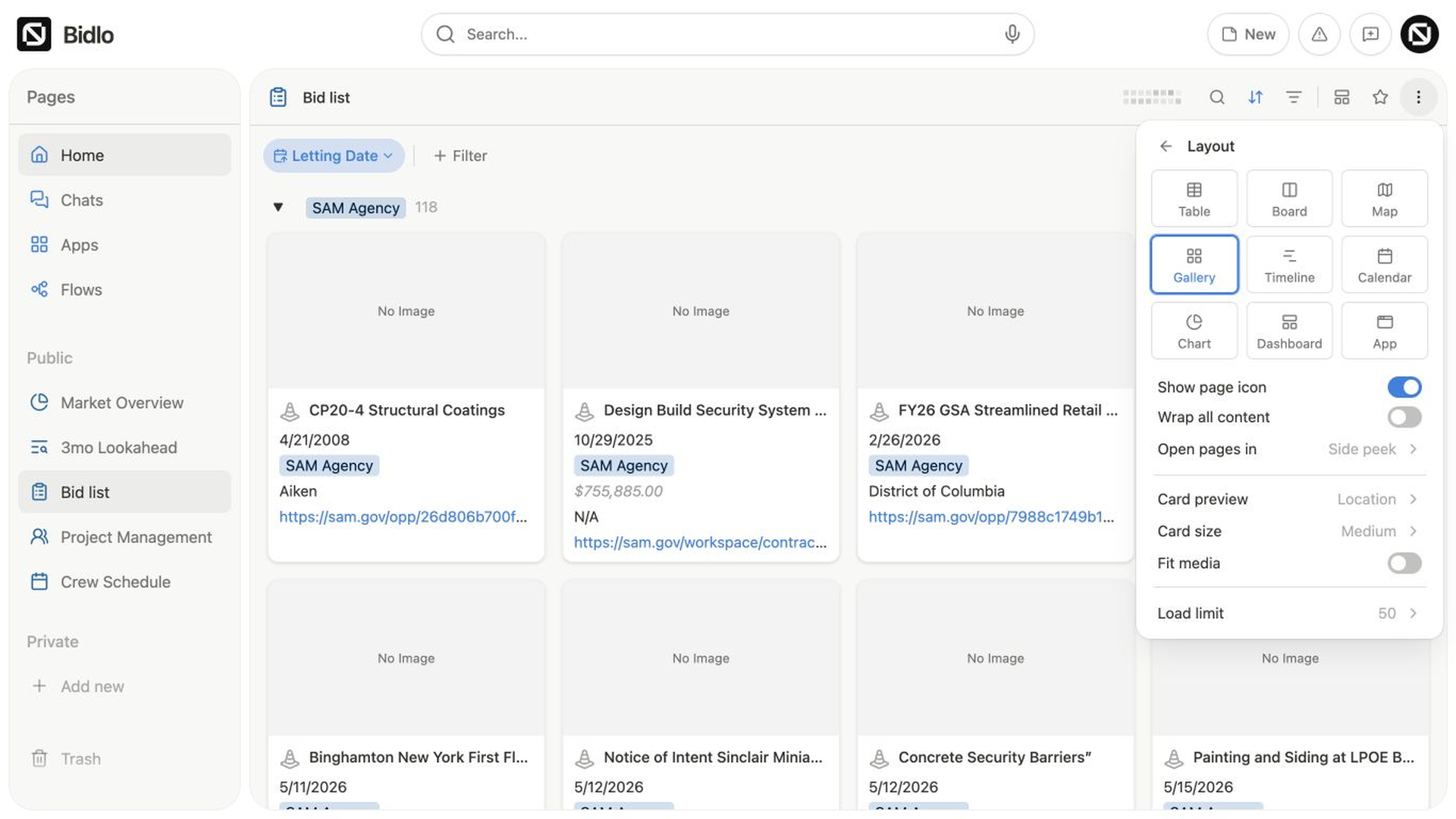
Gallery Layout settings include:
Show page iconshows or hides the small icon beside the record name.Wrap all contentallows longer card text to continue onto more lines.Open pages inusesSide peek,Center peek, orFull page.Card previewchooses the visual shown above the fields.Location fieldappears for location-based previews.Card sizeusesSmall,Medium, orLarge.Load limitcontrols how many records the view requests at once.
Add, open, and edit a record
To add a record:
- Select
New {collection}at the end of the gallery, such asNew project. - Enter the record name.
- Add any other visible field values.
The new card appears in the gallery when it matches the view's filters.
Select a card to open the record using the view's Open pages in setting.
To make a focused edit without leaving the gallery:
- Hover over the card.
- Select the pencil action.
- Change the record name or another visible field.
- Select outside the card when you're done.
The updated value remains on the card and appears in other views of the same collection.
Reorder and select cards
When the gallery has no active sort or view search, drag cards to change their manual order.
If an explicit sort or search is active, that rule controls the order, so manual dragging isn't available.
You can select several cards by dragging a selection box across empty gallery space. Hold Shift, Command, or Control while selecting to add to the current selection.
Group and refine a gallery
Use the common view settings to shape the gallery:
Filterslimits which cards appear.Sortcontrols card order.Groupdivides the gallery into sections.Conditional colorcan make matching cards stand out.
These choices belong to the gallery view. They don't change how another view of the collection is organized.
Related pages
FAQs
Why does a gallery card have no image?
Check the card preview setting and confirm the selected source contains an image or supported preview for that record.
Does changing the fields visible on a card change the record?
No. It changes which existing fields the gallery displays. Editing a field value from the record itself still updates the underlying record.