Calendar
Use a calendar to place records on dates, review a schedule at different scales, and reschedule work by dragging it.
Understand a calendar
A calendar places each record according to one date field. That field might be a letting date, due date, start date, or any other date your collection uses.
Records with a value in the selected field appear on the calendar. Records without one stay available under No date so you can schedule them without leaving the view.
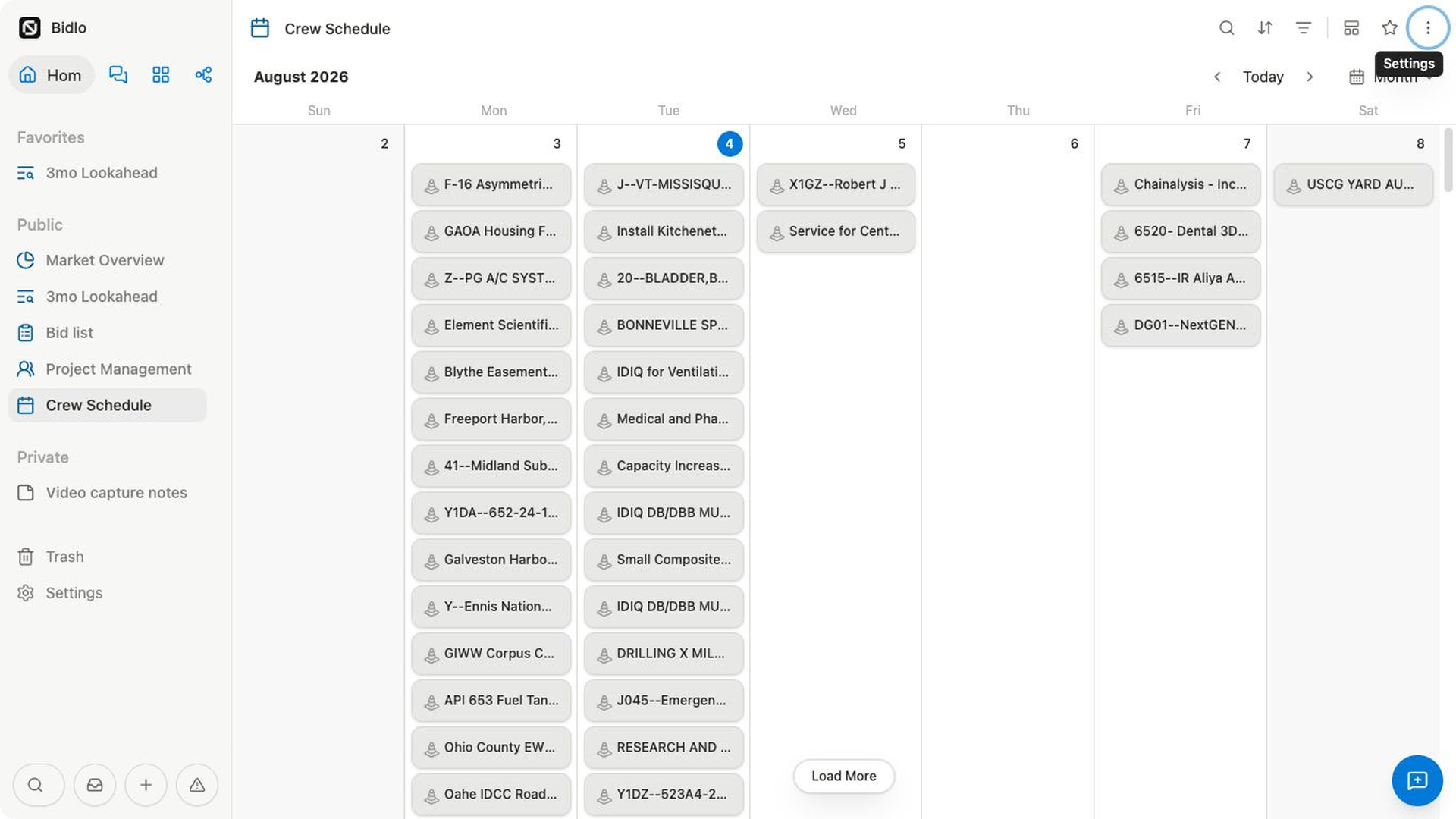
Choose the date field
The selected date field determines where every record appears.
- Open the view settings menu.
- Select
Layout. - Confirm that
Calendaris selected. - Open
Show calendar by. - Choose a date field from the collection.
The calendar redraws using that field. If a record doesn't have a value for the selected field, it moves to No date.
Choose a calendar range
Use the range selector in the calendar header or Show calendar as in Layout settings.
| Range | Best for |
|---|---|
Schedule | Reading upcoming records as a chronological list, with all-day and timed items ordered within each date. |
Week | Planning timed work across a seven-day, hour-by-hour grid. |
Month | Scanning dates and multi-day ranges across several weeks. |
Year | Seeing longer-range timing across months in a compact grid. |
Use the left and right arrows to move through time. Select Today to return to the current date.
Add a record on a date
In Month or Year, hover over a date to reveal its add control.
- Find the date you want.
- Select the
+control in that date. - Enter the record name.
- Add any other fields needed for the work.
The new record appears on the chosen date because Bidlo fills the calendar's selected date field.
In Week, select empty space at the time where work should begin. The new record starts there with a short time range that you can resize.
Schedule records from No date
No date lists records that don't yet have a value in the selected date field.
- Select
No date. - Search for the record if needed.
- Drag the record from the list onto a date or time in the calendar.
Bidlo saves the drop location to the calendar's date field, and the record moves out of No date.
Move or extend scheduled work
Drag a calendar card to reschedule it. If the card covers a date range, Bidlo keeps its duration when you move it.
Use the range handles on a multi-day card to change its start or end date. In Week, drag a timed card to another day or time, or drag its lower handle to change the end time.
When you select several visible cards, dragging one of the selected cards moves the selection together.
Choose what calendar cards show
Use Fields in the view settings to choose the details shown on calendar cards.
Then open Layout for calendar-specific controls:
Show page iconshows or hides each record's icon.Wrap page titlesallows longer record names to continue onto another line.Show calendar bychooses the date field.Show calendar aschoosesSchedule,Week,Month, orYear.Open page inusesSide peek,Center peek, orFull page.Load limitcontrols how many records the view requests at once.
Select a card to open its record using the chosen Open page in behavior.
Related pages
FAQs
Why is a record listed under No date?
It does not have a value in the date field selected for the calendar. Add a date or choose the intended date field.
Does dragging a card change the record?
Yes. Dragging updates the underlying date value, so other views using that field will show the new date.