Filter, sort & group
Use filters, sorts, and groups to shape a view around the question you need to answer without changing the records in its collection.
Understand the three controls
Each control changes a different part of the selected view:
| Control | What it changes | Example |
|---|---|---|
| Filter | Which records appear | Show items due this month |
| Sort | The order records appear in | Put the earliest due date first |
| Group | How records are divided into sections | Gather items by status |
These settings belong to the view. Another view of the same collection can use different filters, sorts, and groups.
Filter records
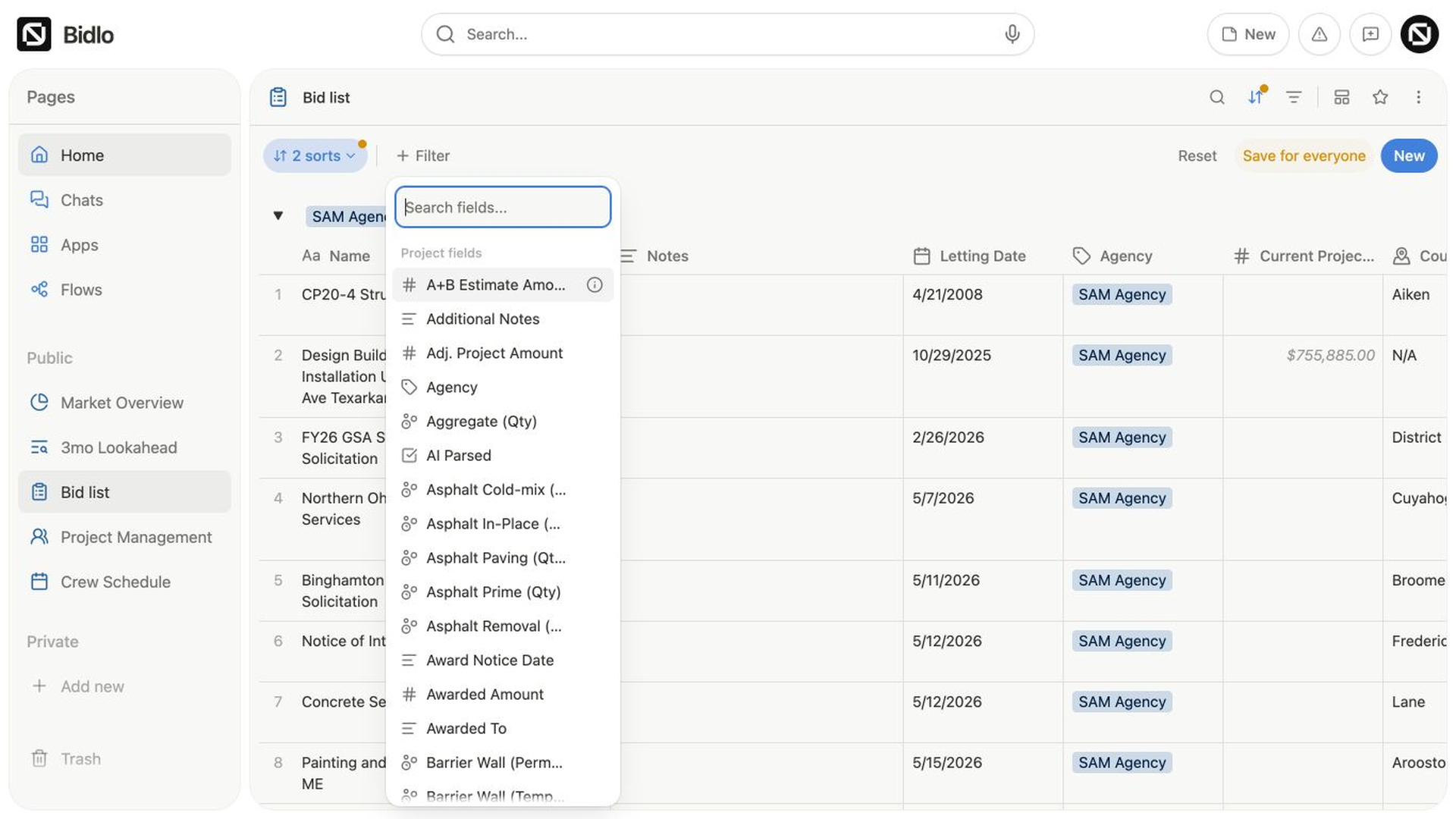
A filter tests one field against a condition. The available conditions depend on the field: text can contain a word, numbers can be above or below a value, dates can be before, after, between, or relative to today, and locations can be inside or outside a distance, area, or travel-time range.
To add a filter:
- Open the view settings menu.
- Select
Filters. - Select
Add filter. - Choose the field you want to test.
- Choose a condition, then enter or select its value.
The view updates to show the records that match. The active filter also appears in the sort and filter bar, where you can reopen it and change its condition.
Combine filters
Filters require all conditions by default. For example, Status is Open and Due date is Is on or before Friday shows records that meet both conditions.
Turn on Match any inside a filter when that condition should join an either/or set with other Match any filters. Bidlo then includes a record when it matches any condition in that set.
To manage active filters:
- Drag filters in
Filtersto reorder them. - Select
Clear filterto reset a filter but keep its field available. - Select
Remove filterto remove one condition. - Select
Remove all filtersto clear every filter from the view.
Sort records
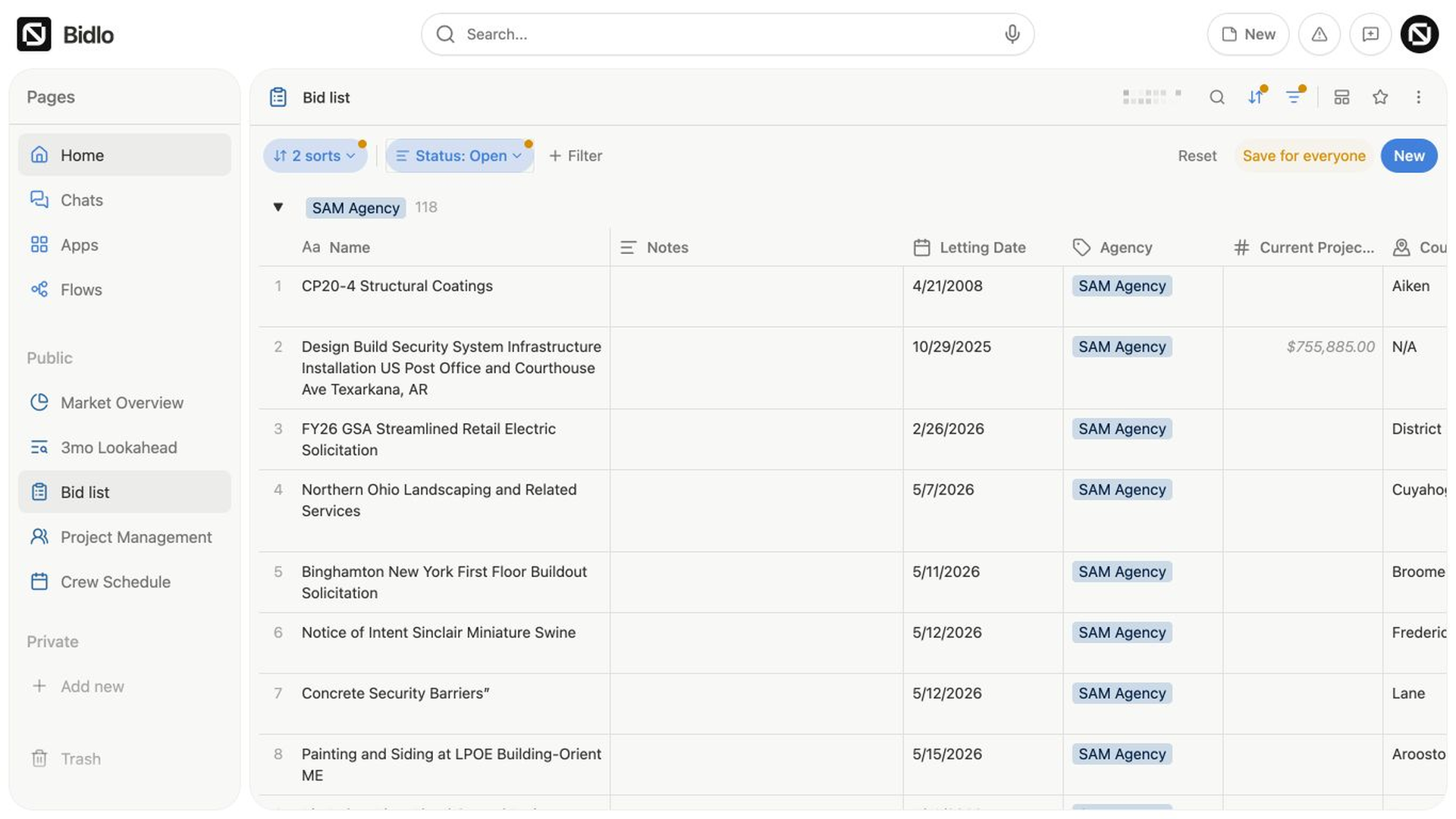
A sort orders records by one field. Bidlo uses labels that match the field, such as A → Z, Low → High, Oldest first, or Near → Far.
To add a sort:
- Open the view settings menu.
- Select
Sort. - Select
Add sort. - Choose a field.
- Choose its direction.
The view rearranges its records. To change the direction later, open the sort in the sort and filter bar or return to Sort in view settings.
Use more than one sort
When you add several sorts, their order sets their priority. Bidlo applies the first sort, then uses the next one to order records with the same first value.
Drag sorts into the order you want. Use the remove button beside one sort, or select Remove all sorts to return to the view's manual order.
Group records
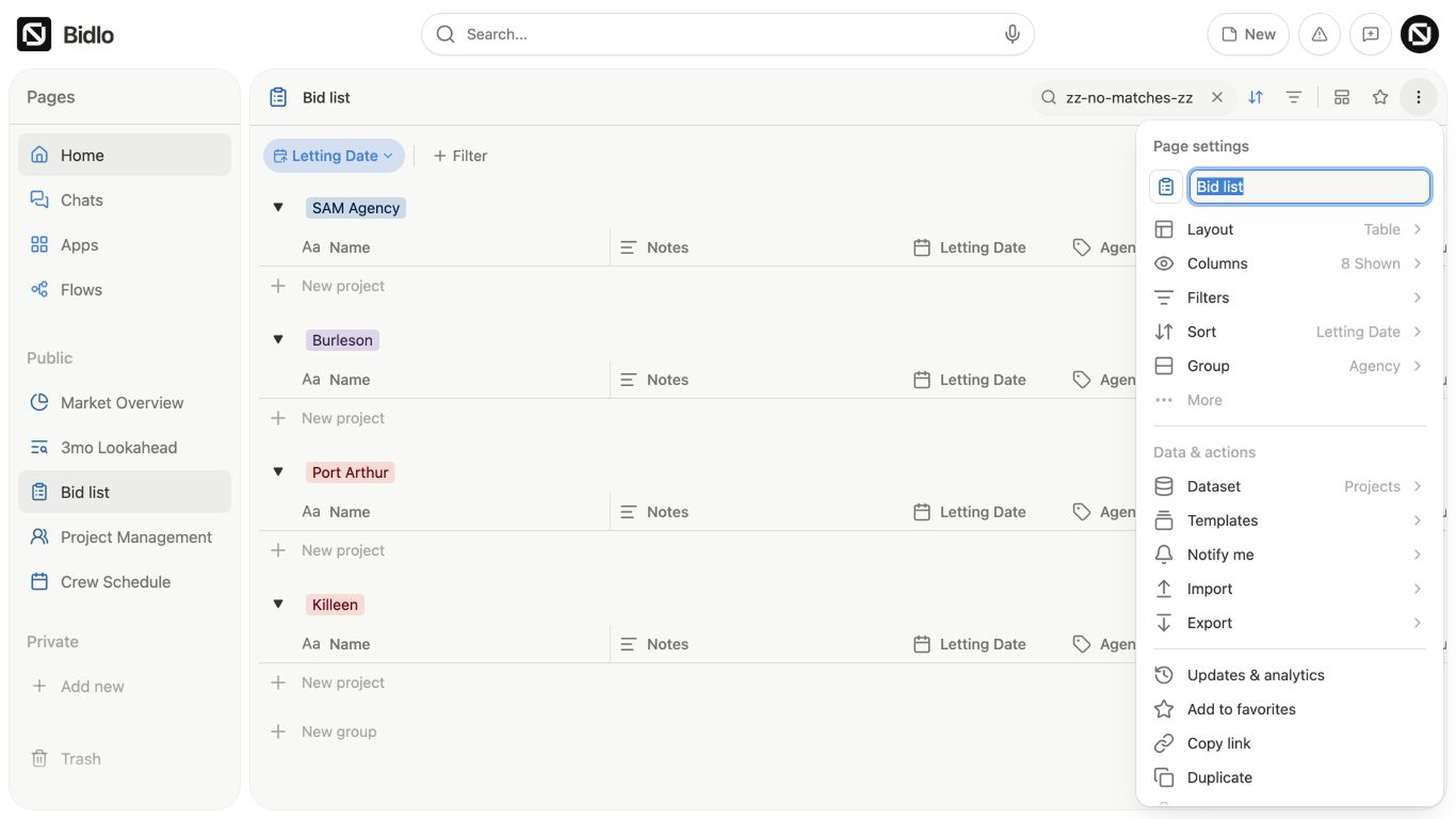
Grouping divides records into sections based on a field. It changes the presentation of the view, not the values on the records.
To create a group:
- Open the view settings menu.
- Select
Group. - Select
Group by. - Choose a field.
- Set the grouping options that appear for that field.
The view creates a section for each value, including a no-value section when records have no value in the grouped field.
Grouping options depend on the field:
- Text can group by
Exactvalue orAlphabeticalfirst character. - Dates can group by
Relative,Day,Week,Month, orYear. - Numbers use ranges that you configure under
Number by. - Tags, people, relations, states, and counties group by their options or linked records.
- Checkboxes create checked and unchecked groups.
You can also change Order, turn on Hide empty groups, hide or show individual groups, or use Hide all and Show all. Choose Manual order, when available, to drag groups into a custom sequence.
Remove grouping
Open Group in view settings and select Remove Grouping. Bidlo returns the records to one ungrouped view; it doesn't remove or change the field values that created the groups.
Save filters and sorts on a public page
When you change filters or sorts on a public page, the changes are visible only to you at first. Other people continue to see the current shared setup until you select Save for everyone.
This lets you explore a different slice of the same records without changing the page for everyone else.
Share your changes with everyone
- Add or update the filters and sorts you want.
- Review the records that remain and the order in which they appear.
- Select
Save for everyone.
The current filter and sort setup becomes the shared version of that public page.
Discard your personal draft
Select Reset when you want to remove your personal filter and sort changes.
The page returns to the current shared setup.
Your active search isn't part of the saved setup. Clear the search separately when you want to see all records allowed by the shared filters.
Related pages
FAQs
Do filters, sorts, and groups change the underlying records?
No. They change how the selected view presents its collection. Removing a group, for example, does not remove the field values that created it.
Why can’t I manually reorder a table?
You cannot manually reorder a table when a field-based sort is active. Remove the sort when you want row position to be controlled manually.