Table
Use a table to compare records field by field, make focused edits, and summarize a large set of work.
Understand a table
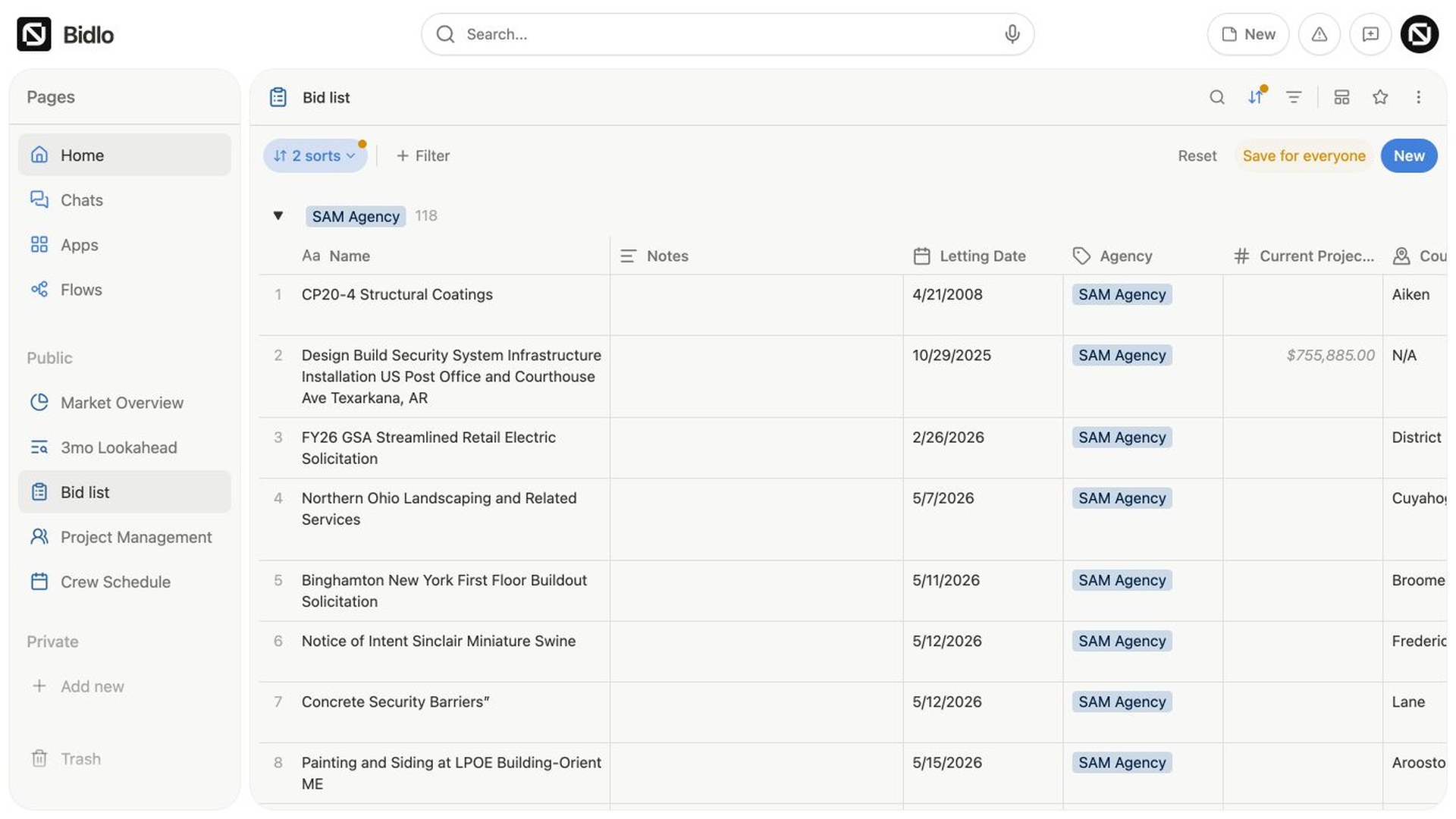
A table turns a structured set of records into a familiar grid:
- Each row is one record.
- Each column is one field shown for those records.
- A group heading gathers records with a shared value.
- A calculation summarizes the records or values in a column.
The Bid list below groups project records by Agency, keeping each group's field columns and record count together in one scannable table.
Open and edit a record
Select a record's name to open its details. Depending on the table's `Open page in setting, the record opens in Side peek, Center peek, or Full page`.
To edit a value without leaving the table:
- Find the record and field you want to change.
- Select the cell.
- Enter or choose the new value in the editor that appears.
- Move to another cell or close the editor.
The table shows the saved value in that cell. The available editor depends on the field type, such as text, number, date, tag, relation, or person.
Add a record
Tables provide a New button above the records and a New {collection} row inside the table, such as New project items.
- Select
NeworNew {collection}. - Enter the record's name.
- Complete the fields needed for your workflow.
- Close the record when you're done.
The new record appears in the current table when it matches the view's active filters.
Work with columns
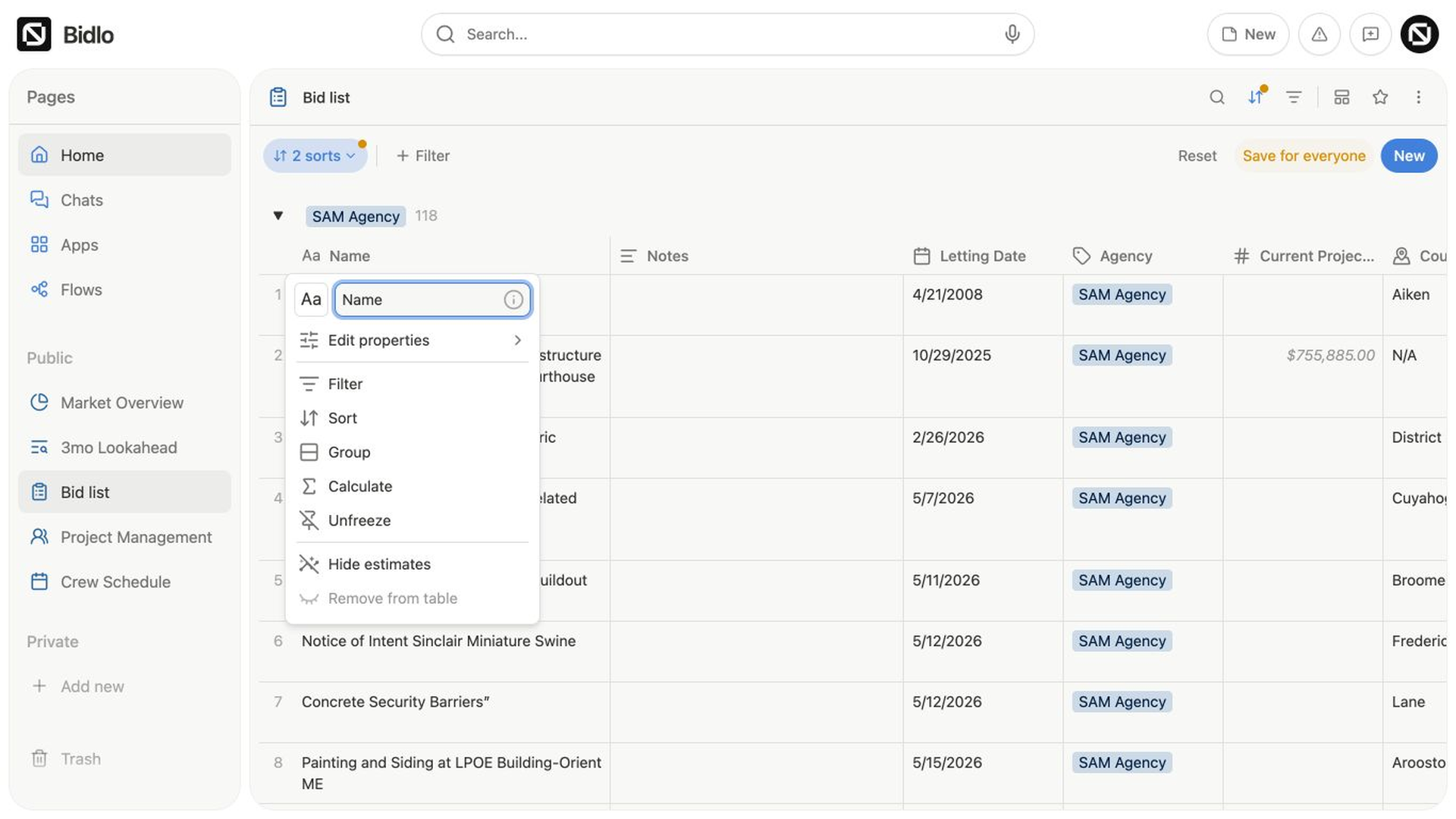
Select a column header to open the actions for that field. From this menu, you can edit its properties, filter, sort, group, calculate, freeze columns, hide estimates, or remove the field from the table.
Show, hide, and reorder columns
Use Add column at the right edge of the header row when you need a field that isn't currently visible.
The column settings divide fields into Visible in table and Not in table.
From there, you can:
- Search for a field.
- Drag visible fields into a new order.
- Use
Hide allorShow all. - Open the
Glossary. - Select
New fieldto create a field.
The table's title field can't be removed. Its menu shows Can't remove title when that restriction applies.
Freeze columns
Use Freeze up to here in a column menu to keep that column and every column to its left visible while you scroll horizontally. Open a frozen column's menu and select Unfreeze to release it.
Customize the table layout
Open the view settings menu, then select Layout. Table layout settings include:
Show vertical linesWrap textShow page iconShow row numbersOpen page in
Open page in supports Side peek, Center peek, and Full page. Choose the option that gives you enough record detail without losing the context you need from the table.
Select and update several rows
Hover over a row to reveal its checkbox. Select several rows to open bulk actions for those records.
- Select the checkbox beside each record you want to include.
- To select a continuous range, select the first row, hold
Shift, and select the last row. - Use the bulk actions to update a visible field or choose another supported action.
Bulk actions can include Copy, Copy as CSV, Download as CSV, `Add to favorites, and Delete selected items`.
Reorder rows
Drag a row to change its manual order when the table has no active sort or search.
If drag-to-reorder isn't available, check whether the view has an explicit sort, an active search, or sub-items. Those states control row order, so Bidlo disables manual reordering.
Add calculations
Calculations appear at the bottom of a table or group and summarize the records currently included there.
- Select the column header.
- Select
Calculate. - Choose the calculation you need.
Available calculations depend on the field:
- Any supported field can use
Count all,Count values,Count unique,Count empty,Count not empty,Percent empty, orPercent not empty. - Number fields can also use
Sum,Average,Median,Min,Max, orRange. - Date fields can also use
Earliest date,Latest date, orDate range.
The result appears in the calculation row. In a grouped table, each group can show its own result.
Related pages
FAQs
Why can’t I edit a value directly in the table?
Some connected fields are read-only in that location. Open the record or review the source connection instead of creating a duplicate field.
Does deleting selected rows remove only those rows from the view?
No. Delete selected items permanently deletes the selected records, not just their appearance in the current table.