Manage fields
Add the details your records need, then choose which fields appear in each view and in what order.
Understand fields and views
A field defines one kind of information that records in a collection can store, such as a date, number, person, location, or status. Adding, renaming, duplicating, or deleting a field changes the collection's shared structure.
Each view keeps its own list and order of visible fields. Hiding a field from a view does not delete the field or its values.
Open field settings
- Open a view connected to the collection you want to change.
- Open the view settings.
- Select
Columnsin a table view orFieldsin another layout.
Visible in {layout} lists fields shown in the current layout. Not in {layout} lists fields that belong to the collection but are hidden from this view.
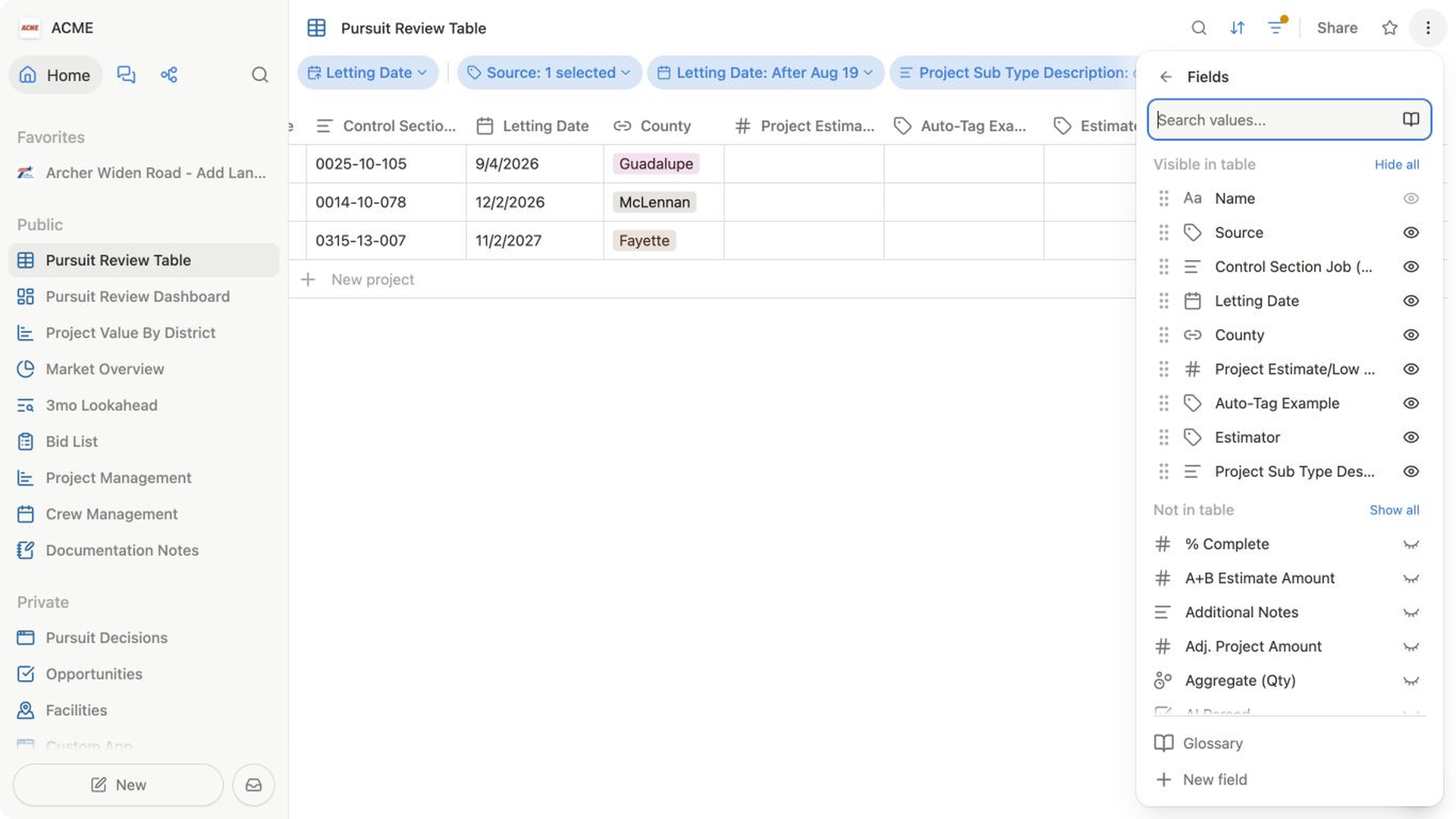
Add an existing field to a view
- Open
ColumnsorFields. - Find the field under
Not in {layout}, or search for it by name. - Select the field to add it to the current view.
Select Show all to add every available collection field to the current view.
Create a field
- Open
ColumnsorFields. - Select
New field. - Choose a field type.
- Replace the default name with a clear, specific name.
- Optionally choose an icon, add a description, and complete settings for the selected type.
The field belongs to the view's collection and is added to the current view.
Other views can add it from Not in {layout}.
Reorder fields in a view
- Open
ColumnsorFields. - Under
Visible in {layout}, drag a field by its handle. - Drop it where you want it to appear.
The order applies to the current view. It does not reorder the field in every view that uses the collection.
Hide or show fields
- Open
ColumnsorFields. - Under
Visible in {layout}, select the eye control beside the field.
To show it again, select the field under Not in {layout}. You can also select Hide all or Show all to update the list in one action. Hide all leaves the required title field visible.
In a table, Remove from table in a column header menu also hides that field from the table without deleting it.
Edit, duplicate, or delete a field
Hover over a field in Columns or Fields, then select Edit field to change its name, icon, description, visibility, or type-specific settings.
To make a similar field:
- Open
Edit fieldfor the field you want to copy. - Select
Duplicate. - Rename the copy and review its settings.
Duplicating copies the field definition, not the values stored in the original field. If the copy is hidden, choose Show in {layout}.
To permanently remove a field:
- Open
Edit field. - Select
Delete. - Read the confirmation, then select
Deleteonly when the field is no longer needed.
Related pages
FAQs
Why does a field appear in one view but not another?
Each view has its own visible-field list. Open Columns or Fields in the view where the field is missing, then add it from Not in {layout}.
Does hiding a field delete its values?
No. Hiding or removing a field changes only the current view. The field and its stored values remain part of the collection.
Should I duplicate a field when I want another view?
No. Create another view when you want a different layout, order, or set of visible fields for the same records. Duplicate a field only when the collection needs another, separate place to store similar information.