Public & private pages
Choose whether a page belongs to your team or only to you, and change that audience carefully when the work is ready.
Understand page visibility
The public and private page sections describe who can reach a page inside your Bidlo team:
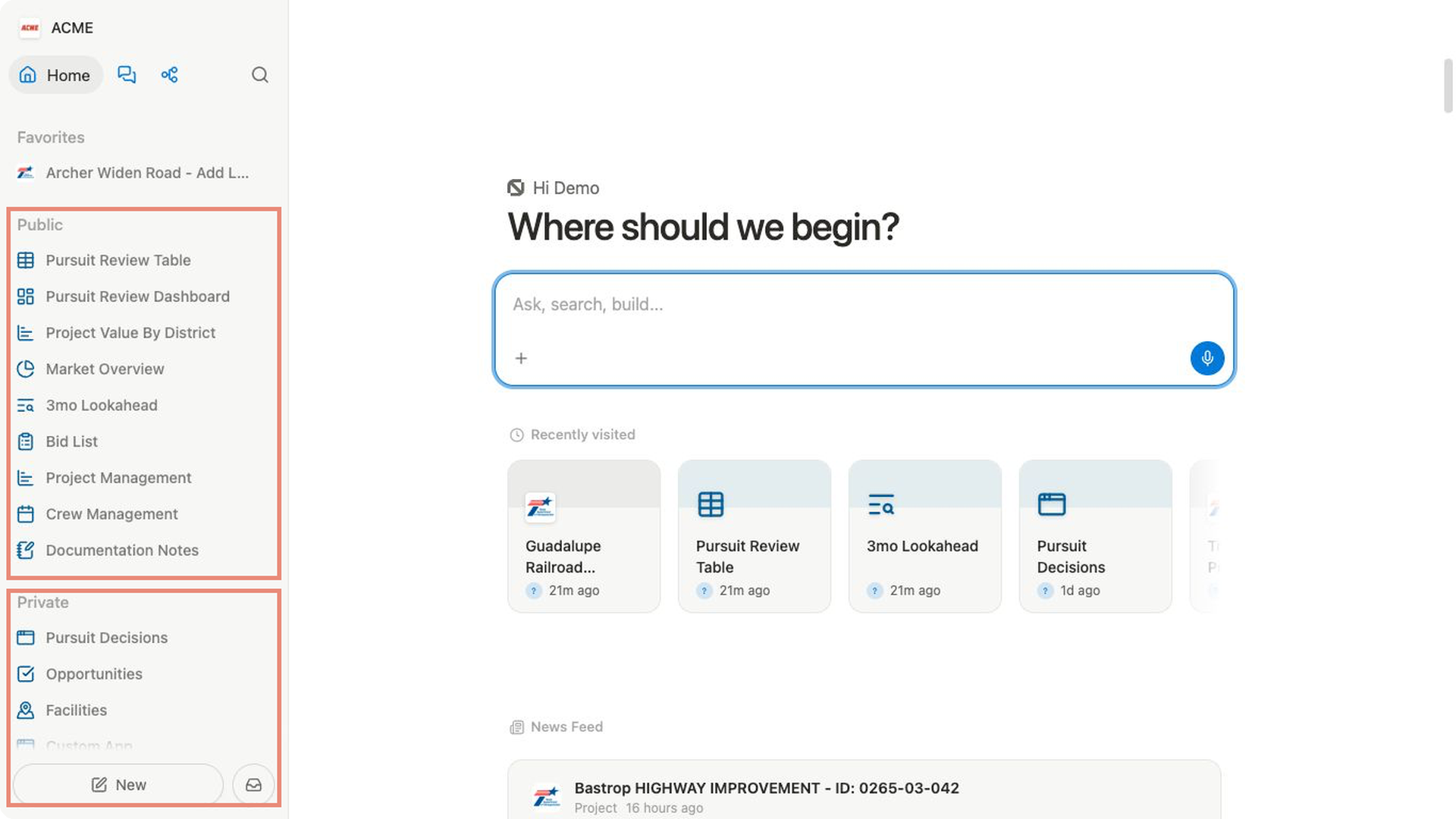
publicpages are accessible to your entire team. Use them for shared plans, lookaheads, reference material, dashboards, and other team work.privatepages are personal pages restricted to you. Use them for drafts, notes, exploratory analysis, and work that is not ready for teammates.
This choice also controls where the page appears in the sidebar. A page can be nested under another page in the same section.
Create a page in the right section
- Find
publicorprivatein the sidebar. - Hover over the section heading and select
+. - Choose
Note, a view such asTableorBoard,Dashboard, orFile upload. - Name the new page and add your content.
- Check that the page appears in the section you intended.
The header’s New → Note path creates a private note by default. Use the section’s + control when you need to choose the location first.
Make a private page public
Moving a private page to public makes the page and its nested pages available to your team.
- Expand the page in the sidebar and review any nested pages.
- Check the page for information that should remain personal.
- Drag the page from
privatetopublic. - Drop it at the top level or beneath a public parent.
- If the page contains an embedded app and Bidlo asks
Publish app to your organization?, review every listed app. - Select
Cancelto stop, or selectPublish and continueonly when the page and editable apps should be available to your organization. - Check that the page appears under
public.
Make a public page private
Moving a public page to private removes the page and its nested pages from the team’s public page list and restricts them to you.
- Expand the page and review its nested pages.
- Drag the page from
publictoprivate. - Drop it in
privateat the top level or beneath a private parent. - Check that it now appears under
private.
Tell collaborators before removing shared work they may still need. Moving a parent changes the visibility of its nested page tree as well.
Show or hide the sections
Hiding a section changes your sidebar only. It does not move pages or change who can open them.
- Select
Settingsin the sidebar. - Under
Account, selectPreferences. - Under
Sidebar, turnPublic pagesorPrivate pageson or off. - Return to the workspace and check the sidebar.
You can turn the switch back on whenever you need the section.
Related pages
FAQs
Is a public page available on the internet?
No. In this context, public means accessible to your entire Bidlo team. It is not anonymous internet publishing.
Does adding a private page to Favorites make it public?
No. Favorites is a personal shortcut. The page remains in private and its visibility does not change.
What happens to nested pages when I move a parent?
The parent and its nested page tree move together. Review the full tree before moving it between private and public.
Why can’t a teammate open an app on a public page?
The page and an embedded custom app can have separate visibility. An app that you cannot publish stays private even when its page becomes public; ask the app’s owner or an editor to publish it when the team needs access.
Can I make a project record private?
A project record belongs to its team collection, so moving a sidebar page does not make that record private. Keep personal analysis on a page in private.
Can I hide Public or Private without changing page access?
Yes. Turn Public pages or Private pages off under Settings → Preferences → Sidebar. This changes only your sidebar display.