Files & links
Keep plans, specifications, bid sheets, reference documents, and useful links close to the Bidlo work they support.
Understand file documents
An uploaded file or embedded link becomes a file document in Bidlo. A record's Files view keeps those documents with the project, contractor, facility, or other record they support.
Add files to a record
- Open the record that the files support.
- Select its
Filestab. - Select
New Fileat the end of the file list. - Choose one or more files from your device.
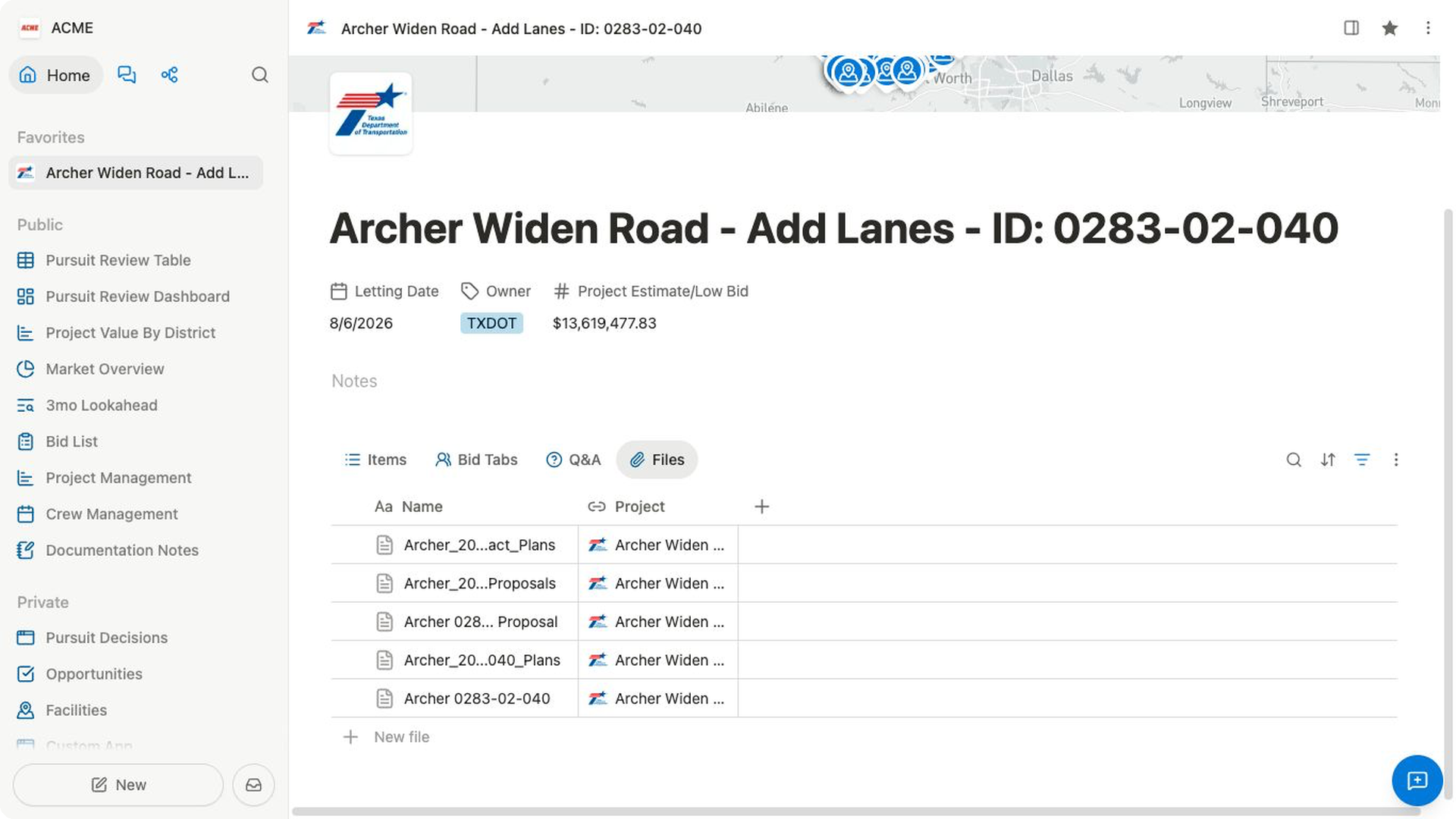
New File opens your device's file picker immediately and accepts multiple files. Bidlo creates a file document for each file you choose and shows upload progress without first opening a blank document.
The uploaded files appear in the record's Files view. Select a file to open it in the side panel without losing the record behind it. Use Search when you need to find a file in a longer list.
Attach a file to a new file document
If you create or open a file document before attaching a source, the document asks you to choose a file. Select the file from your device to begin the upload.
Upload a folder
The workspace File upload menu can also show Choose a folder.
- Open the workspace file upload menu.
- Select
Choose a folder. - Choose the folder from your device.
Bidlo recreates the folder structure as nested pages and places each uploaded file under its corresponding parent.
Save a linked file or webpage
- Open a file upload dialog that provides
UploadandLinktabs. - Select the
Linktab. - Enter the address in
Paste a file link.... - Select
Embed link.
Bidlo adds https:// when the address doesn't already include a web protocol. The saved link opens as a file document.
The link flow supports common destinations such as PDFs, Google Drive, and Google Maps. Access and preview behavior depend on the destination.
Open or download a file
To review a file without leaving its record:
- Open the record and find its
Filesarea. - Select the file name.
- Review the file in the side panel.
- Select
Open in full pagewhen you need more space, orClose panelto return to the record.
To save a copy to your device, open the file's action menu and choose the available download action. For example, download a bid sheet when you need to work with it in its original spreadsheet application; open a PDF in the side panel when you only need to check a specification beside the project.
Choose between a file, link, and note embed
- Add a file document when teammates need a durable source they can find, open, or download.
- Add a linked file when the source is maintained elsewhere.
- Embed media in
Noteswhen it supports the narrative and doesn't need its own place in the record's file list.
Related pages
FAQs
Does uploading a file guarantee that Bidlo can preview or read it?
No. Storage, preview, import, and AI-readable content are separate capabilities and can vary by file type.
Why can someone open the Bidlo file document but not its external link?
Access to an external destination still depends on that service’s sharing settings. Sharing the Bidlo record does not change the linked service’s permissions.