Record notes
Use a record's Notes area to keep decisions, context, and working details beside the structured fields and views they explain.
Understand record notes
Notes are rich text attached to one record. Project, contractor, and facility records can show the notes editor near the top of the page, while structured fields and related views remain available around it.
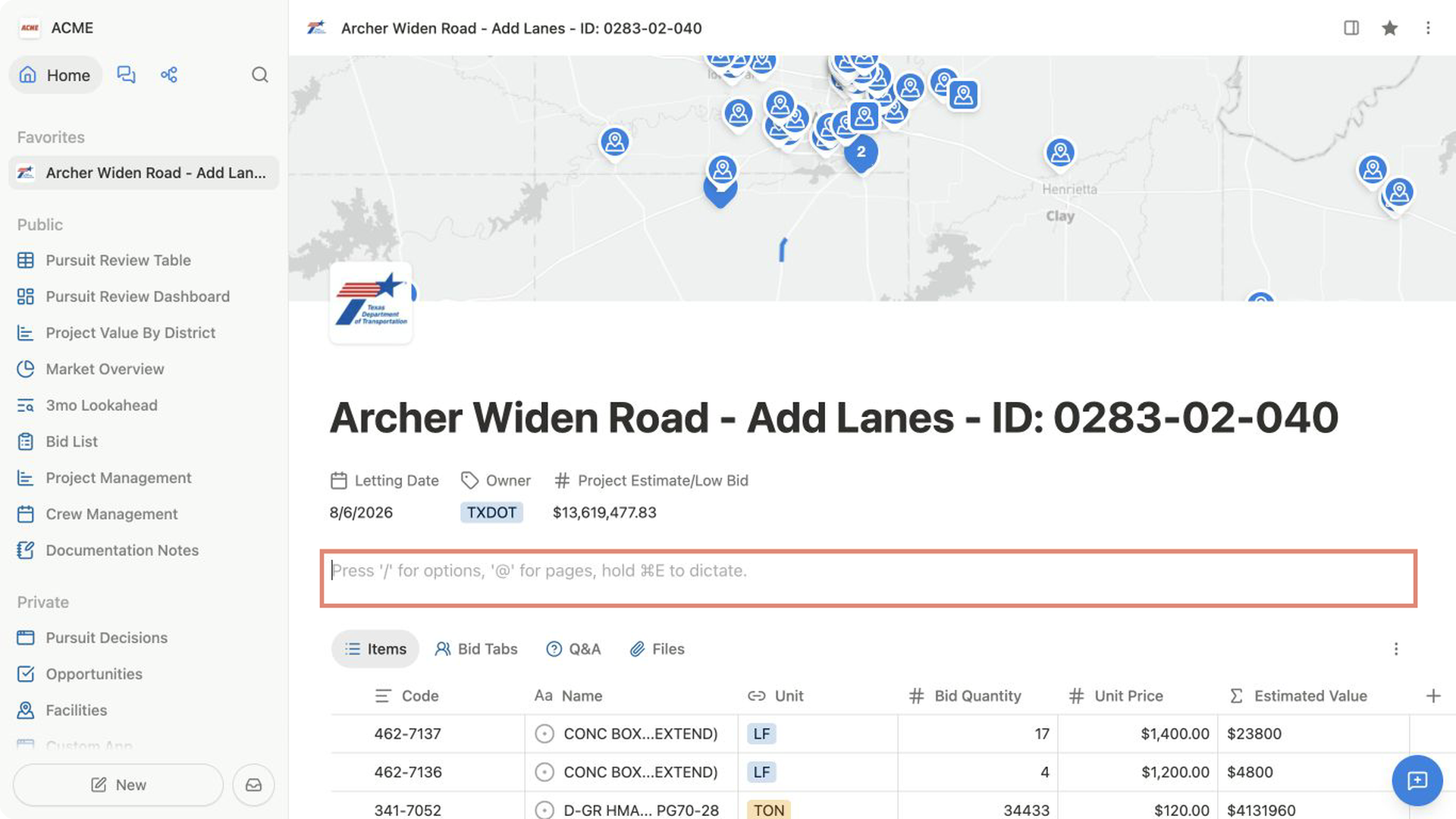
Use notes for information that benefits from explanation or formatting. Use a field when the value needs to be filtered, sorted, grouped, calculated, or shown consistently across many records.
For example, keep a bid date in a Date field and use Notes to explain why the date changed.
Write a note
- Open the record.
- Select the
Notesarea. - Enter your text.
- Click elsewhere when you're done.
Bidlo saves content automatically after you stop typing. Return to the record to continue editing the same note.
Format the note
Highlight text to open formatting controls. You can add emphasis, change block styles, or create a link.
Type / on an empty line to open the content menu. Available choices include:
- headings and paragraphs;
- bulleted, numbered, and checklist items;
- callouts, quotes, dividers, and collapsible toggles;
- tables;
- images and file attachments;
- bookmarks and videos; and
- page mentions.
Continue typing after / to narrow the list, then choose the content type you want.
Mention another page
Use a page mention when the note should point to another Bidlo document without copying its contents.
- Place the cursor where the reference should appear.
- Type
/and choose the page or mention option. - Search for the document.
- Select the result.
The note displays a linked mention. Readers still need access to the mentioned document to open it.
Add media or a file
Choose the relevant option from the / menu:
Imageopens a local image picker.Bookmarksaves a web address as a visual link.Videoembeds a supported video URL.Fileattaches an uploaded file.
Use a short line of text before the media to explain why it's relevant. For project plans, specifications, and other source documents that teammates need to find independently, also consider the record's Files area.
Choose Notes, a field, or a view
Use this rule of thumb:
- Choose
Notesfor narrative context and formatted working content. - Choose a field for one consistent value that should travel with every record.
- Choose a view to compare, filter, group, or summarize records from a collection.
The three surfaces complement each other. A project can use fields for bid status, Notes for the review narrative, and an Items table for related work.
Related pages
FAQs
When should I use Notes instead of a field?
Use Notes for narrative context, decisions, and working details. Use a field when the value should be structured, filtered, sorted, grouped, or reported across records.
Can everyone who opens the note follow a mentioned page?
Only if they already have access to that page. A mention creates a link; it does not grant permission.