Relations
Link records across collections so related information stays connected without being copied.
Understand relations
A relation field connects a record in one collection to records in another collection. For example, a Contractor relation on Projects can link each project to the appropriate record in the Contractors collection.
The linked contractor remains its own record. The relation stores the connection, so you can open the contractor, show selected details in the relation picker, and use the connection in views or formulas.
A relation is one-way by default. Turn on Two-way relation when the related collection should also show the connection. In the example above, Bidlo adds a relation field to Contractors that points back to Projects.
Create a relation field
- Open a view connected to the collection where you want the relation.
- Open the view settings.
- Select
Columnsin a table orFieldsin another layout. - Select
New field, then chooseRelation. - Under
Link existing, choose the collection you want to connect. - Rename the field so its purpose is clear.
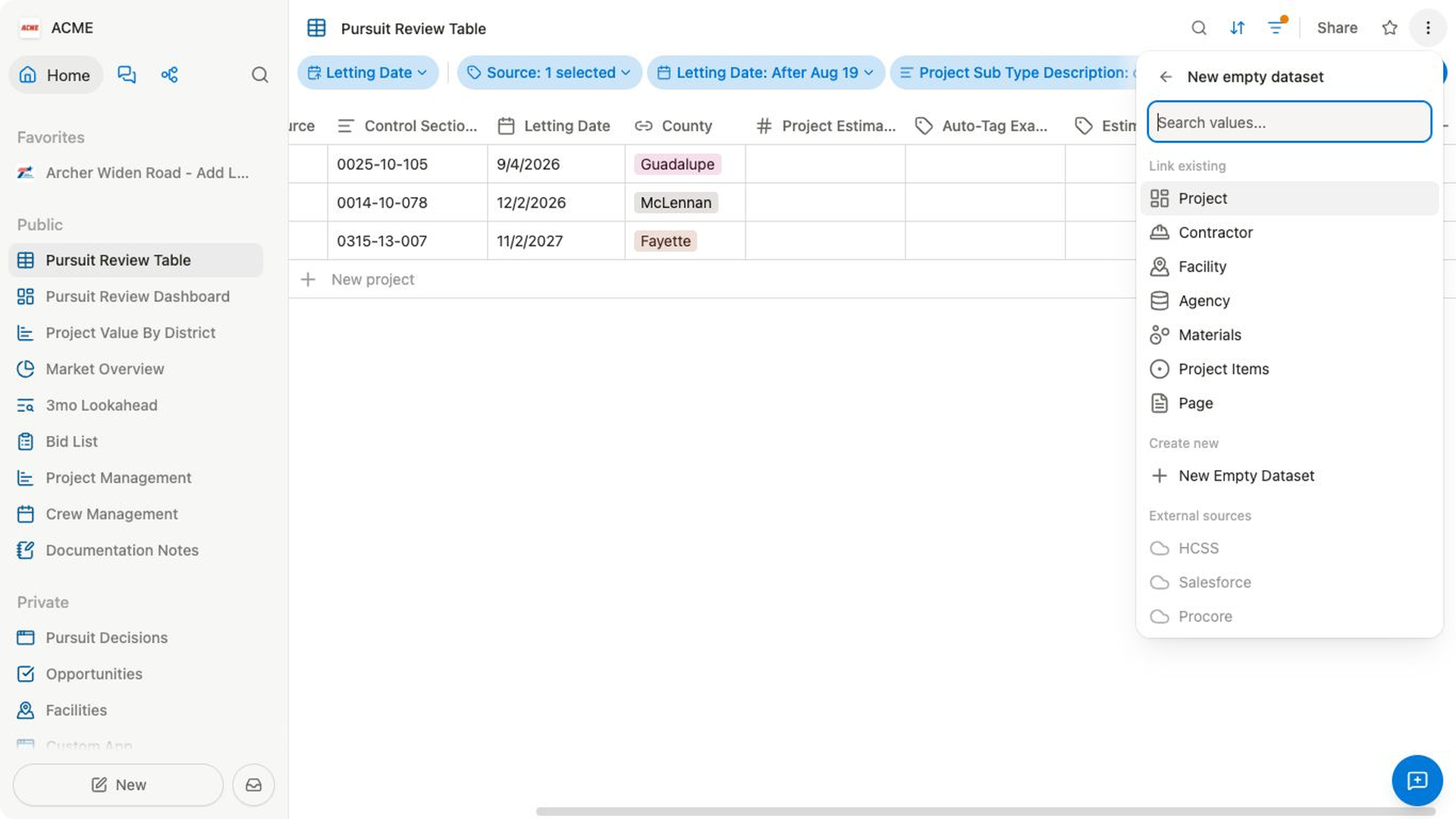
If the related collection does not exist, enter its name under Create new. For example, while adding a Contractor relation to Projects, enter Contractors and choose the create option. Bidlo creates the Contractors collection and connects the new relation field to it.
Choose one or many linked records
Open Edit field for the relation, then use Limit:
No limitlets each record connect to multiple records.Only onelimits the field to a single linked record.
For example, set a project's Primary facility relation to Only one, because each project should select one primary facility. Set its Bidders relation to No limit, because several contractor records can be connected to the same project.
Add or remove linked records
- Open the record or select its relation cell in a table.
- Select the relation field.
- Search for a record in the related collection.
- Select a result to link it.
With No limit, select additional results to create more links. Select an already linked result or its remove control to remove that connection. With Only one, choosing another result replaces the current selection.
If the record you need does not exist, enter its name and select Create.
Bidlo creates it in the related collection and links it to the current record.
Add a reverse relation
- Open
Edit fieldfor the original relation. - Select
Two-way relation. - Turn on
Enable. - Enter a clear
Related property namefor the field that Bidlo adds to the related collection.
The reverse field reflects the same connections from the other collection. If a Project links to a Contractor, the contractor's reverse field can show that project.
To remove the reverse field, open Two-way relation, turn off Enable, and review the confirmation. Removing it deletes the named reverse field from the related collection.
Related pages
FAQs
Does a relation copy the related record?
No. The field points to the existing record in the related collection. Edit the related record when its own details need to change.
Why can I not select more than one record?
The relation's Limit is probably set to Only one. Change it to No limit if the relationship should allow several records.
What does a two-way relation add?
A one-way relation shows the connection on the collection where you created the field. A two-way relation also adds a field to the related collection so you can see the same connection from either side.