Formulas
Use a formula field when Bidlo should calculate a value from information that already exists on a record.
Understand formula fields
A formula is a shared field in a collection. You define its expression once, and Bidlo evaluates that expression for every record in the collection.
For example, a Projects collection could use a formula to flag overdue bids:
if({Bid date} < today(), "Overdue", "Upcoming") The fields inside braces are references to other fields in the same collection.
When a referenced value changes, Bidlo recalculates the formula result. Every view that shows the formula field reads the same result.
Create a formula field
- Open a view connected to the collection you want to update.
- Open the view settings.
- Select
Columnsin a table orFieldsin another layout. - Select
New field, or select the+at the end of the table's column headers. - Choose
Formula. - Give the field a name that describes its result.
- Open
Edit formula.
The Edit formula window opens with an expression editor, field and function suggestions, and a preview.
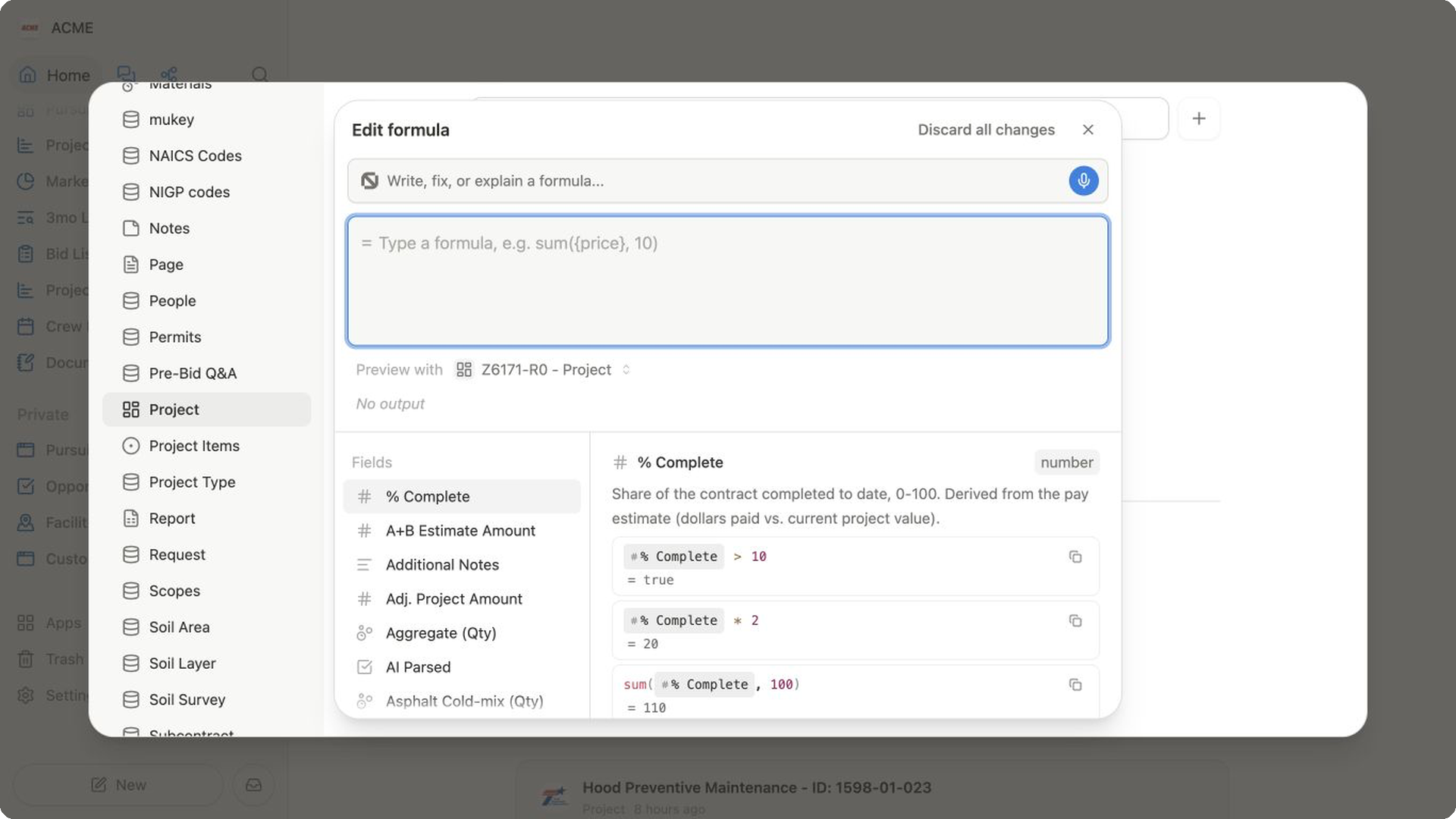
Write and preview a formula
- Enter an expression in the formula editor. Bidlo displays the leading
=for you. - Select fields, operators, or functions from the suggestion list as you type.
- Under
Preview with, choose a record that has representative values. - Check the previewed result and its output type.
- Close the editor to save the expression.
The formula is applied to the collection. Bidlo recalculates its values and shows progress while a larger update is running.
Ask Bidlo AI for help
Use the prompt at the top of Edit formula when you know the outcome you want but not the exact expression.
- Enter a concrete request in
Write, fix, or explain a formula.... - Include the intended result and the fields the formula should use.
- Submit the request.
- Review the generated expression and preview before you close the editor.
For example: “If Bid date is before today and Status isn't Submitted, return Overdue. Otherwise return the current Status.”
Bidlo AI places a generated formula in the active editor for your review. It doesn't remove the need to check the output against a real record.
Edit or discard a formula
Open the formula field's settings and select Edit formula.
- Close the editor to save the current expression.
- Select
Discard all changesto return to the expression that was present when you opened the editor. - If the preview shows an error, use the highlighted message to correct the field reference, function, value type, or expression structure.
Changing the expression recalculates the field for the collection. Views, filters, groups, charts, and dashboards that use the field will then read the new results.
Use formulas with relations
A formula can inspect or summarize connected records through a relation field.
For example, a Projects formula might count related bidders or calculate a value from related project items.
Create and populate the relation first. Then reference it from the formula editor and preview with a record whose related data is complete.
FAQs
Can I type directly into a formula field?
No. Edit the fields used by the formula or change the expression in Edit formula; Bidlo calculates the result.
Why does my formula show an error?
Check the highlighted message for a missing field reference, incompatible value type, unsupported function, or incomplete expression. Then preview the formula with a representative record.
What happens when I change a shared formula?
Bidlo recalculates the formula for the collection. Any view, filter, group, chart, or dashboard that uses that field reads the updated result.