Glossary
Use the Glossary to understand how your team organizes data and what each collection and field means.
Understand the Glossary
The Glossary is a reference for the collections available in your team workspace. A collection represents one kind of repeatable information, such as projects, contractors, or facilities.
Each collection entry shows its name, description, and number of fields. Open a collection to review the fields that define its records.
Find a collection
- Open
Settings, or open a view's field settings when you want to work with that view's collection. - Under
Data, selectGlossary. From field settings, selectGlossaryfrom the available field controls. - Browse the alphabetical list, or enter a term in
Search collections.... - Select a collection or its field-count button to open its fields.
Search checks collection names and descriptions, then places the most relevant matches first.
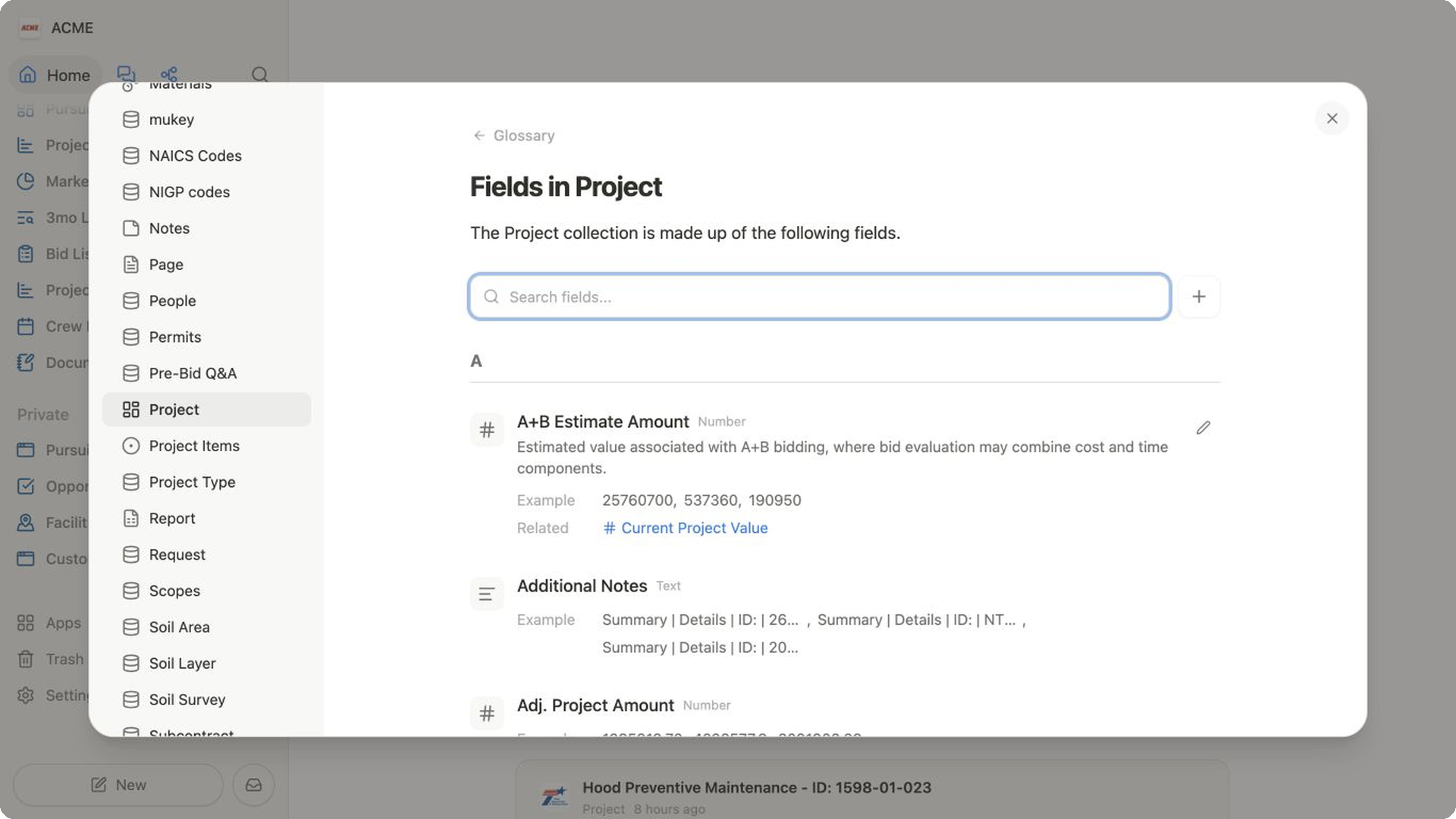
Read a collection's fields
The fields page lists the details that records in the selected collection can store. Depending on the field, an entry can include:
- its name and field type;
- a description of what the field is for;
AKAnames that teammates may also use;- an
Exampletaken from existing records; and Relatedfields that represent similar information.
Select a field under Related to open it. If the field belongs to another collection, the Glossary switches to that collection and brings the field into view.
Search for a field
- Open a collection in the Glossary.
- Enter a name, alternate name, or descriptive term in
Search fields.... - Review matches from the current collection.
- If shown, review
From other collectionsfor matching fields elsewhere in the workspace. - Select a collection badge or a related field to move to the collection that owns it.
Clear the search to return to the collection's alphabetical field list. Select Glossary above the collection name when you want to return to all collections.
Keep definitions useful
Use descriptions to explain what belongs in a collection or field, especially when its name could have more than one meaning. Use alternate names to help teammates find a field using familiar terminology.
Changes to a collection or field definition affect the shared structure your team uses. If edit controls are available to you, confirm the intended meaning with your team before renaming or redefining an established item.
Related pages
FAQs
Why does a field have no example?
The Glossary may not have an example to show when the field has no populated values available. If examples cannot be loaded, the field displays Unable to load examples instead.
Why does a field search show another collection?
Field search also checks fields in other visible collections. These matches can help you find an existing definition instead of creating a duplicate field.
Can the Glossary change fields in a view?
When you open the Glossary from a view's field settings, fields from that view's collection can include Add or Remove controls. Opening the Glossary from Settings is primarily for browsing and maintaining the shared collection structure.