Overview
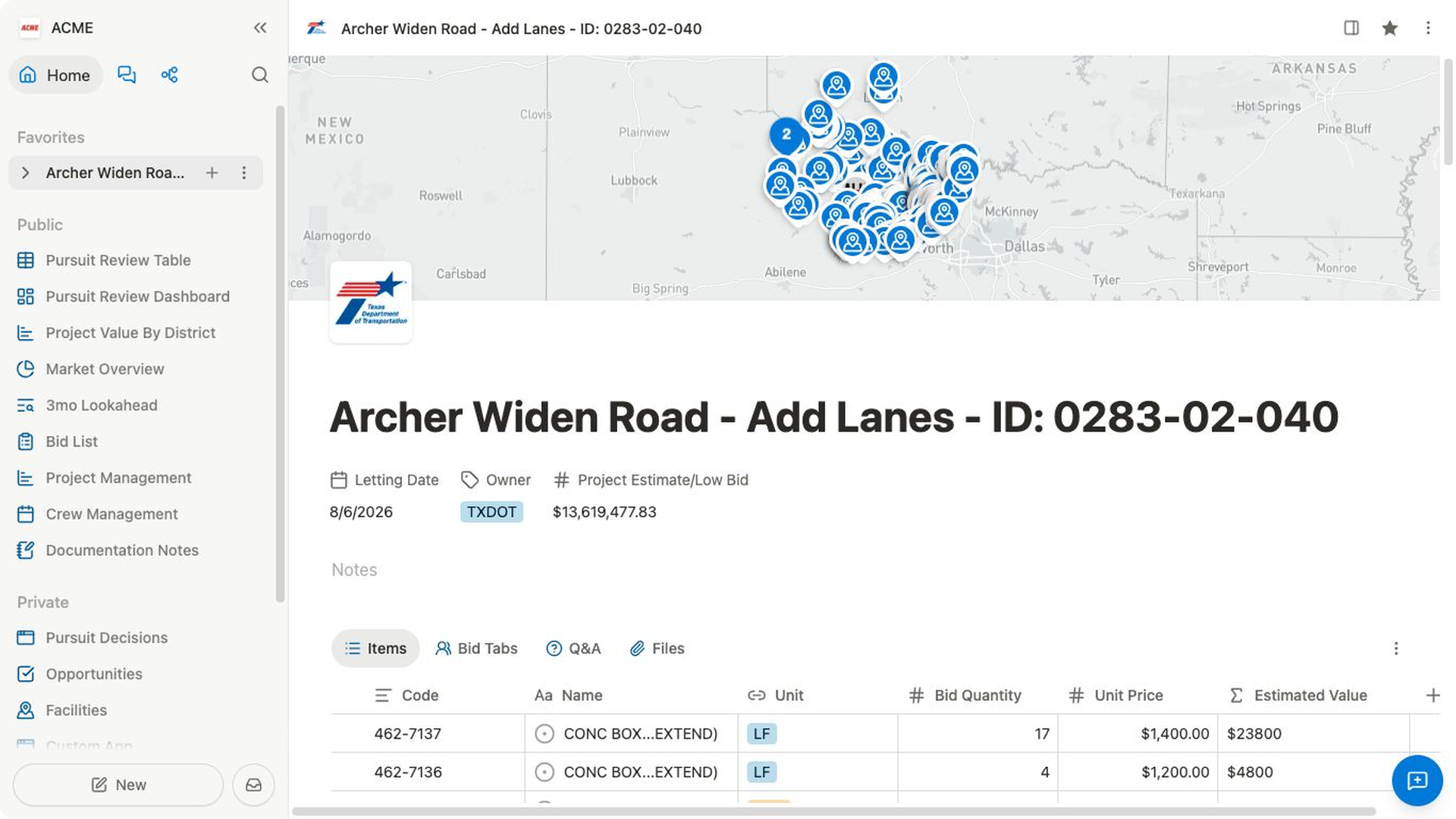
Open one project record to review the structured details and related work your team has available.
Find a project
- Select
Search...in the header. - Enter a project title, identifier, or useful keyword.
- Select
Projectsto narrow the results. - Highlight the project you want.
- Select
Open.
When the search field is empty, the Recent group can help you return to a project you opened before.
Review the project record
Begin with the record header and Details. The current project experience can bring together:
- the project title and icon;
- a map when location context is available;
- visible project fields;
Notes;CommentsandActivity;- related areas such as
ItemsandFiles.
The exact fields and related areas depend on the project and the team's configuration.
Open project items
Select Items when you need the project's item records. In the current project view, items appear in a table with rows, columns, optional group headings, and column summaries such as Count all.
Use the existing structure during your first review. Change columns or add records only when you understand the team's current setup.
Open project files
Select Files to review the documents currently attached to the project.
File availability varies by project.
Use a file when it provides the supporting context for the question you are answering. Return to the project record for the structured details and related work around that document.
Check discussion and history
Use Comments for the conversation attached to the record. Use Activity to review the record's available activity history.
These areas keep discussion and recent context close to the project instead of scattering it across unrelated pages.