Opportunities page
Create one Projects-backed table, then filter and sort it into a useful list of upcoming work.
Create the page
- Select
Newin the workspace header. - Choose
Table. - In
Select a Dataset, chooseProjects. - Replace
UntitledwithOpportunitiesor another title your team will recognize. - Confirm that project records appear before you add filters.
Opportunities is the page name. Projects is the shared collection that supplies its records. Editing a project here changes the shared project record; the page is not a separate copy of the data.
Narrow the table
Available fields are specific to your team workspace. Use the Projects fields your team relies on for the project date, location, and owner or agency.
- Select ≡
Filter. - Add the
Letting Datefield. - Choose a condition such as
Is after→Today, or use a relative date condition for the next few weeks or months. - Add a location filter, such as county or state, when geography matters.
- Add an owner or agency filter when you are reviewing a specific source of work.
- Select
Sort, add theLetting Datefield, and chooseOldest first.
Combine only the conditions your team needs. Too many filters can hide a useful project and make an empty table difficult to diagnose.
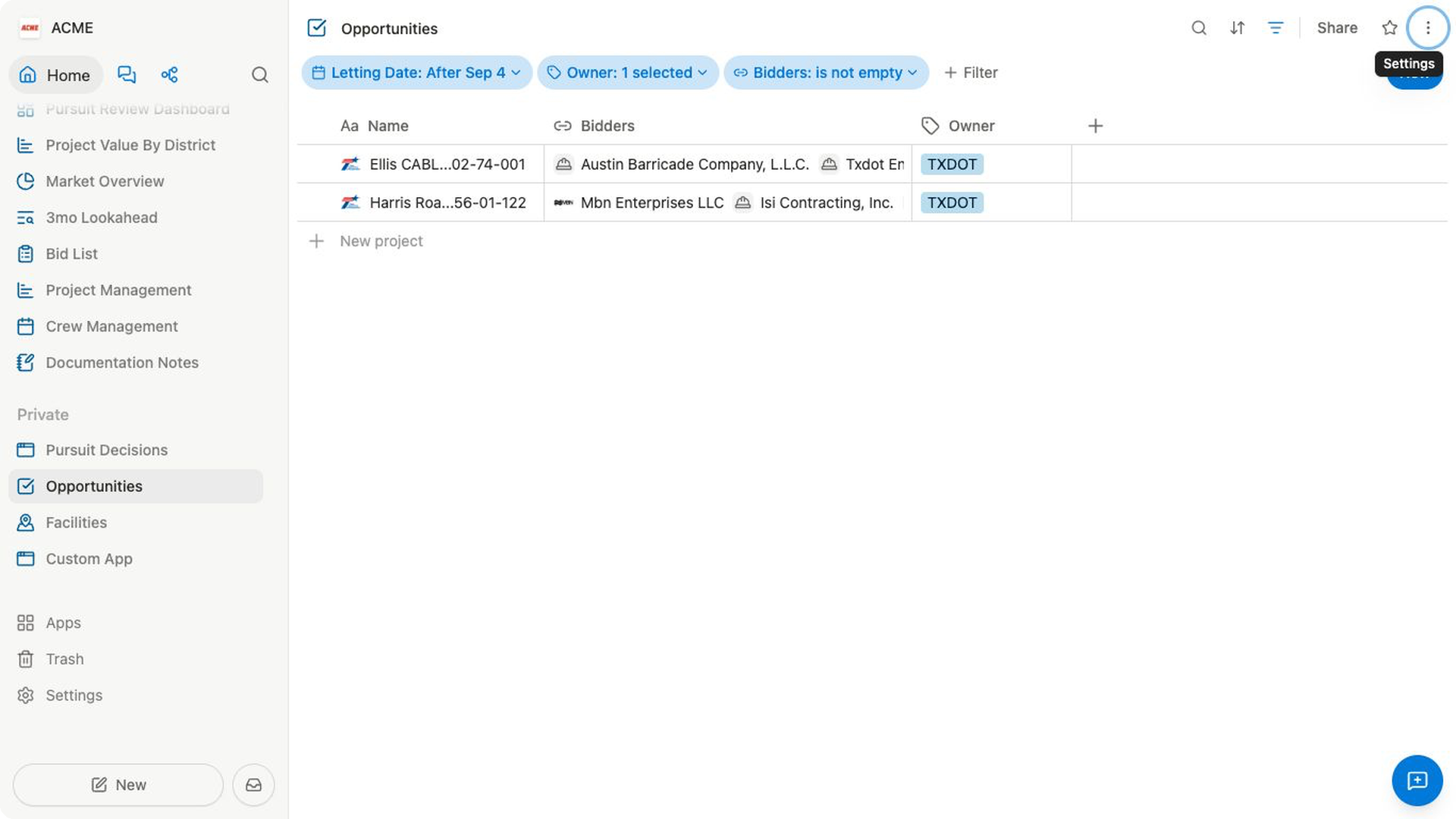
Make the result easy to review
- Show the fields people use to decide what to inspect next.
- Hide columns that do not help the review.
- Open a project for its complete Items, Files, bidder, and map context.
- On a public page, save filters for everyone only when they should become the shared setup.
Check your result
A useful Opportunities page should show the expected geography and date range in a predictable order. Open one project and confirm that its details match the row before sharing the page.
If no records appear, remove one filter at a time. Also confirm that the table is connected to Projects and that your workspace uses the values you entered.
Related pages
FAQs
Why is the Opportunities table I created empty?
Review the filters one at a time. Too many conditions—or a field value that does not match them—can hide useful projects.
Are my filter changes immediately shared with everyone?
Not on a public page. They begin as your personal changes; use Save for everyone only when the setup should become shared.