Sidebar
Use the sidebar to switch between Bidlo’s main areas, return to important pages, and keep your navigation focused.
Understand the sidebar
The top of the sidebar links to the main areas of your workspace:
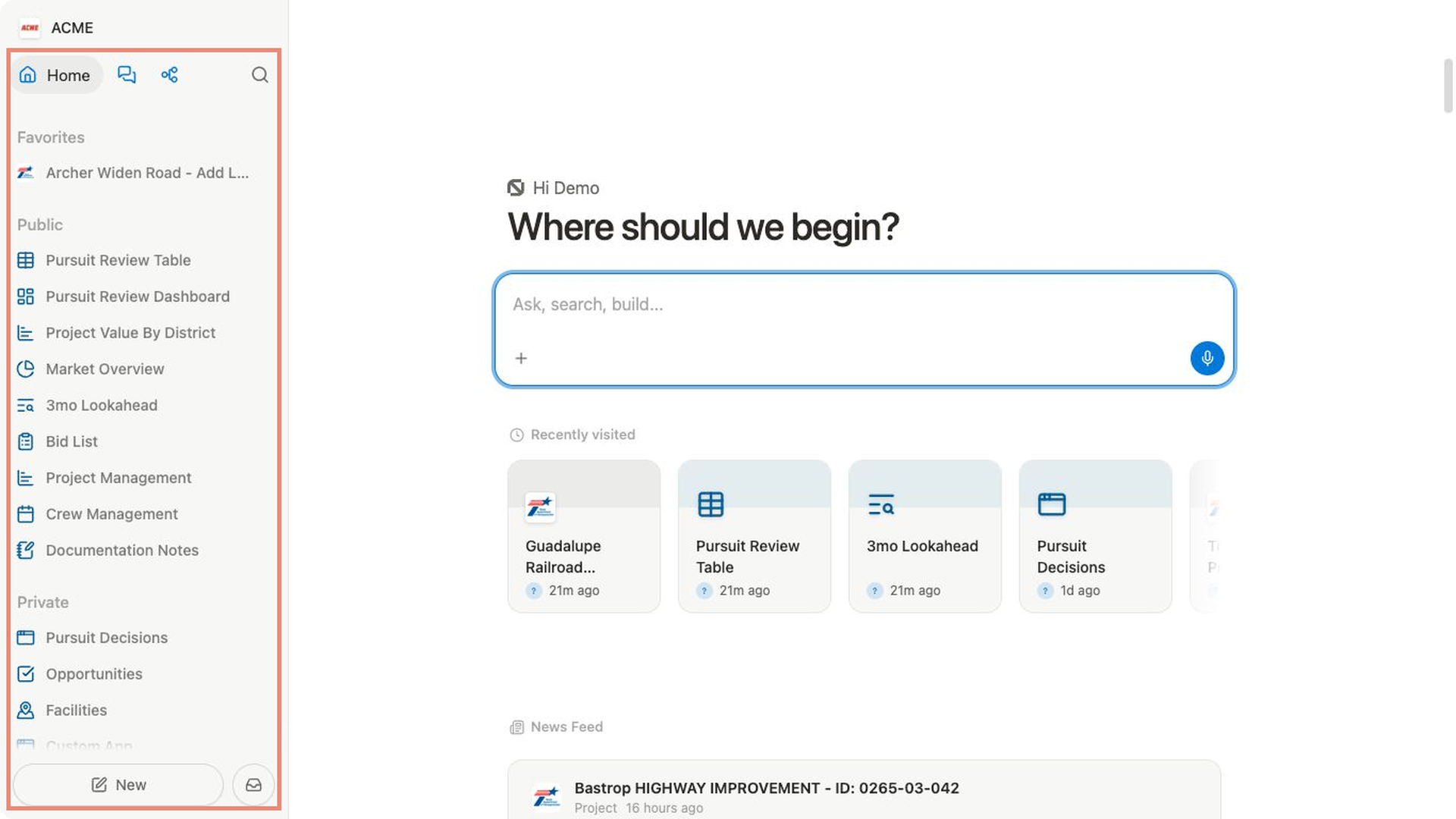
Homereturns to your workspace home and page list.Chatsopens your conversations.Appsopens your app shortcuts.Flowsopens your repeatable processes.
Below these links, Bidlo can group pages into Recent, Favorites, public, and private sections. Trash and Settings appear below the page sections.
As your workspace grows, use public for pages the team returns to—such as a shared lookahead—and private for personal analysis or an unfinished draft.
This keeps shared operating pages easy to distinguish from individual work.
Open an area or page
- Select
Home,Chats,Apps, orFlows. - When you are viewing Chats, Apps, or Flows inside the sidebar, select the back arrow to return to the previous sidebar view.
- To open a page, select it in
Recent,Favorites,public, orprivate. - Select the arrow beside a page to show or hide its nested pages.
- Select a section heading to collapse or expand the whole section.
Adjust the sidebar
- Select
Toggle sidebarto hide the sidebar or bring it back. - Press
⌘ Bon Mac orCtrl Bon Windows to hide or show the sidebar. - Hover over the right edge of the sidebar, then drag to change its width.
- When the sidebar is hidden on desktop, move your pointer to the left edge to open it temporarily. Select
Toggle sidebarto keep it open. - On a smaller screen, select the menu button to open the sidebar.
Choose which sections appear
- Select
Settingsat the bottom of the sidebar. - Under
Account, selectPreferences. - Under
Sidebar, turnRecent,Favorites,Public pages, orPrivate pageson or off.
The preference descriptions explain what each switch controls:
Recentdisplays pages you have opened recently.Favoritesdisplays pages you have marked as favorites.Public pagesdisplays pages accessible to your team.Private pagesdisplays personal pages restricted to you.
You can also right-click empty space in the sidebar and use Sidebar Sections. To reorder or hide a section, right-click its heading.
Related pages
FAQs
Why can’t I see Favorites?
The Favorites section appears after you add at least one item to it. If it still does not appear, turn on Favorites under Settings → Preferences → Sidebar.
Did hiding a sidebar section remove my pages?
No. Hiding a section changes only which groups you see in the sidebar. Turn the section on again in Settings, or find the page with global search.