Page actions
Update a page without losing track of its location, audience, or nested pages.
Understand page actions
Open a page’s action menu from its row in the sidebar. Hover over the page, then select the button whose tooltip reads Remove, rename, and more....
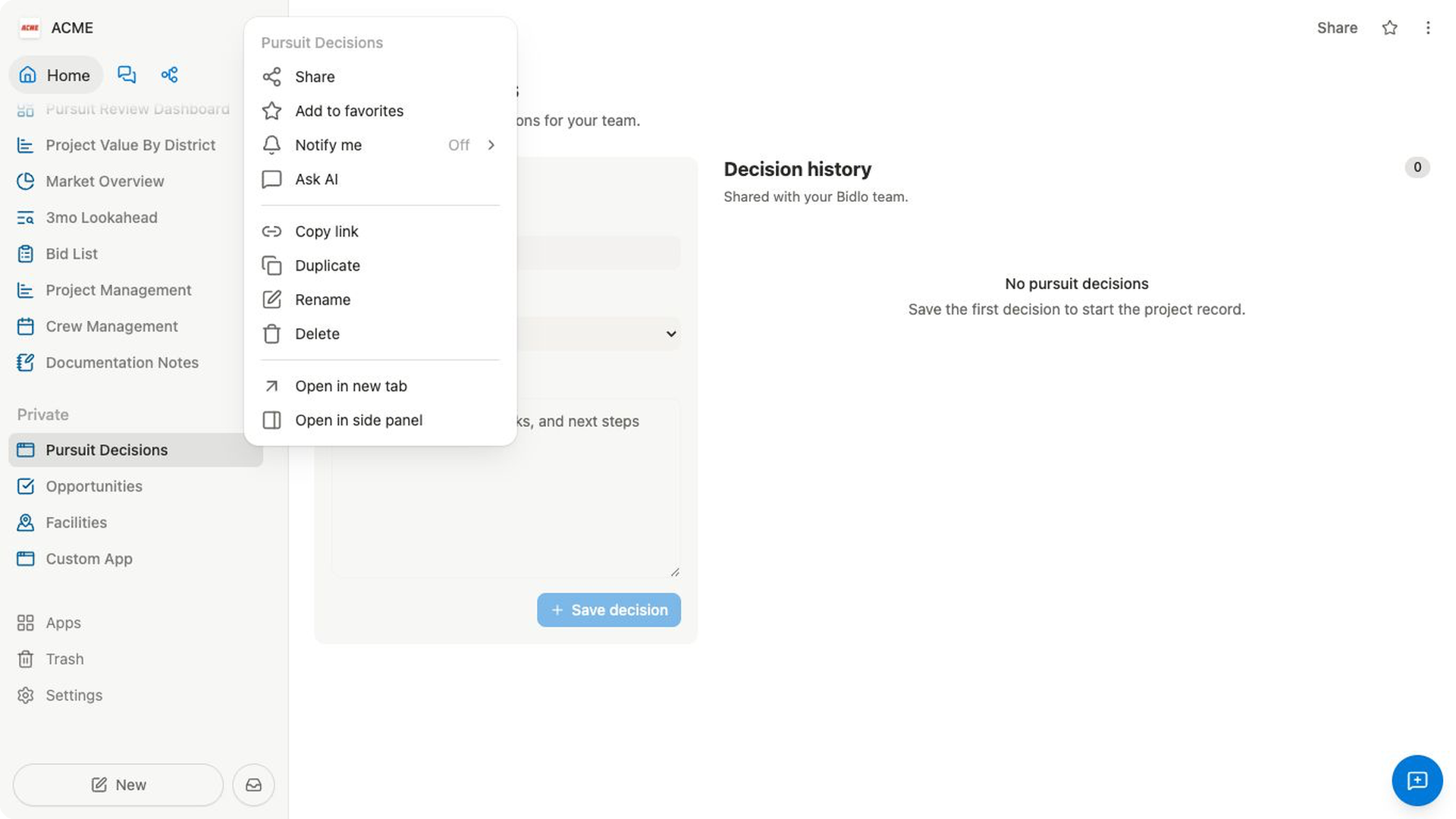
The current menu includes Duplicate, Rename, and Delete. Moving a page uses drag-and-drop in the sidebar rather than a Move menu item.
Rename a page
Renaming changes the page title without changing its content, location, or visibility.
- Find the page in the sidebar.
- Hover over it and open
Remove, rename, and more.... - Select
Rename. - Enter the new title.
- Press
Enteror select outside the title field to save it.
Duplicate a page
Duplicating creates a separate page in the same public or private section. If the original is nested, its duplicate stays under the same parent and appears after the original.
- Find the page in the sidebar.
- Open
Remove, rename, and more.... - Select
Duplicate. - Look for
Page duplicated. - Review the opened copy, whose title ends in
(copy), then rename it.
The copy has its own page identity. Changes to it do not rename or update the original page.
Move or reorder a page
Use drag-and-drop to change a page’s order, parent, or sidebar section.
- Expand the page first if it has nested pages.
- Drag the page in the sidebar.
- Look for a line between rows to reorder it, or a highlighted page to make that page the new parent.
- Drop the page only when the intended target is visible.
- Check the page’s section, parent, and indentation after the move.
Moving a parent moves its nested page tree with it.
The drag targets and move results were verified from source but were not tested in the live production workspace for this draft.
Delete a page without subpages
Deleting removes the page from the active workspace and places the deleted document in Trash in the current implementation.
- Open
Remove, rename, and more...for the page. - Select
Delete. - In
Are you sure?, review the page name and deletion warning. - Select
Deleteonly when you intend to remove the page. - Check
Trashif you need to restore it.
Delete a page with subpages
When a page contains subpages, Bidlo opens Delete page? and lists the affected pages. Decide what should happen to the subpages before confirming:
Keep sub-pagesdeletes only the selected parent and moves its subpages up one level.Delete alldeletes the parent and its complete nested page tree.
To complete the action:
- Expand the parent and review its nested pages.
- Open
Remove, rename, and more.... - Select
Delete. - In
Delete page?, review the listed subpages. - Select
Keep sub-pagesorDelete allbased on the result you need. - Check the sidebar and
Trashafter the deletion finishes.
Related pages
FAQs
Why don’t I see Rename, Duplicate, or Delete?
Some contexts hide actions that do not apply. Check the page in its public or private sidebar section and confirm that your role allows you to change it.
Does Duplicate keep the copy in the same place?
Yes. The current source places the copy after the original in the same section and under the same parent when the original is nested.
Can I delete a parent but keep its subpages?
Yes. Choose Keep sub-pages in Delete page?. Bidlo deletes the parent and moves its subpages up one level.
Can I undo a move?
There is no separate undo control for sidebar moves in the current implementation. Drag the page back to its previous section, parent, or position, and recheck visibility if the move crossed public and private.
Can I restore a deleted page?
Trash supports restoring deleted documents. The exact restored hierarchy and position of a page tree were not verified in the live product for this draft.