Favorites
Add work to Favorites for a personal shortcut in the sidebar, then remove it when you no longer need it close at hand.
Understand favorites
A favorite is a shortcut to an existing item. It does not move the item, change who can open it, or share your shortcut with teammates.
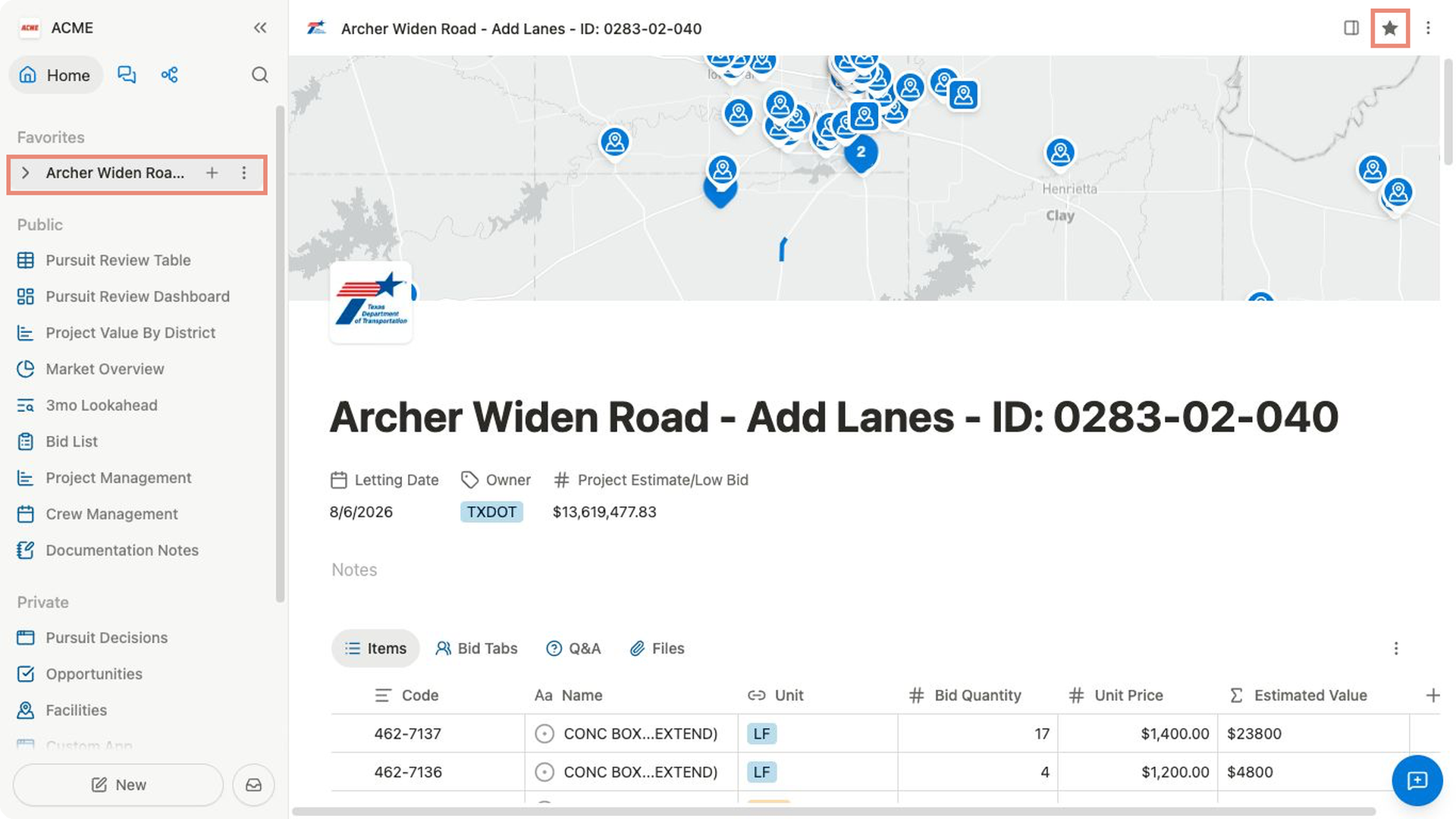
Bidlo shows your favorited items in the Favorites section of the sidebar.
The section appears when it contains at least one item and can be hidden in your sidebar preferences.
Show Favorites in the sidebar
- Select
Settingsat the bottom of the sidebar. - Under
Account, selectPreferences. - Under
Sidebar, turn onFavorites. - Return to the sidebar. The section appears when it contains at least one favorite.
Add a favorite
From an open page:
- Open the page you want to keep close.
- Select the star in the page header.
- Look for
Added to favorites, then find the page underFavoritesin the sidebar.
You can also open the page's ••• menu and select Add to favorites.
From global search:
- Open global search and find the item.
- Hover over the result.
- Select the star. The item appears under
Favorites.
Reorder favorites
- Open the
Favoritessection in the sidebar. - Drag a favorite up or down.
- Drop it in the position where you want it to appear.
Reordering Favorites changes only your personal list.
Remove a favorite
- Open the favorited page.
- Select the filled star in the header. You can also open the
•••menu and selectRemove from favorites. - Check that the page no longer appears under
Favorites.
Related pages
FAQs
Can my teammates see my favorites?
No. Favorites are saved for your user account. Favoriting an item does not change the item's sharing or permissions.
Why can’t I see the Favorites section?
The section is hidden when it is empty. If you have already added a favorite, turn on Favorites under Settings → Preferences → Sidebar.
Can I move a page into Favorites by dragging it there?
Use Add to favorites or the star instead. Dragging within Favorites reorders your existing shortcuts.