First 10 minutes
Find a current project, review the information Bidlo brings together, and learn where shared and personal work belong—all in about 10 minutes.
Before you start
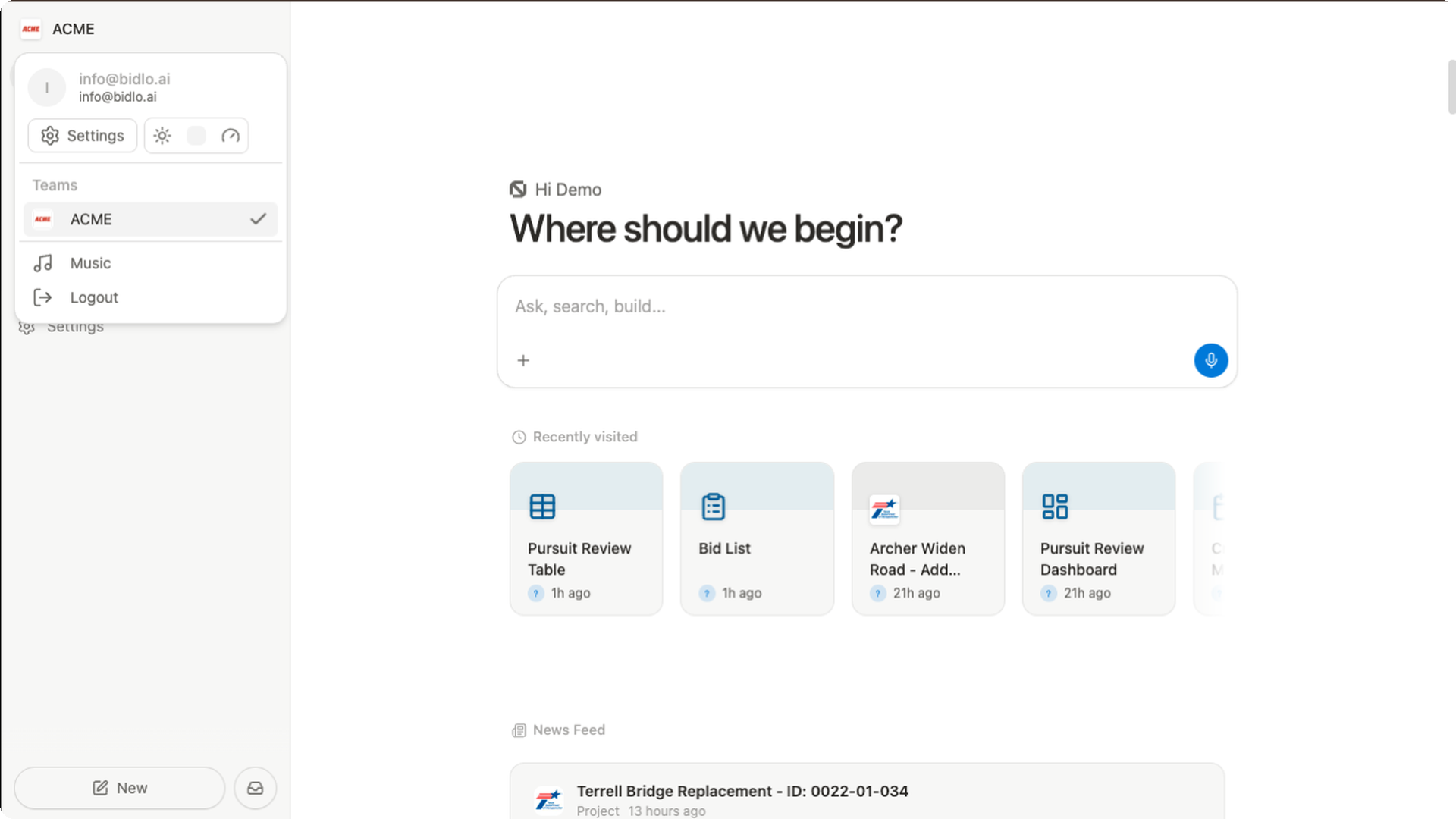
Sign in and open the team where you want to work. The team name in the header tells you which workspace is active.
The sidebar is your workspace map:
Homereturns to your workspace home.Chatsholds your Bidlo AI conversations.AppsandFlowsopen focused tools and repeatable processes.publicandprivateseparate team pages from personal work.
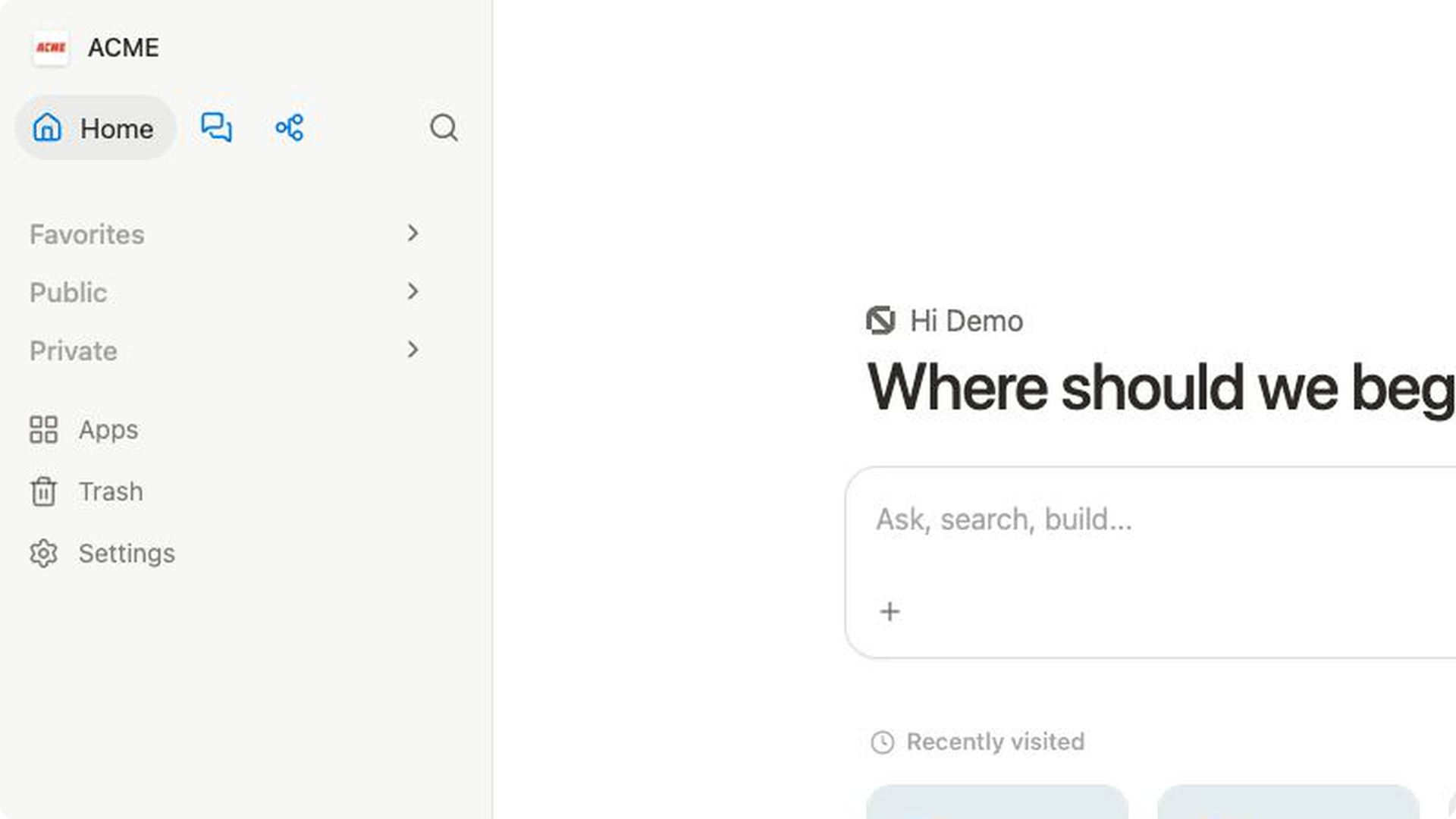
Open the right team
- If you see the Teams page, find your team under
Recent Teams. - Select the team card.
- Check the team name in the header.
- Select
Homein the sidebar.
You should now see the active workspace.
Find a project
Learn the workspace without changing project data.
- Select
Search...in the header. - Enter a project title or keyword you recognize.
- Select
Projectsto limit the results to project records. - Highlight the project you want to inspect.
- Select
Open.
The project record opens in the workspace.
Review the project
A project brings its working context into one record. Start with the parts that help you understand the opportunity:
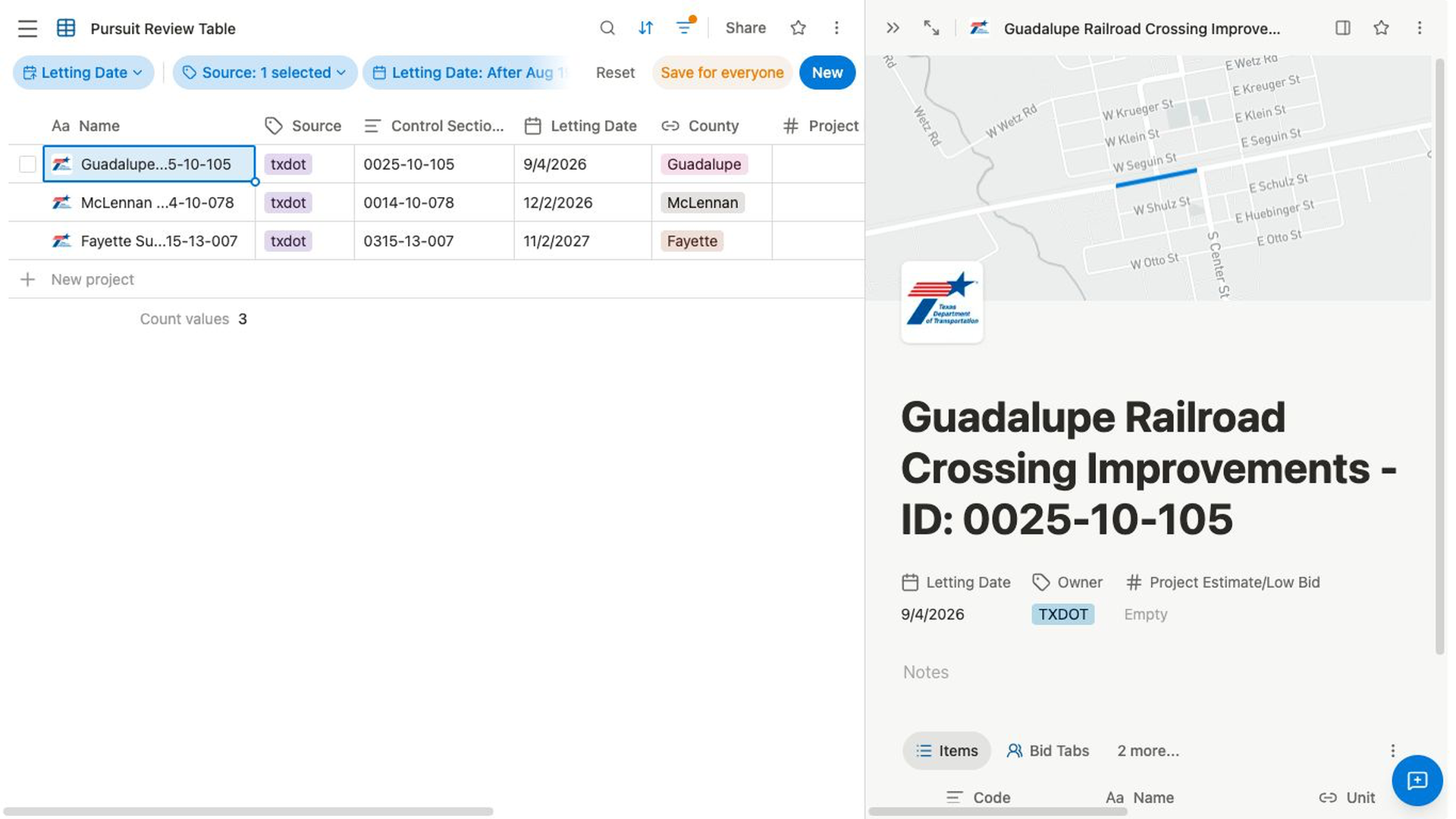
- Review
Details, which lists the project fields your team uses, and scan the map for location context. - Scan the editable fields for the dates, locations, and other facts your team tracks.
- Open
Itemsto review the project's item table. - Open
Filesto find supporting documents available on the project. - Use
CommentsorActivitywhen you need the conversation or change history around the record.
Details is the project’s structured field list. Use it to review facts such as the owner or agency, letting date, location, and project value when those fields are available. Select an editable value only when you intend to update the shared project record.
This is the core first-day loop: find an opportunity, open its record, and review the context collected around it.
Know where your own pages belong
When you're ready to create a page, decide who should use it before selecting New or Add new:
- Put a team lookahead or other shared operational page in
public. - Put personal analysis or an unfinished draft in
private.
The New menu includes Note, Table, Map, Board, Calendar,Timeline, Gallery, Chart, Dashboard, and File upload. Choose the page type that matches the work you want to organize.
What to try next
You've now used the core first-day loop: find a project, review its context, and choose where future work should live. Continue with the project or create one focused page for the next job your team needs to complete.
Related pages
- What is Bidlo?
- Teams and workspaces
- Create and organize pages
- Global search
- Projects overview
- Views overview
FAQs
Why do I see several kinds of search results?
Global search can include several collections. Select Projects to narrow this first exercise to project records.
Why don't I see New or Add new?
Your workspace mode, role, screen size, and available content can change the controls you see.