Teams & workspaces
Confirm you are in the right team workspace before you create, edit, or share work.
Know where your work lives
A team is the group of people you work with in Bidlo. Its workspace is where that team’s pages, data, chats, apps, and flows live.
You can belong to more than one team, but you view one team workspace at a time. The current team name appears in the workspace header. When you switch teams, Bidlo opens the selected team’s workspace; it doesn’t move or copy work from the team you left.
Collections, records, fields, and views also belong to the active team. If two teams both track projects, each team has its own separate collection.
Open a different team
Start from any team workspace:
- Select the team icon in the upper-left corner. Its tooltip reads
Go to teams. - On the Teams page, select
TeamsifInvitationsis open. - Under
Recent Teams, find the team you want. Each team shows its name, your role, and its member count. - Select the team.
- Check the team name in the workspace header.
You’re now working in the selected team’s workspace.
The Teams page sorts by Most recent by default. Select Title to sort by team name. On supported screen sizes, you can also switch between the grid and list views without changing which teams are available.
Accept or decline an invitation
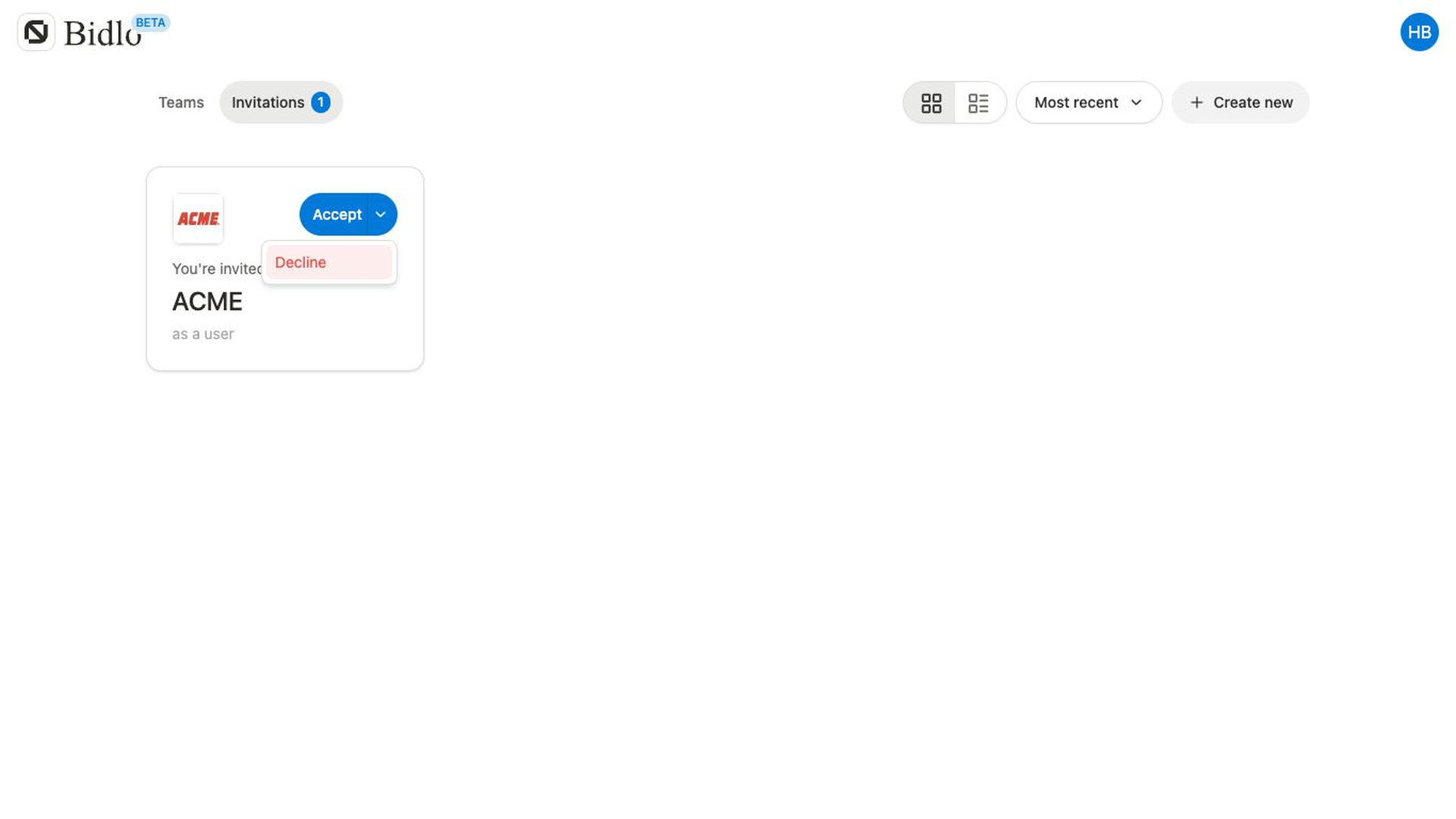
An invitation shows the team name and the role you’ll receive.
- Open the Teams page and select
Invitations. - Find the team you were invited to join.
- Select
Accept.
Bidlo adds you to the team with the role shown on the invitation and opens its workspace.
To reject the invitation instead, open the arrow beside Accept and select Decline. The invitation is removed, and you don’t join the team.
Understand your role
Your role is specific to each team. It determines which team-management controls you can use:
- An
OwnerorAdmincan useAdd membersandEdit team. - Only an
Ownercan useDelete team. - A team member who isn’t the owner can use
Leave team.
If a team action is missing, check the role shown for that team or ask an owner or admin for help.
Keep team and layout choices separate
Switching teams and changing your workspace mode are different actions.
Switching teams opens another team’s work. A workspace mode changes how Bidlo presents the team you already have open.
Related pages
FAQs
Does switching teams move or copy my work?
No. Switching changes the workspace you are viewing. Each team keeps its own pages, data, chats, apps, flows, and membership.
Why is a team action missing?
Check the active team and your role in it. Some actions are limited to administrators or owners, and team creation appears only for eligible accounts.