Workspace modes
Choose how much detail Bidlo shows without changing your workspace data or access.
Understand workspace modes
Layout Complexity controls the level of detail and features shown in Bidlo's interface. It changes presentation and which controls are visible; it does not change your pages, records, views, or permissions.
Your choice is saved to your Bidlo account. Teammates can choose another mode without changing yours.
Choose the mode that fits your work
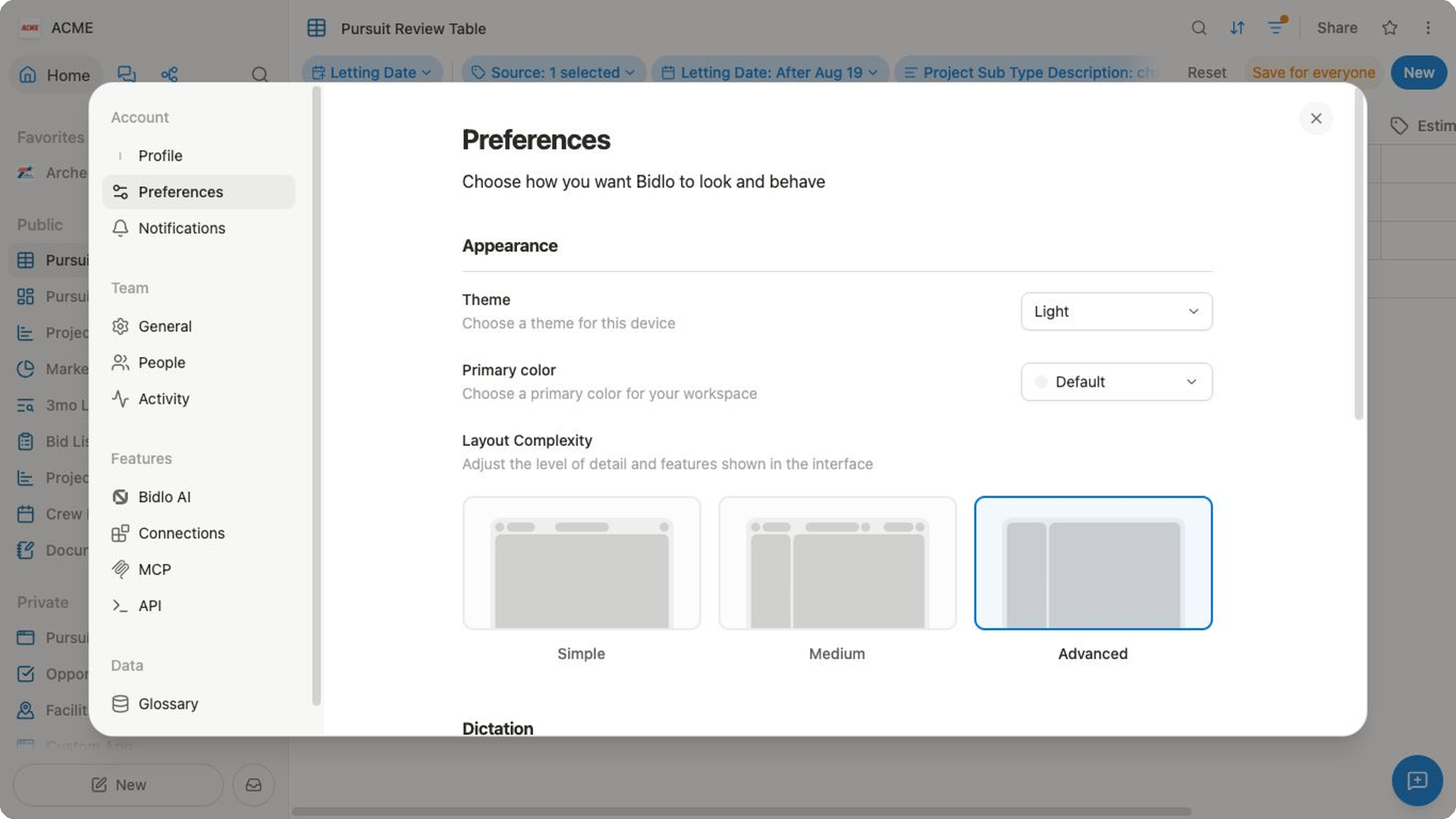
Simple
Choose Simple for Essential features only.
Simple keeps the interface focused on core work. On Home, it hides the recently visited cards and news feed. It also removes optional controls from the header and chat composer.
Use Simple when you mainly want to:
- find relevant opportunities;
- track key project details; and
- keep the workspace focused.
Medium
Choose Medium for Balanced functionality.
Medium adds everyday workspace controls while keeping a less dense layout than Advanced. It is a practical starting point if you are unsure which mode to choose.
Use Medium when you want to:
- analyze upcoming opportunities;
- compare views and filters; and
- manage team workflows.
Advanced
Choose Advanced for All features enabled.
Advanced exposes the fullest interface, including additional sidebar controls, advanced model choices in the chat composer, and denser page and panel layouts.
Use Advanced when you want to:
- build automations;
- use AI agents; and
- customize power-user tools.
Change your workspace mode
You can change modes from your account preferences at any time.
- Select
Settingsin the sidebar. - Under
Account, selectPreferences. - In
Appearance, findLayout Complexity. - Hover over
Simple,Medium, orAdvancedto review its focus. - Select the mode you want.
The selected card is highlighted. Bidlo saves the preference, refreshes the workspace, and applies the updated layout.
Use the account-menu shortcut
Open your account menu and open Layout to switch modes without going to Preferences. In Advanced, this shortcut appears as a gauge icon with the tooltip Layout. The current mode has a checkmark in the mode list.
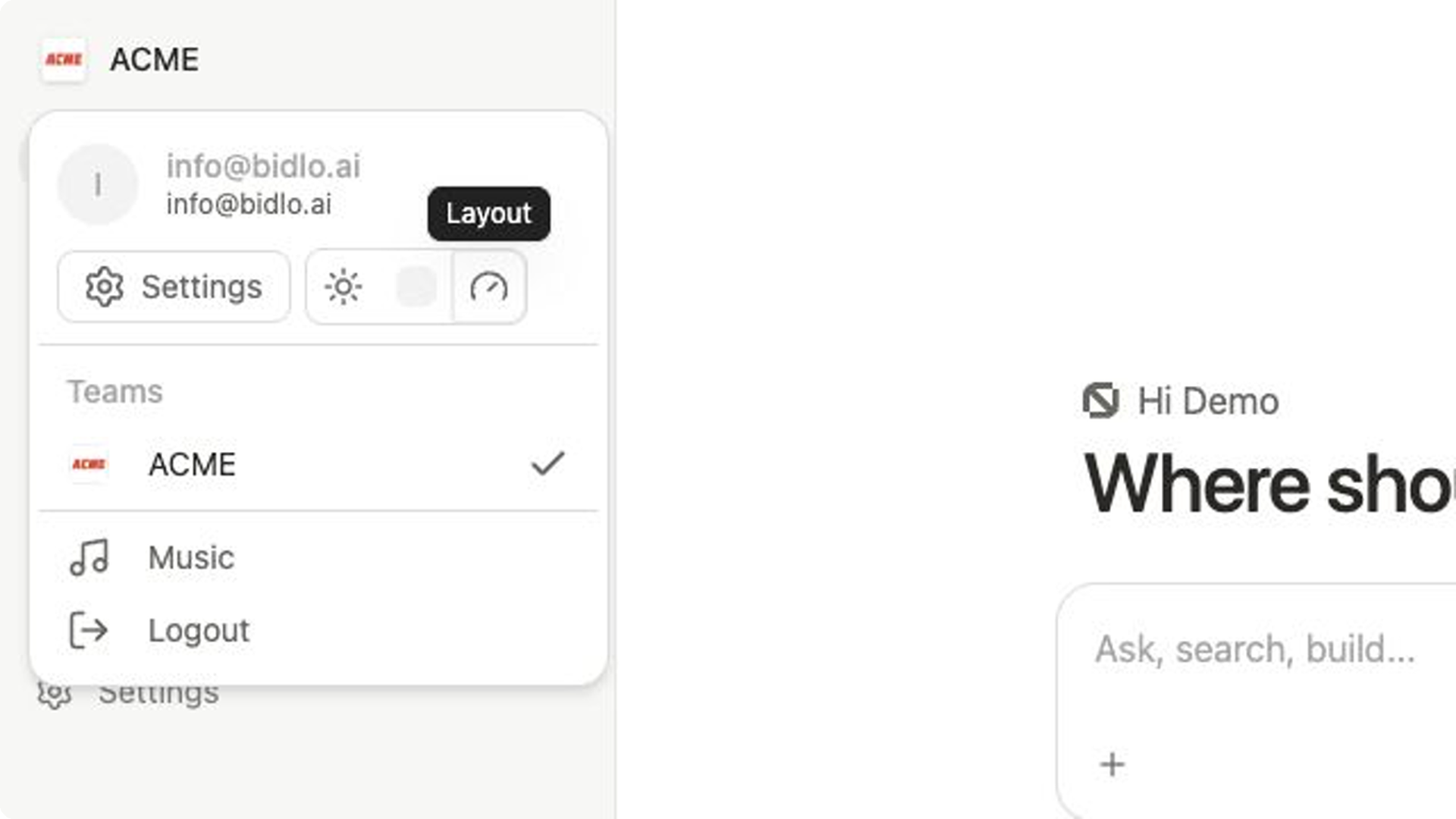
Changing modes through this shortcut saves the same account preference and refreshes the workspace.
Know what changes
Changing the mode can:
- show or hide interface controls;
- change spacing, borders, and panel presentation; and
- show or hide supporting sections on Home.
Changing the mode does not:
- delete or duplicate pages, records, or views;
- move content between teams;
- change a teammate's mode; or
- give you new permissions.
If something you need is not visible, switch to a more detailed mode. If it is still unavailable, check that you are in the correct team and have the required access.
Related pages
FAQs
Will changing workspace mode alter my data or permissions?
No. It changes presentation and which controls are visible, but it does not change pages, records, views, or access.
What should I do if a control is still missing in Advanced mode?
Confirm that you are in the correct team and have the required role or permission. Workspace mode can reveal a control, but it cannot grant access.