People & roles
Use the People settings to see who belongs to the current team, who still has a pending invitation, and what each person can do at the team level.
View team members and their roles
- Confirm that you are working in the intended Bidlo team.
- Open
Settings→People. - Select
Members. - Find the person you want to review.
- Check their
Roleto see their team-level permissions. - Review
Activitywhen you need to confirm whether they have recently used the team. Use the period selector, such asLast 90 days, to change the activity window.
The top of the People page also shows Paid seats, Current members, and the team's plan expiration information. Use these totals to understand whether an invitation may affect seat usage.
If Members is empty, the page shows No members found.
Choose the right team role
Assign the least privilegedaccess the person needs. The role picker describes the four available team roles:
| Role | Team-level access |
|---|---|
Owner | Can edit team settings, delete the team, and manage members. |
Admin | Can edit team settings and manage members. |
Member | Can access team pages, but cannot edit team settings. |
Viewer | Can view team pages and chat with the agent, but cannot make changes. |
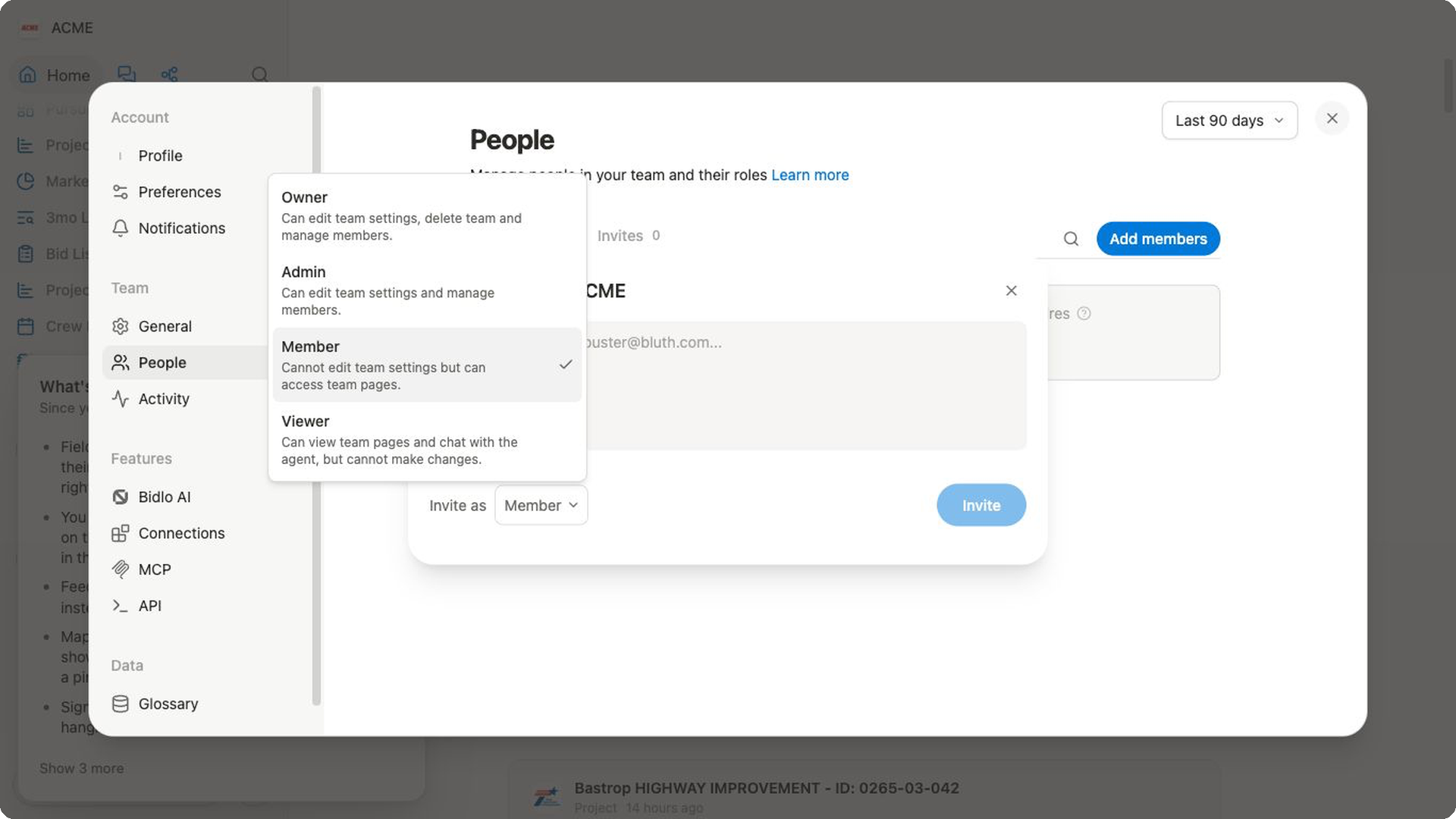
Team roles and item permissions solve different problems. A person's team role controls what they can do across the team. A private page or a custom app can still have its own access list.
View pending invitations
- Open
Settings→People. - Select
Invites. - Review the people who have been invited but have not joined the team.
- Check the invitation's email address and assigned role before sending a replacement invitation.
The number beside Invites is the current pending-invitation count. When there are no outstanding invitations, the page shows No pending invites.
Invite people to the team
Before inviting someone, confirm their work email address, the current team, and the role they need. Invitations can affect paid seats.
- Open
Settings→People. - Select
Add members. - Enter one or more email addresses. Separate multiple addresses with commas.
- Open
Invite asand chooseOwner,Admin,Member, orViewer. - Review the addresses and role, then select
Invite. - Return to
Invitesand confirm that the invitation is pending.
The invitation becomes an active membership after the recipient accepts it using the invited email address.
Change a member's role
You need permission to manage members. If the role control is unavailable, ask a team owner or administrator to make the change.
- Open
Settings→People. - Select
Members. - Find the person whose access needs to change.
- Open their current
Rolecontrol. - Select the new role.
- Confirm that the new role appears beside the person's name.
Role changes affect the person's team-level access immediately. After reducing a role, also review any page or custom-app access granted directly to that person.
Confirm that someone has the intended access
- In
Settings→People, confirm that the person appears underMembersrather thanInvites. - Check that their team role permits the action they need to take.
- Open the relevant page's
Sharepanel and review its individual and general access. - If the page contains a custom app, review the app's separate sharing settings.
- Ask the person to reopen the item while signed in with the work account that belongs to the team.
Related pages
FAQs
Does joining a team give someone access to every page and app?
No. Joining a team gives someone access to pages shared with Everyone at [team name]. Pages set to Only people invited remain limited to the owner and people added with Can view or Can edit access. Custom apps have separate permissions and must be published to the team or shared directly with the person as a Viewer, Editor, or Owner.
Why can’t I change another person’s role?
You must be a team Owner or Admin to change another person’s role. Member and Viewer roles can’t manage team members. If the role control is unavailable, ask an owner or admin to make the change or update your access.