Invite teammates
Invite one or more people to your Bidlo team and confirm that each person can open the intended workspace.
Before you invite someone
Confirm the person's work email, the team, and the role they need. Invitations can affect access and paid seats.
Send an invitation
- Open
Settings→People. - Select
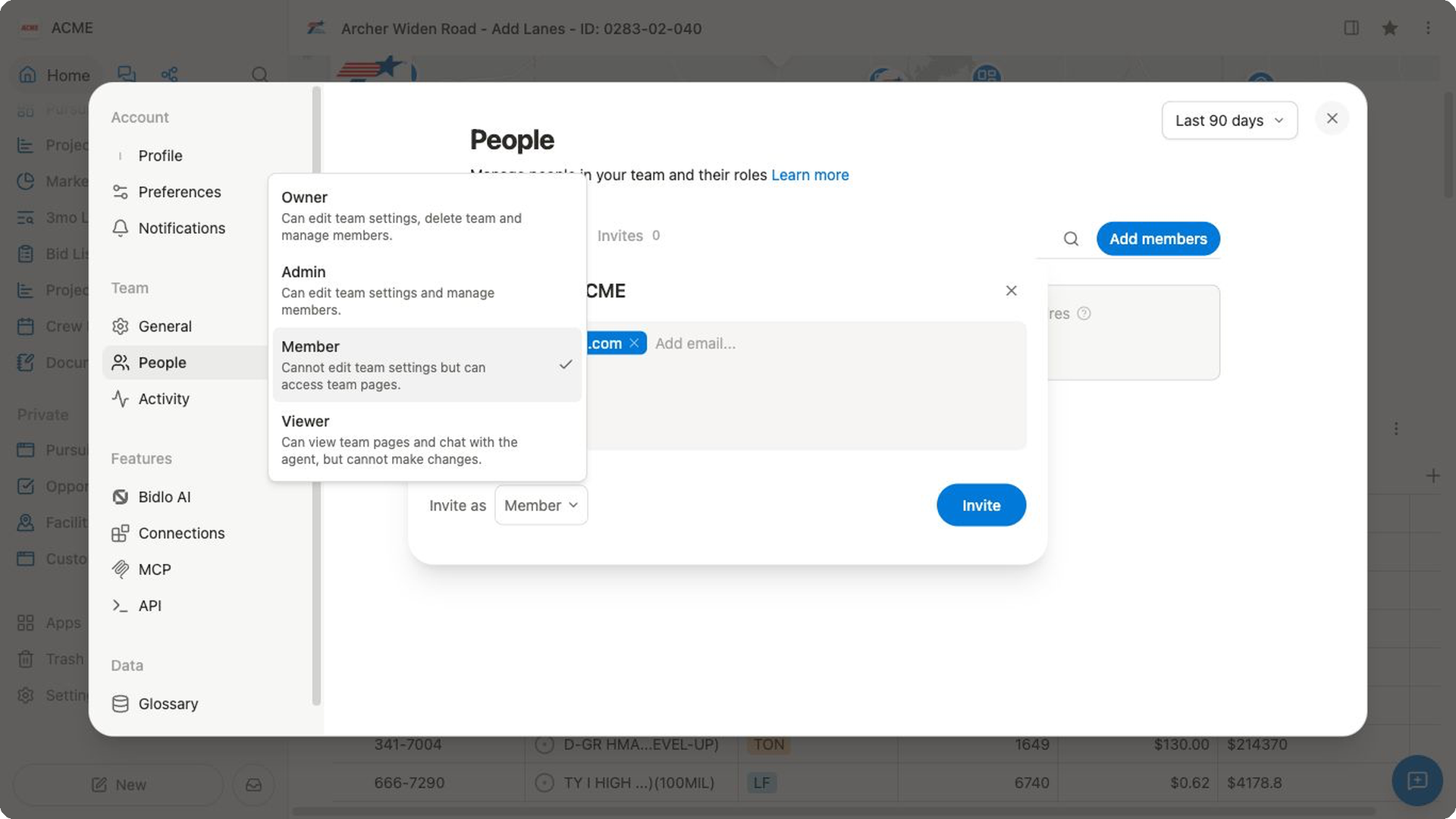
Add members. - Enter one or more email addresses. Separate multiple addresses with commas.
- At
Invite as, choose the least privileged role each person needs. - Review the addresses and select
Invite.
The Invites count on the People page shows invitations that have not yet become active memberships.
Confirm access
Ask the teammate to open the invitation while signed in with the invited email address. They should confirm that the intended team appears and that they can open the work their role allows.
If the invitation remains pending:
- confirm that the email address is correct;
- ask the teammate to check filtered or junk mail;
- make sure they are signing in with the invited account;
- review the pending invitation before sending another one.
Related pages
FAQs
Does inviting someone to the team expose every private page and app?
No. Private pages and custom apps can have separate access requirements that you must review independently.
Why can’t the invited person see the team?
Confirm the invitation used the same work email they used to sign in, that it was accepted, and that they opened the intended team.