Publish & share apps
Review the live version of a custom app, share it with specific people, and create the stable app link people use to open it.
Understand versions and access
Bidlo publishes changes made by the app builder in the background. Builder mode shows Publishing while a change is being deployed and Live when the current version is ready to use.
Sharing controls who can open the app and whether a collaborator can edit it. The app link is one stable URL: people who already belong to the team open the app in that team, while invited outside collaborators land on the apps shared with them.
Check which version is live
- Select
Appsin the sidebar. - Hover over the app, select
More(•••), then openEdit. - Choose
New chator an existing conversation underChat history. - Wait for
Builder modeto showLive. - Select
Version historyand review the versions from newest to oldest. - Select a version to inspect it before you share the app.
Restore an earlier version
Use this when a previous version worked better than the current one.
- Open the app in editing mode and select
Version history. - Select the earlier version you want to use.
- Review the preview so you know which behavior will return.
- Restore the version.
- Wait for it to become live, then test the affected workflow.
Share the app with a specific person
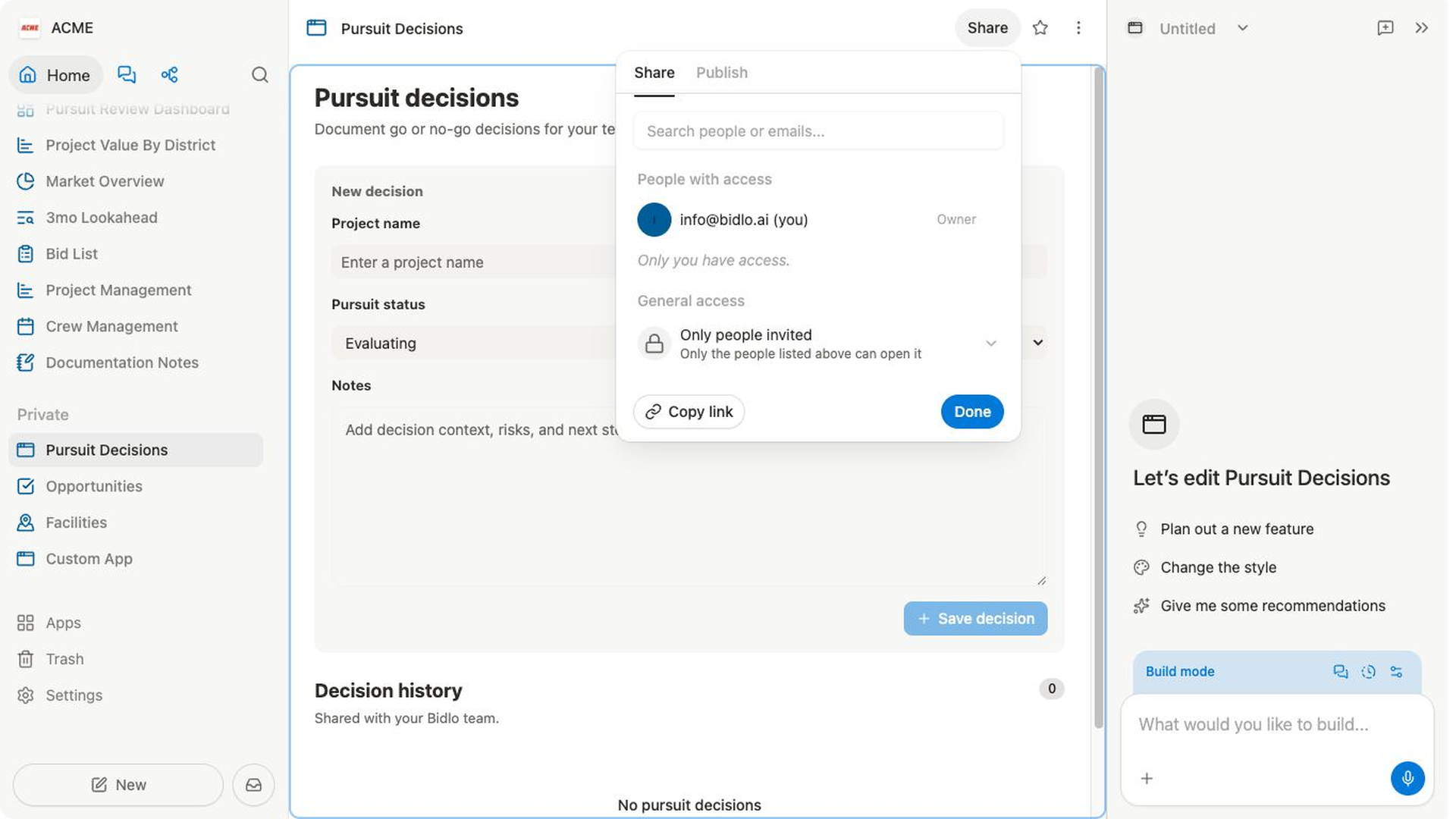
- Open the app and select
Share. - On the
Sharetab, enter a teammate's name or email address inSearch people or emails.... You can also enter the email address of someone outside your team. - Select the person and choose the access they need:
Viewercan open and use the app.Editorcan also change the app.Ownercontrols the app and its sharing settings.
- Confirm that the person appears under
People with accesswith the intended role. - Select
Copy link, then send the link to that person.
Create an app link
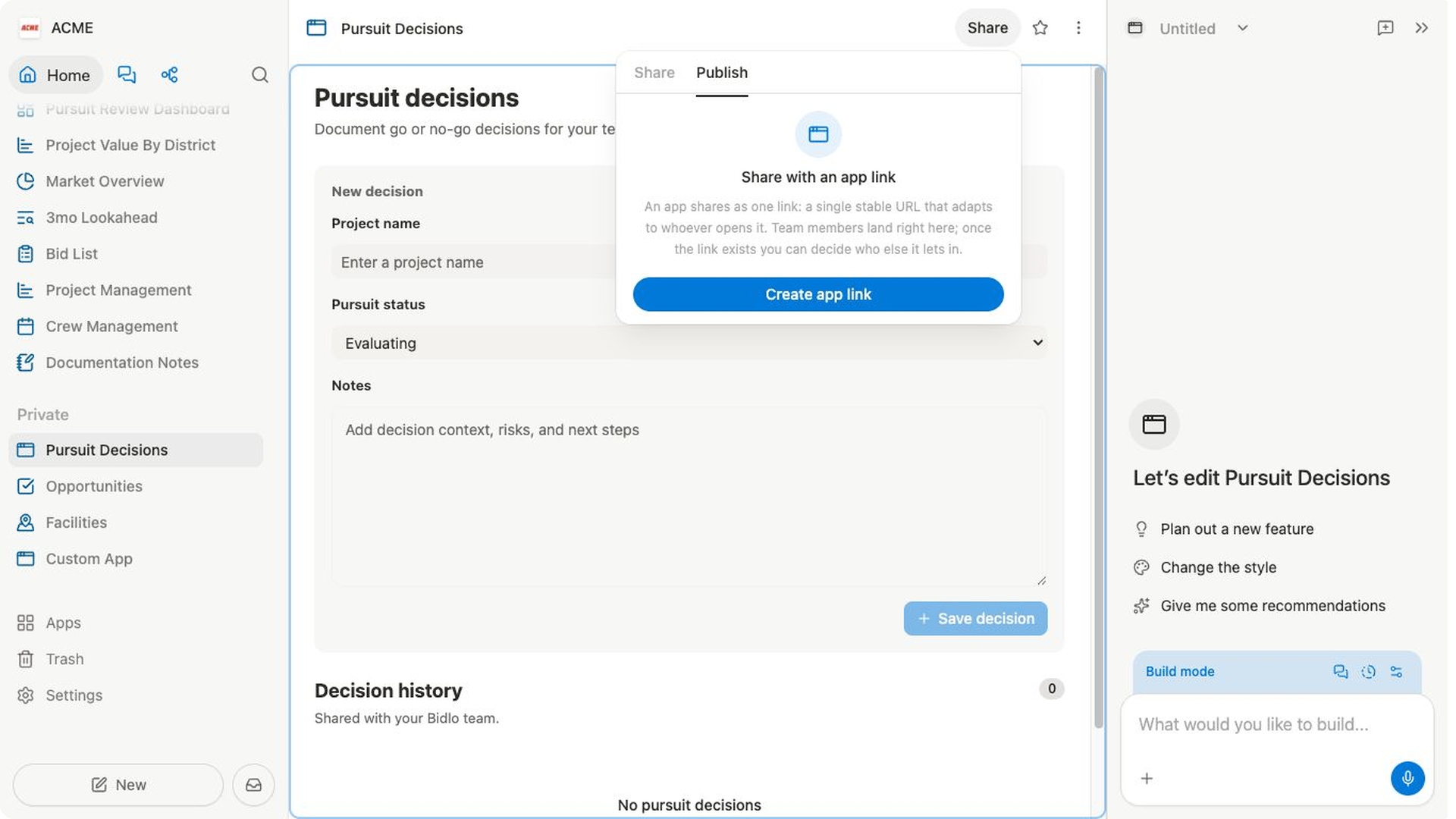
- Open the app and select
Share. - Select the
Publishtab. - Review the explanation under
Share with an app link. - Select
Create app link. - Review the access shown for the new link before distributing it.
The app uses one stable link. Creating that link doesn't turn the app into a separate anonymous website.
Review or change access later
- Open the app and select
Share. - On the
Sharetab, review the owner and everyone listed underPeople with access. - Change a person's role or revoke their access when needed.
- Use the
Publishtab to review the app-link status.
Access changes take effect immediately. Outside collaborators can use the shared app without gaining access to the rest of your team.
Related pages
FAQs
Does sharing an app link give someone permission to use the app?
No. The link opens the app, but the person still needs the appropriate app access.
What happens when I restore an earlier version of an app?
The selected version becomes the live version. Review the app after restoring it so you can confirm the expected behavior is available to users.