Edit apps
Refine an existing app through its builder chat and preview.
3 min read · Reviewed
Open an existing custom app, describe a focused change in its app-specific chat, and check the live result before other people use it.
Open an app for editing
- Select
Appsin the sidebar. - Hover over the app and select
More(•••). - Open
Edit, then chooseNew chatto start a fresh editing conversation orChat historyto continue an earlier one. - Confirm that the app remains open and an app-specific
Chat barappears on the right.
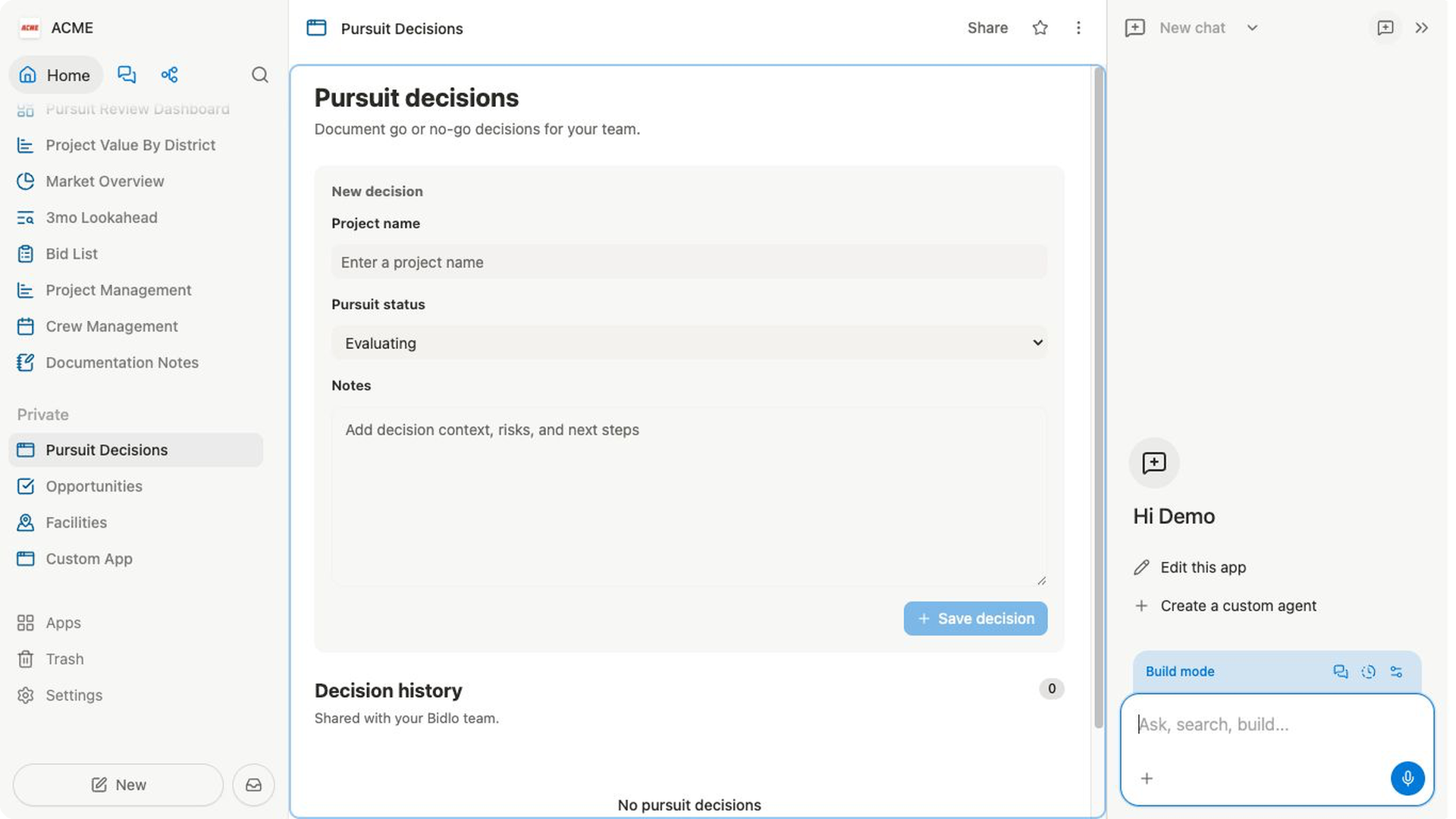
The Builder mode bar sits above the prompt. Use Version history to review earlier versions and App settings to manage the app's configuration. Select Close and stop editing when you want to leave edit mode.
Describe one focused change
- In
What would you like to build..., explain what should change and what should stay the same. - Name the screen, action, or data involved. For example:
Add a required Notes field after Pursuit status. Keep the project name field and save the note with the decision. - Add a sample file or Bidlo record from the prompt menu when the change depends on a concrete example.
- Send the request and follow the builder's progress in the conversation.
A focused request is easier to review than several unrelated changes at once.
Review the updated app
- Wait for the preview to show the builder's latest change.
- Repeat the exact action you asked it to change.
- Check the success result and the main empty, validation, or error state.
- If the app creates or updates Bidlo data, use a disposable record and confirm that the change was saved to the correct place.
- If anything is wrong, describe what you observed in the same app chat and ask for one correction at a time.
Wait for the change to go live
Bidlo publishes app-builder changes in the background.
- Watch the status in
Builder modeafter the builder finishes editing. - Wait for
Publishingto change toLive. - Test the changed path again after the live version loads.
- If publishing fails, describe the failure in the app chat and ask the builder to repair it.
Return to an earlier version
- In
Builder mode, selectVersion history. - Review versions from newest to oldest and select one to inspect it.
- Restore the version you want to use.
- Wait for the restored version to become live, then test the affected workflow.