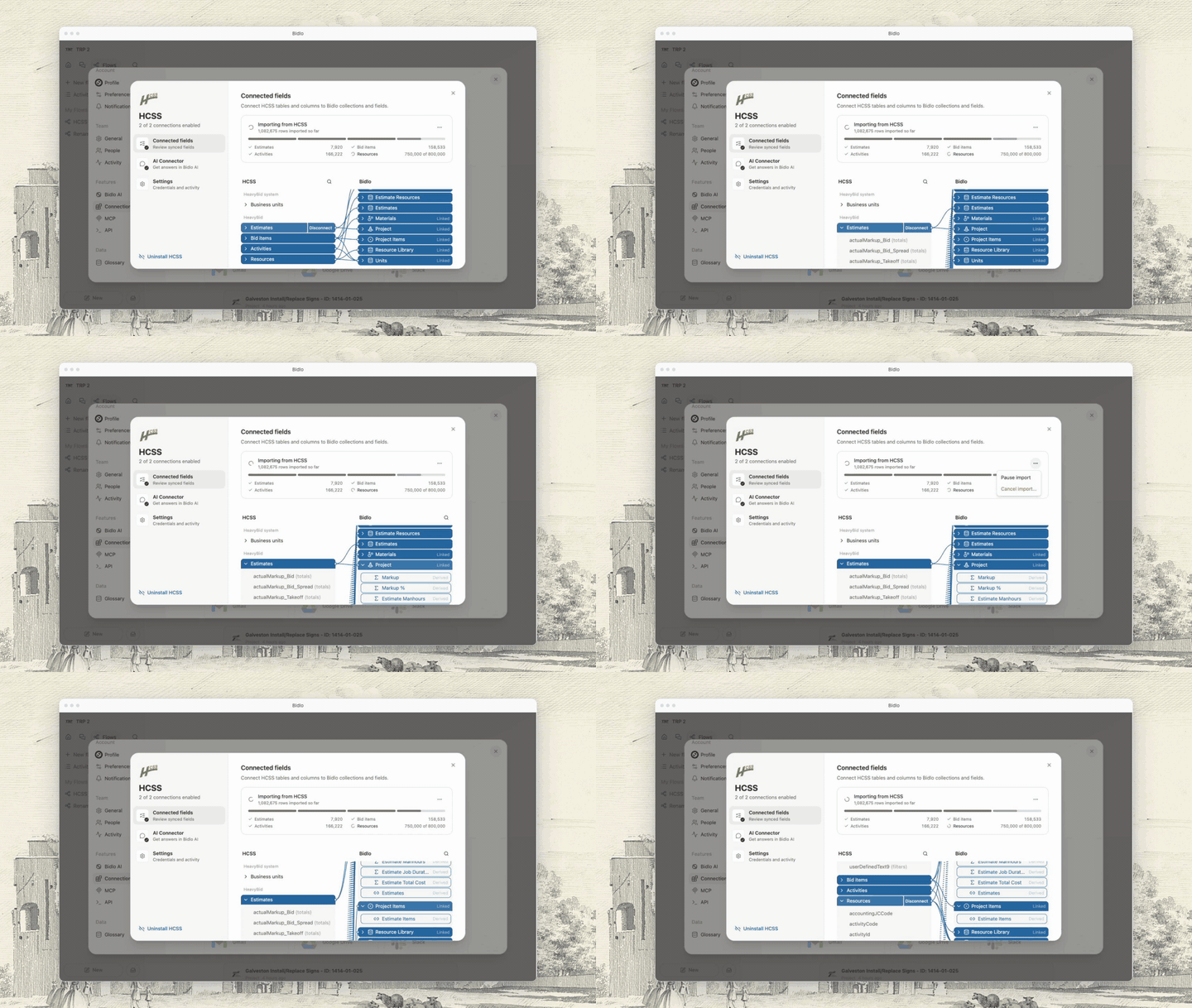
This update brings together 3 smaller changes across Bidlo Lite.
Chat browser: boot sandboxes with Chromium already running — The chat browser now opens websites on the first try instead of failing to start in a new chat.
Canvas: an arrow no longer covers the anchor it leaves from — You can now start another arrow from a side of a shape that already has one, without hunting for the spot to click.
App builder: publish apps that open on an empty project, and say why a preview check failed — The app builder can now publish an app that opens on a project with no rows yet, and tells you why a preview check failed instead of just stopping.
This update makes custom apps easier to build, share, and use.
Sidebar: one section header for every list — The Apps and Chats tabs' list headers now look and work like every other sidebar section, with a + to start a new app.
App builder: stop asking for approval unless rows are being deleted — Building an app no longer stops to ask for approval at every step; it only asks before deleting rows.
This update improves how you create and organize work in Notes.
Sidebar: Apps tab rows match page rows: inline rename, same menu, right permissions — Apps in the sidebar's Apps tab now behave like pages: rename them in place, use the same menu, and only see the actions you're allowed to take.
Flows: renaming a flow from its page or Settings renames it in the sidebar too — Renaming a flow from its page or its Settings now renames it in the sidebar too.
Flows: Query Documents carries a document's whole relation, not the first ten ids — A flow now sees every file and every related record on a project, not just the first ten.
This update brings together 5 smaller changes across Bidlo Lite.
Sidebar: rows work from the keyboard (Enter opens, Shift+F10 menu, F2 rename) — You can now use the sidebar from the keyboard: Enter opens an item, Shift+F10 opens its menu, and F2 renames it.
Maps: open on the team's state instead of Texas — Maps now open on your team's state instead of always starting in Texas.
Flows: Query Documents can read only the fields a flow needs — You can now choose which fields a flow's Query Documents step reads, so flows that read hundreds of records keep all of them.
Flows: an HTTP Request step can use the team's Smartsheet connection — A flow's HTTP Request step can now call Smartsheet with your team's existing Smartsheet connection, with no separate credential to set up.
Flows: Send Notification attaches File documents and packs big packages into the fewest emails — A flow email can now attach any file on a project, including Bidlo's public bid documents, and a big batch of files goes out as a few numbered emails instead of failing.
This update makes views clearer and more reliable when you review project data.
Sidebar: middle-click opens in a new tab, shift-select stays within a list, icons click like the row — Middle-click a page, chat, app or flow in the sidebar to open it in a new tab, and clicking a row's icon now opens it like the rest of the row.
Sidebar: shared pages use the shared row and get a read-only menu — Pages shared with you now have a ⋯ menu and right-click menu with Open in new tab, Copy link, and Open in side panel.
Sidebar: agent and flow rows use the shared row; rename agents inline — You can now rename an agent right in the sidebar, and agent and flow rows highlight and open their menus the same way pages do.
Sidebar: picking a menu item on a flow, agent or app row no longer opens the row — Picking an action from a flow, agent or app's menu in the sidebar no longer also opens that item.
This update brings together 4 smaller changes across Bidlo Lite.
Flows: order the data-trigger baseline pages so no record is skipped — A flow that watches for records entering a list no longer fires for records that were already in it when the flow was published.
Chat: attachments belong to the thread, uploads keep running when you leave — You can attach a file to a chat, go work on something else, and come back to find it uploaded and ready to send.
Custom apps: open a record in a center peek with bidlo.open(id, { panel: "center" }) — Apps you build can now open a project or record in a centered popup instead of the side panel.
Chat: an approval answer no longer resets the repeat-call guard — Bidlo AI stops asking you to approve the same failing step again and again.
This update makes custom apps easier to build, share, and use.
Apps: opening the chat no longer reloads the app you are looking at — Opening the agent chat beside an app no longer reloads the app you are looking at.
App builder: stop the approval loop on placeholder ids, keep Claude fallback alive with workbook tools — The app builder no longer asks you to approve the same step over and over, and chats recover instead of showing a connection error.
New pages, chats, agents, flows and apps now show up in your sidebar the moment a teammate creates them, and disappear when they're removed, without refreshing.
When a teammate adds, moves or deletes a page, your Public, Private and Favorites lists update on their own. A page someone shares with you appears in Shared right away, and leaves when they stop sharing it.
A chat someone shares with you lands in your Chats list as soon as they share it. Agents your teammates create, rename or delete update in the Agents list for everyone.
This update brings together 4 smaller changes across Bidlo Lite.
Ninety AI connector (team credentials) — You can now connect Ninety so Bidlo can read your Rocks, To-Dos, Issues, and Scorecards, and update them when you say so.
Canvas: toolbar clears the anchors, side hover + step-out preview, quadrant-snapped connections, Alt mid-drag copy — Connecting shapes on a canvas is quicker: arrows snap to the side you point at, clicking a shape's side dot adds the next box, and pressing Option partway through a drag drops a copy.
Agent dialog: hold ⌘E (Ctrl+E) to dictate the agent's instructions — You can now hold ⌘E (Ctrl+E on Windows) or click the mic to speak an agent's instructions instead of typing them.
Apps: query budget counts executions only, 4 query slots, live queries read within 3 s — Apps with many reports load reliably again: switching views quickly no longer stalls or shows a rate limit error, and a report that waits on live data starts within a few seconds.
A PDF longer than 10 pages now goes to Files instead of into the conversation, and the chat box shows it, for example "Structural Plans.pdf · 133 pages · saved to Files". Single sheets and short PDFs still go straight into the chat, so marking up a sheet and asking for a quantity works exactly as before.
When a plan set lands in Files, the assistant links it to the project you are working on. If it can't tell which project, it reads the cover sheet and asks you once before creating a new one.
When someone else has the same map or PDF open, their cursor moves on your screen with their name beside it, the same way it already does on canvas layouts. On a PDF the cursor stays on the same spot of the sheet at any zoom, so you can point at a detail instead of describing it.
Shapes, counts, comments and page scales a teammate adds to a PDF appear for everyone a moment after they save. Typing into the PDF file itself still goes one person at a time.
This update brings together 3 smaller changes across Bidlo Lite.
Sage 100: sync each job's budget hours as one snapshot per project — Sage 100 sync can now bring each job's budgeted hours by cost code into Bidlo, so a job summary can show budgeted hours next to actual hours.
Workbook service: pin an old calcId instead of fullCalcOnLoad so saved workbooks never go sluggish — Excel files you edit or export in Bidlo no longer turn slow and laggy after you save them in Excel.
Chat: Stop hands the question back at once; unsent drafts survive reload — Pressing Stop right after you send now puts your message straight back in the chat box, and text you haven't sent yet stays put when you reload the page.
This update makes views clearer and more reliable when you review project data.
Custom apps: live subscriptions refresh on change notices, not a 5 s poll, and reconnects resume quietly — Custom apps that watch for data changes no longer reload themselves over and over, so the page stays responsive and still updates within a second or two when something really changes.
Sage 100: sync daily field report history onto projects as one snapshot per job — Sage 100 sync can now bring each job's daily field report quantities into Bidlo, day by day and item by item, so a job's Detailed View shows what was installed on every DFR.
Custom apps: saved queries refresh again on prod and push filters into the record lookups — Numbers in custom apps that come from a saved query now update on their own when the data changes, and load faster.
Sage skill: check synced fields before saying Sage data can't reach an app — The assistant now checks the Sage values already synced into your projects before telling you Sage data isn't available in an app.
This update makes custom apps easier to build, share, and use.
App render check: one browser per check on Vercel; retry once when the warm browser is dead — Publishing an app no longer stalls on a preview check that failed for no reason.
Edit-first page access: where a page sits decides move/delete/publicity; grants only decide editing — Anyone on your team can now drag a Public page or app into their own Private section, and app sharing now uses just Editor and Viewer.
Open and edit Excel files directly inside Bidlo. You, your teammates, and your agents can work in the same live workbook, with changes appearing as you go. Keep the file with your project instead of downloading it, editing it elsewhere, and uploading another copy.
Ask an agent to read or update the workbook while you review it on screen. The agent can use the worksheet and selected cells you are viewing as context. Review its changes in the live sheet, then keep editing yourself.
Edit cells and formulas, sort and filter rows, and work across worksheets without leaving Bidlo. Charts, tables, and cell formatting stay part of the workbook. For example, review a bid-item worksheet while your agent updates quantities, then check the resulting totals together.
This update improves how you create and organize work in Notes.
PDF viewer: resizable pages sidebar, jump-to-page box, tidier header — You can now resize the page thumbnails beside a PDF, jump straight to any page number, and find Search, Download and Layers together next to Share.
PDF viewer: stronger current-page fill, header-sized solid icons — The page you're on now stands out more in a PDF's page list, and the PDF toolbar icons all match in size.
This update brings together two smaller changes across Bidlo Lite.
Sage 100: sync Budget and Billed To Date; chat agent sees every field name — Sage 100 sync now brings each job's Budget and Billed To Date into Bidlo, so Over / Under Billing reports can be built from the fields in Projects.
Database token: raise the 3-minute cap in the table access rules too — State filters show the list of states again, along with a few other lists that sometimes came up empty.
This update makes views clearer and more reliable when you review project data.
Shared pages: teammates see a new page's table without reloading, and a fresh filter stays put — When a teammate sets up a new shared page, you see its table right away without reloading, and a filter you add to a shared page no longer disappears on you.
Apps: Open as full page from a page section, like a view — You can now open an app on its own page: hover the app's title on a project page and click the expand icon, just like a view.
This update makes custom apps easier to build, share, and use.
Flows: Export Page as PDF prints custom apps — Flows can now email a custom app as a PDF on a schedule, like a weekly report.
Apps: a Full screen button on every app — You can now make an app full screen: hover over it and click the expand icon in its top-right corner, then press Esc to come back.
This update brings together 4 smaller changes across Bidlo Lite.
Toasts: one Bidlo look for every toast, with an X to close — Pop-up messages now look the same everywhere, and each one has an X so you can close it.
Chat launcher: each chat wears its own agent's avatar — Chats with a saved agent now show that agent's own avatar in the corner chat launcher.
Formulas: big imports recalculate in hours, not days, and heavy backfills stop dying mid-chunk — Formulas on big tables now catch up within hours after a large import instead of days.
Agent-made Excel workbooks: stop the sticky full-recalc mode that made them laggy — Excel files made by Bidlo agents no longer get slow and laggy to type in after you save them.
This update improves how you create and organize work in Notes.
New invites show up in the Invites list without a refresh — New invites now show up in the Invites list right away, without refreshing the page.
Teams and invites listeners: no crash when a channel is rebuilt — Moving from the Teams list into a team no longer shows an error page for some people.
Open the app page, click Share, then Publish. Choose Public for anyone with the link or Team for signed-in team members. The link always shows the app's current version.
This update makes views clearer and more reliable when you review project data.
Live updates keep flowing after a tab sits idle — Totals and formula cells now keep updating on their own after your tab has been in the background, so you no longer have to refresh to see them catch up.
Save for everyone keeps your filters and sorts after a rename — Saving filters and sorts for everyone now keeps them even if you just renamed the view.
This update brings together two smaller changes across Bidlo Lite.
Custom apps: retired app ids redirect, standalone apps get the host record, print/download in apps — Custom apps now open on the project you're looking at, can print and export, and old app links keep working.
Sidebar highlights a new page while it is being set up — When you create a new page, it's now highlighted in the sidebar right away.
This update makes views clearer and more reliable when you review project data.
custom apps v3: app tab menu, faster Views-tab deletes, new building figure, benchmarks — Deleting several tabs on a page in a row is quick again, and an app tab's settings menu only shows the options that apply to it.
Custom apps: shared links of apps built on bidlo.query load their data — Apps shared by link now load their data for people opening the link.
This update brings together 3 smaller changes across Bidlo Lite.
Chat: attachment chips show page-1 previews and open on click — Files you attach in chat now show a preview, and you can click one to open it.
Agent: value history explains formulas and values with no log entries — When you ask the chat where a value came from, it now explains formulas and imported values instead of saying there's no history.
Sidebar: new private pages land at the top of Private — New pages and apps you create now show up at the top of your Private list, right where you're looking.
This update brings together 4 smaller changes across Bidlo Lite.
Sage 100: Connected fields tab and a daily sync into project fields — Sage 100 Contractor can now keep your project fields up to date every morning: pick which Sage numbers go to which fields under Connected fields.
Chat: default model is GPT 6.1 Sol at medium reasoning — Chat now uses GPT 6.1 Sol by default, for steadier and more capable answers.
Flows: Send Notification can send the flow's own email HTML — Flow emails can now use your own layout, like tables, clickable project names, and a custom button.
Chat: fall back to a backup model when a provider fails mid-stream — If an AI provider hiccups before answering, chat now quietly retries on a backup model instead of showing an error.
This update makes custom apps easier to build, share, and use.
Published app links show the app alone for team members too — When you open a published app link, you now see just the app, even if you're on the team.
New apps show up in the sidebar right away — A new app you build now appears in your sidebar right away, in Private, or in Public when you start it from a Public page.
This update makes custom apps easier to build, share, and use.
Chat header: show connected app logos next to the add-connection button — You can now see which apps are connected right from the top of a chat.
Iframes: let mailto and new-tab links leave sandboxed frames — Clicking an email link inside an app or an HTML file now opens your email app.
Dashboards: chat never removes or breaks app cards; legacy app upgrade keeps the app running — Asking the chat to change a dashboard no longer removes or breaks the app cards on it.
New apps start in Private, at the top — A new app you build now shows up at the top of your Private pages, so you can find it right away.
This update makes views clearer and more reliable when you review project data.
Chat: query_database_data computes totals in the database — Ask chat for a total, average, or count and it now adds up every matching row instead of just the first page.
Friday 10-02 timeouts: views stop re-sending timed-out requests; HCSS sync deletes in small chunks — When a table takes too long to load, it now shows the "took too long" message once instead of trying again and again in the background.
Shared pages stage filter edits as a personal draft, and the sidebar refreshes on every share — When you share a page from your Private section, your filter changes now stay yours until you choose Save for everyone, and the page shows up under Shared right away.
Flows: sidebar row greys out as soon as a flow is turned off — Turning a flow on or off now updates its row in the sidebar right away, without refreshing the page.
Add menu: collection chips sit under the tabs, one scrollable row — In the canvas and map "+" menu, the Projects, Contractors and other filters now sit under the tabs on one scrollable row, and hide on Templates and Upload.
This update brings together 5 smaller changes across Bidlo Lite.
Loading border uses the primary color — The loading outline now uses Bidlo's brand color.
File cards: Word/Excel thumbnails for agent-dropped files appear right away — Word and Excel files the agent adds to your workspace now show a picture of the file as soon as they appear, instead of after the agent finishes.
Canvas: sections hold their contents in Layers; Layers panel resizes — On a canvas, everything inside a section now sits under that section in the Layers panel, and you can drag the panel's edge to make it wider or narrower.
Chat models: update picker to the newest Sol, Sonnet, Haiku and Gemini — You can now pick the newest AI models in chat: GPT 6.1 Sol, Claude Sonnet 5.5, Claude Haiku 5.5 and Gemini 4 Argon.
File cards: Word/Excel thumbnails for files dropped in the browser — Word and Excel files you drop onto a canvas or board now show a picture of the file within a few seconds.
This update improves how you create and organize work in Notes.
Agent: get_document_changelog tool answers who changed a value and when — You can now ask the chat who changed a value on a page and when, and it answers from the page's change history.
File cards: render missing previews on sight, and thumbnails for Word/Excel via a LibreOffice converter — File cards on boards and galleries now show a picture of the file's first page instead of "No preview", including files added by the agent.
This update brings together 3 smaller changes across Bidlo Lite.
Auth boundary follow-ups: sessionless paths and impersonation work with the WorkOS token gate — Bid tabs show their contractor columns again, and agents and automations that run in the background work again.
Map: pinning a travel-range area or shape no longer crashes the page — Saving a travel-range area or a drawn shape to a map no longer crashes the page.
Notes: Notion-style toggle with an editable title — Toggle blocks in notes now have their own title you can type in, and open or close with one click on the arrow.
You can now connect Sage 100 Contractor and ask Bidlo AI about your jobs, daily field reports, labor hours, and billing straight from your Sage company database.
Open Connections, pick Sage 100 Contractor, and enter the SQL login for your company database. Bidlo reads it through its fixed-IP relay, so your IT team only has to allow one address. Every query is read-only and rolled back.
Ask things like "how many daily field reports were filed last month and which foreman filed the most" or "DFR quantity to date for every item on job 5675 as a percent of contract". Bidlo knows Sage's tables, TxDOT item codes, and the office-correction reports to leave out of production rates.
You can now add any document, project or file to a canvas: use the + button in the toolbar or right-click the canvas and choose Add, then search for what you want to pin.
The assistant can now open websites like a person does, so it can pull bid tabs from TxDOT's Tableau dashboard and other bid portals when you send it a link.
Paste a link and say what you need, such as "get the bid tabs for 0906-00-295 from this page." The assistant opens the site, uses its filters and buttons, and reports what it found.
When a site has an export button, the assistant clicks it and reads the file it downloads. Crosstabs and spreadsheets come straight from the source, so totals match what the agency posted.
This update brings together two smaller changes across Bidlo Lite.
Load playwright-core on call so a missing browsers.json can't break every server action — Pasting onto a canvas, and other edits on pages, work again instead of showing an error.
Sidebar: show an "Add an agent" row when the Agents section is empty — When you have no agents yet, the Agents section in the sidebar now shows an "Add an agent" button.
This update brings together 3 smaller changes across Bidlo Lite.
Grouped tables: keep rows past the first 50 on record pages — Grouped tables on a project page now show every row, even when a group has more than 50.
Chat: big text attachments are saved to Files instead of pasted into the prompt — Attaching a large text or HTML file in chat no longer fails with a token limit error; the file is saved to Files and the assistant reads it from there.
Chat: HTML attachments go to the workspace and Files instead of the prompt — Attaching an HTML file in chat now saves it to Files, so you can ask the assistant to tag, file, or read it.
Flow agents can now work for up to two hours, pull a whole collection into their workspace for analysis, and team flows no longer get blocked by someone's personal Dropbox or Sheets login.
An Agent Task step used to stop after about two minutes. It now keeps working for up to two hours, keeps its files between rounds, and finishes what it started.
An agent can now export every row of a collection to its workspace in one step and run its own math over them, instead of reading a hundred rows at a time.
Sharing or publishing a team flow always goes through. If you have a personal Dropbox, Box or Sheets connection, the flow simply can't use it while shared, and Bidlo tells you so.
This update brings together 4 smaller changes across Bidlo Lite.
Surfaces: mouse wheel zooms on Windows with display scaling — Scrolling the mouse wheel on a map or canvas now zooms in and out on Windows computers too, instead of moving the map up and down.
Maps: drawing on a shared project's map banner saves again — You can add shapes to the map on shared project pages again.
Files: Share and Publish from the file page header — You can now share a file with teammates, or publish it as a link anyone can open to view and download it, from the Share button on the file.
Files: published Word, Excel, PowerPoint and Markdown files show inline — When you publish a Word, Excel, PowerPoint or Markdown file, people opening the link now see the file itself instead of just a Download button.
This update improves how you create and organize work in Notes.
Header presence: opaque same-size avatars + divider before actions — The people and agent icons at the top of a page no longer blur into each other, and a divider now separates them from the page buttons.
Header presence: opaque same-size avatars + divider before actions — The people and agent icons at the top of a page no longer blur into each other, and a divider now separates them from the page buttons.
Files: published HTML files show their page instead of a download card — When you publish an HTML file, people opening the link now see the page itself instead of just a Download button.
Ask the app builder for a button that does the heavy lifting, like scanning a project's plans. The app starts the Flow, shows "Batch 2 of 8" while it works, and fills in the results when it finishes.
Rest your pointer on a cell with an estimate and a small card opens beside it. It shows the estimated value, how confident it is, the reasons behind it, and how the estimate has moved over time. Lists such as bidders or tags show every item with its own chance of being included.
Click into an estimated cell and the box opens empty, with the estimate shown in grey as a hint. Whatever you type becomes the real value, even if it is the same number. Clicking away without typing leaves the estimate alone.
If the estimate is right, press the check mark on the card. The value becomes real and the card remembers that you confirmed it. Undo is there if you click it by mistake.
This update brings together 5 smaller changes across Bidlo Lite.
Chat: forking opens the new chat in the same place — When you fork a chat from the floating or side chat bar, the new chat now opens right there instead of jumping to a full page.
Chat: turn leaked web-search citation tags into source links — Web search answers in chat now show clickable source links instead of garbled boxes.
Custom apps: a builder turn that changed nothing no longer mints a version or a publish build — The app builder no longer saves a new version of your app after a turn that didn't change anything.
"Is not" filters are real negations on every field type — "Is not" filters now exclude exactly what you pick on text, number, date, yes/no, tag and people fields, and "Is not" is back for date fields.
Public API Phase 2: collections, fields, files, comments, history — Your API keys can now add and change collections and fields, upload and download files, post comments, and read a record's change history.
When you create an API key in Settings, pick Read only, Read and write data, or Full access, or choose individual permissions. You can also limit a key to certain collections and set it to expire. A key can never do more than the person who created it.
Your own scripts and tools can now create, update, upsert, trash and restore records in any of your team's collections, set related records, and edit notes. The same actions are available to AI tools connected through MCP.
This update makes custom apps easier to build, share, and use.
App builder: route agent work to Flows, lock the kit, report in plain language — The app builder now tells you up front when part of a request is a job for a Flow or an agent, and explains what it did in plain language.
Chat: long app-building chats no longer fail with "Request Entity Too Large" — Long app-building chats no longer fail with a "Request Entity Too Large" error when you send your next message.
App builder: reach platform tools and subagents on demand — When you ask the app builder for something that needs a Flow or an agent, it can now set that up for you and build the app to show the results.
Custom apps: the app-kit is the app's own code; explicit app_update_kit — When you build a custom app, the built-in components are now part of your app: the builder can change them, its changes stay, and it can pull in newer versions when you ask.
Custom apps: restoring a version reconciles the sandbox exactly — Restoring an earlier version of a custom app now brings back exactly that version's files.
Custom apps: per-file app-kit for new apps; app_update_kit converts and updates file by file — Custom apps now keep their built-in components as separate files the builder can read and change one at a time, and can pull in newer component versions when you ask.
This update brings together 6 smaller changes across Bidlo Lite.
HCSS sync: find the Projects match field by id so a rename cannot unlink it — Projects linked to a HeavyBid estimate pick up that estimate's status, role, and branch again.
Chat attachments: no size limit; large files are saved to Files — You can now attach files of any size to a chat, like a full plan set, and the assistant saves it to your Files and reads it from there.
Chat attachments upload on attach, with progress, cancel, and a waiting step — When you attach a file to a chat you now see it upload, can cancel it, and can send your message before it finishes.
Chat: ignore a second send while the first is still going — Pressing send twice while a message is still going out no longer sends it twice.
Chat: let the agent change and apply a live integration's sync map — You can now ask Bidlo AI to change how HCSS or PipelineSuite values map into Bidlo, and approve the change right in the chat.
Side panel: drop the right gutter when the chat is docked beside it — The thin empty strip between an open side panel and the docked AI chat is gone.
You can now set up a new integration right from the chat: Bidlo AI shows a secure connect card, walks you through the sync review, and you approve it in place.
Ask for a connection by name ("connect HCSS", "set up Procore", "sign in to Box") and a connect card appears in the conversation. Team credentials or your own sign-in go straight to Bidlo, never through the AI. The card shows any error and can be canceled.
For HCSS and PipelineSuite, the AI runs the sync review right after connecting, shows how incoming values will map to your fields, changes anything you ask, and puts up an Approve/Reject card. Approving sets up the sync and starts the first import.
This update brings together two smaller changes across Bidlo Lite.
Feed: confirm swipe actions with a toast right away — Swiping a card in the feed now shows a quick confirmation right away, so you know the action went through.
Custom apps: let an embedded app ask for a taller box — You can now ask the app builder to make an app taller when it sits inside a page, and the extra height actually shows up.
This update makes views clearer and more reliable when you review project data.
Sidebar: empty Public/Private sections show one "New page" row — Empty Public and Private sections in the sidebar now show a single "New page" button instead of two.
Sub-items: allow formulas that output a relation — You can now show sub-items using a formula field that points to related records, not just a regular relation field.
This update brings together two smaller changes across Bidlo Lite.
Flows: failed steps notify the owner, HCSS sync retries flaky requests, AI Step says it only sees its prompt — You now get a notification when an automation finishes but one of its steps failed, and HCSS syncs recover from brief connection hiccups on their own.
Canvas: Shift/Ctrl-click inside a marquee selection toggles the node under the pointer — On a canvas, Shift- or Ctrl-clicking a section after drag-selecting now unselects just that section and keeps the items inside it selected.
This update brings together 5 smaller changes across Bidlo Lite.
Notes: Backspace outdents an indented first line instead of leaving the note — Pressing Backspace at the start of an indented first line in a note now removes the indent.
Canvas: paste text as a text box, fills bring a matching border, toolbar panels behave — You can now paste text straight onto a canvas, and picking a shape's fill color gives it a matching border.
Chat models: add GPT-6 Sol, GPT-6 Luna, Opus 5.5; Grok 4.6 -> 4.7 — You can now pick GPT-6 Sol, GPT-6 Luna, Claude Opus 5.5, and Grok 4.7 in chat.
Canvas cursors wave at each other up close, and a shared click is a high five — When your cursor meets a teammate's on a canvas, you can wave at each other and click at the same time for a high five.
Chat: Stop reaches the server reliably, and both halves of a Stop leave a telemetry trail — Pressing Stop now reliably stops the assistant, even mid-write.
This update brings together 4 smaller changes across Bidlo Lite.
Notes spellcheck: stop toggling spellcheck, which wiped the red underlines — Misspelled words in Notes now keep their red underline, so you can right-click to fix them.
Shares reach a teammate with two accounts under one email — When a teammate shares a chat or page with you, it now opens for you even if your account was set up twice under the same email.
Sidebar: right-click empty space to customize; phone inbox button matches the nav pills — Right-click empty space in the sidebar to open Customize sidebar.
Exports from a project page use that project, not the view's saved filter — Exporting a table from a project page now always gives you that project's items.
This update brings together 6 smaller changes across Bidlo Lite.
Agent dialog: one look for every field, a random face for a new agent, triggers listed like context — Creating an agent now gives it its own look, and the agent settings read as one tidy form.
Shared chats wear the faces of the people they're shared with — Chats you've shared now show the faces of the people you shared them with, in the sidebar and in the chat launcher.
Chat retries instead of dying when it names a database it can't reach — When chat points at a database that no longer exists, it corrects itself instead of giving up.
Sidebar auto-hide waits for hydration instead of racing it — Pages stop flickering or erroring on load when the side panel was open last time.
PDF thumbnail backfill leaves global files to the server — Opening a plan set from a letting no longer stalls on a thumbnail it can't save.
Views stop measuring text on the server, stale tabs reload after a deploy, action errors name their user — After an update, an open Bidlo tab now reloads itself instead of showing "Something went wrong".
This update improves how you create and organize work in Notes.
Home greets you with a rotating welcome line, and the feed follows the hero in flow — The home page greets you with a fresh welcome line each visit, and your news feed sits right under the chat box.
A chat answer keeps going after the connection drops, even if the tab reloads — A chat answer keeps writing itself after your connection hiccups, even if the page reloads.
Duplicating a document skips values whose field was deleted — Duplicating a record works again when the record still holds values from a deleted field.
This update makes views clearer and more reliable when you review project data.
Sidebar type and ink match Notion; the Bidlo mark is the current brand icon; filter pills grow to 28px — The sidebar's text and icons are easier to read, and filter pills are a little bigger.
A chat with no participant row yet is a miss, not a server error — Opening Share on a brand-new chat no longer trips an error.
Set a filter on your feed, such as projects with a bid date still ahead, and the feed now ranks everything that matches instead of only the handful that happened to be recently active.
When nothing matches you see "You're all caught up" or a hint to adjust your filters, and if the feed fails to load you get a Retry button instead of a blank space.
An Infinite table used to stop loading at 5,000 rows and switch to a Load more button, and some sorts made it stop even earlier. It now keeps loading as you scroll, whatever the sort or filters. The rows above and far below you are released as you go, so long lists stay light.
Sorting by name, a tag, distance, a related record, a formula, or by two fields at once used to re-sort the whole list for every page you scrolled to. The list is now sorted once when you start scrolling and each later page just picks up where you are, so pages that took one to three seconds load in a fraction of that.
An Infinite table used to stop loading at 5,000 rows and switch to a Load more button, and some sorts made it stop even earlier. It now keeps loading as you scroll, whatever the sort or filters. The rows above and far below you are released as you go, so long lists stay light.
Sorting by name, a tag, distance, a related record, a formula, or by two fields at once used to re-sort the whole list for every page you scrolled to. The list is now sorted once when you start scrolling and each later page just picks up where you are, so pages that took one to three seconds load in a fraction of that.
Give each agent a name, shape, and color that fits its job. The same face appears in the agents list and chat header, where it changes as the agent thinks or works.
Open an agent’s settings, choose its shape and color, and save. For a bid review, you might use a blue agent for checking plans and an orange agent for checking the estimate.
Agents working on a project appear beside the people in its header. Open an avatar to see its activity and return to the related chat. When an agent finishes while you stay on the page, its dimmed avatar remains until you leave.
This update brings together 3 smaller changes across Bidlo Lite.
flow test runs rehearse agent writes — Testing a flow now lets an agent step do its whole job, with every change it would make listed in the run instead of applied.
agent steps judged by facts — When a flow's agent step finishes its job, the run now shows it as done, and a failed agent step keeps the details of what it tried.
Custom apps can save up to 1 MB per setting (was 64 kB) — Custom apps can now save much larger settings, so big planners and tables no longer hit a "Save error".
You can now ask the chat to share a page, app, or chat with a teammate, open it to the whole team, or take it back to invited-only, and it will tell you what each change means before it makes it.
Say "share this page with Jen as an editor", "let everyone on the team open this app", or "who can see this?" in any chat where the page or app is open. The chat reads the current sharing state first and explains what will change, then applies it the same way the Share menu would.
When a change would remove people you invited, such as moving a page into Public, the chat asks you to confirm before it makes the change. Public links for anonymous visitors and publishing pages as websites still live in the Share menu.
This update makes custom apps easier to build, share, and use.
Apps and the API return a location's coordinates again — Apps that read a project's map location work again, and app errors show a plain message instead of a stack trace.
Tell people when they become an app editor, and tell flow creators when a flow fails — You now get an inbox alert when someone makes you an editor or owner of an app, and the person who built a flow is told when one of its runs fails.
This update brings together two smaller changes across Bidlo Lite.
Fix the seven prod errors from the September triage and cut PostHog noise — Bidlo now tells you when a new version is ready and when a click did not reach the server, and fixes several crashes on team member lists, views, and chat.
Canvas: agent edits show up live in the tab that asked for them — When you ask the agent to add or move things on a canvas, the change now shows up right away without reloading the page.
You can now ask the agent to build a whole diagram or workflow on a canvas, tidy up a messy board, or add and connect things by naming them the way you see them.
Say "create a workflow diagram of our bid process: intake → go/no-go → bid or decline → estimate → review → submit" and the agent draws the boxes, arrows and sections laid out left to right, with nothing overlapping.
"Put a red sticky under the B square that says Bob" or "connect A to C" works without the agent reading the board first. If two things match, it asks which one.
"Tidy this up" re-arranges the stickies, shapes and sections into a clean layout. Cards you placed by hand stay where they are unless you ask to move them.
Page tabs and the views on them are now stored in one place, so the assistant can see, move, and rearrange a page's tabs and views for you, and page layouts load more reliably.
On any record page, ask the assistant to move a view from one tab to another, rename a tab, or reorder the views on it. It reads the page's tabs directly, and confirms with you before removing a tab that still holds views.
You can start another agent while a project check is still running. Each conversation keeps its own progress in the chat list, so you can move between tasks and return to an answer when it is ready.
Ask one agent to compare the plans with the project items. While that review runs, open another agent to check quantities and prices in the estimate. Keep the project open as both requests progress.
This update brings together two smaller changes across Bidlo Lite.
Canvas: toolbars for stickies, text and sections; lock, hide and fit sections; bold, strike, lists, alignment and text color — On a canvas, you can now lock, hide or shrink-to-fit a section, and make sticky or text labels bold, struck through, bulleted, aligned, colored or extra large from the toolbar that floats above them.
Agents work the same way in flows, chat, and subagents — Agents that run as a step in a flow can now read and update your project data.
When an agent cannot finish its step, the flow now reports that step as failed instead of passing, so you are never told a run worked when it did not.
Ask the builder for a change, then close the panel or go do something else. The edit keeps running in the background, and the app updates when it is done, even if you reload the tab.
While a build is running, the app shows a small "Still building…" chip, then "Publishing…" once the change is being published. Click it to reopen the same builder conversation and follow along.
This update brings together 11 smaller changes across Bidlo Lite.
Conditional color: keep a typed value when the popover closes, compare numbers as numbers — A number typed into a color rule now sticks even if you close the menu by clicking away, and "Equals" matches numbers regardless of how they are formatted.
Conditional color: blank numbers count as zero, date rules work on stored dates — Color rules on date columns now work, including "Is relative to today", and a blank number cell is treated as zero.
Conditional color: list, checkbox, text and legacy-date matching fixes from audit — Color rules on tag, relation, people, checkbox and date columns now match what you picked, including "Is exactly" and "Is unchecked".
Home feed settings are saved per team, so one team's swipe rules stop showing up on another — Your home feed settings — cards, filters, and swipe actions — now belong to the team you set them on, so each team gets its own.
Side panel back arrow only tracks clicks made inside the panel — The side panel's back arrow now only appears for pages you opened from inside the panel, so it always goes where you expect.
Activity History panel opens instantly with a skeleton — Activity History slides open right away and fills in, instead of waiting on a blank screen.
New chat button gets a face; chat bar sits flush when docked — The New chat button has a little face that watches your cursor, and the chat bar sits flush against the side panel when docked.
Notify me when a flow run finishes or fails — You can now get notified when a flow finishes, either every run or only when it fails.
Flow canvas gets a + menu for nodes, templates, and connections — A new + button on the flow canvas lets you add a step, drop in a ready-made template, or connect a service from one place.
Flow step panel: help behind an icon, rarely used settings folded into Advanced — Setting up a flow step is simpler: each setting's help sits behind a small icon, and rarely used options are tucked into an Advanced section.
Flows sidebar shows Public and Private sections, with a cached list — Flows now have Public and Private sections in the sidebar, so a flow you are still working on stays yours until you move it to the team.
This update makes custom apps easier to build, share, and use.
Custom apps: a page app keeps your latest change on screen after the builder closes — When you close the app builder on a page, the page keeps showing your latest change until the published copy is ready, instead of jumping back to the older version.
Sharing a page that shows an app now shares the app itself, so editors can edit it — When you share a page that shows one of your apps and make someone an editor, they can now edit the app.
Flow Runs and Settings, and app History and Settings, open in the side panel — A flow's Runs and Settings, and an app's History and Settings, now open in the side panel next to the page instead of replacing it.
This update makes views clearer and more reliable when you review project data.
Conditional color: PDF cell colors, location rules, full relation matching, formula text rules — Conditional colors now show up on PDF exports, work on location fields, and match every item in a relation column.
Sidebar unread indicator is a dot on the icon instead of a count badge — Pages with unread activity now show a small dot on their icon instead of a number that shifted the row around.
App sharing: role descriptions, Request access, and grants that survive Public — When you share an app, each role now says what it allows, and people who can only view an app can ask its owners for access.
This update improves how you create and organize work in Notes.
Layout editor: super admins can apply layouts on teams they support; save failures show a toast — If a page layout can't be saved, you now see a message instead of the change quietly disappearing.
Keep the home page warm too, so the first page after sign-in opens faster — The first page you land on after signing in opens faster.
Safari: document pages no longer grow a horizontal scrollbar — In Safari, pages no longer show a stray sideways scrollbar under the title.
When you close the build chat, the app keeps showing your latest changes while they finish publishing. It only switches to the published copy once that copy is ready, so nothing looks like it was undone.
This update makes views clearer and more reliable when you review project data.
Views: a deleted field disappears from every view that used it — Deleting a field now clears it out of every view that showed, filtered, sorted or grouped by it, instead of leaving an "Unknown" column behind.
Flows: Agent Task is the catch-all for tool-driven steps, not just file work — The Agent Task step in Flows now explains it can analyze data and research across documents, not only edit files.
Flows: a data trigger on a large list turns on with a complete baseline — Flows that watch a large list for a change now turn on reliably instead of failing partway through.
Flows: a bulk edit becomes one flow run, and a busy flow says so — Flows that react to data changes now keep up when a large batch of projects updates at once, instead of falling behind.
Views: a new view opens as an empty table and makes its dataset on first use — Adding a view now gives you an empty table right away, and its dataset is created the moment you add your first row or column.
Views: a table you add inside a page tab no longer vanishes on refresh — A table you add to a tab now stays put after a refresh, instead of sometimes disappearing right after you create it.
Document page: right-click or long-press a field for the cell actions menu — You can now right-click (or press and hold on a phone) a field on a document page to copy it, comment on it, or see its history, just like in a table.
Color rules can compare a number column against another column in the same row — You can now color a number column based on another column in the same row, like turning Bid Qty. red when it does not match Final Qty.
Column menu: only the submenu under the mouse stays open — Sliding your mouse down a column's menu no longer pops open every submenu at once.
Color rules: inline date editor no longer steals focus; skip needless refetch — Adding a colour rule to a date column is now instant instead of briefly locking up the page.
This update brings together 7 smaller changes across Bidlo Lite.
Sign-up goes to AuthKit's sign-up screen, not sign-in — Sign-up links now open the sign-up screen instead of dropping people on the login form.
Flows: an Agent Task step can open, edit, and save Excel and other files — Flows can now hand a step to an agent that opens, edits, and saves Excel, Word, and PDF files.
Chat: a dropped connection reconnects to the answer instead of dead-ending — If your connection drops while the agent is working, chat now reconnects and shows the finished answer instead of a "network error".
Flows: the agent says when a new trigger skips what already matches — When the assistant sets up a flow that watches for a change, it now tells you how many records already match and asks whether to run it for those too.
HCSS: estimate items stop duplicating on every HeavyBid re-upload — Estimates synced from HeavyBid no longer show duplicate line items with stale prices after the estimate is re-uploaded, and activities and resources sync again.
Apps: keep the preview on screen while a new app's first version publishes — A brand-new app no longer disappears for a moment after you finish building it; it stays on screen while it publishes.
Conditional color: no empty field list, and number formulas typed only on their plan count — When you type a field name into a color rule and nothing matches, you no longer get an empty dropdown.
This update improves how you create and organize work in Notes.
Dashboards: cards fill the page width on full-width collections — Dashboards on full-width pages now use the whole page width instead of staying stuck at the narrow centered size.
Document pages: fields no longer blank out after ticking a checkbox — Ticking a checkbox on a project or document page no longer makes the other fields on that page go blank.
Share: drop the "Only you have access" line on private pages — The share panel no longer shows an "Only you have access" note on private pages.
Page setup: keep the Skip button clear of the new-chat button — The Skip button on a new page is no longer hidden behind the chat button on narrow screens.
The first page after a quiet spell used to take several seconds to appear. The app now stays ready, so that first page loads about as fast as the ones after it.
Open a project in the side panel, click into one of its files, and a back arrow appears at the left of the panel header. Click it to return to the project without closing the panel. It keeps working as many steps deep as you go, and it disappears once you are back where you started.
Opening a team from the Teams page responds right away, and the home feed no longer freezes the rest of the app or snaps you back to Home while it loads.
Clicking a team card or row now shows a spinner on the thing you clicked and a skeleton of the page while it loads, and hovering a team starts loading it early so the click lands faster.
The feed loads in the background like any other part of the page. It no longer holds up notifications or the What's New popup, and a feed that finishes after you've already moved on can't pull you back to Home.
This update brings together 10 smaller changes across Bidlo Lite.
Flows: resolve AI step agents by either of their two ids — Flows that Bidlo AI builds for you can now pick an agent for an AI step, and the step actually runs as that agent.
Merge branch 'worktree-agent-aa423380f71810f95' — Flows built for you by the AI assistant can now run your agents, and a flow run with failed steps now shows as failed instead of finished.
Timeline: click-placed bars span six ticks; pane rule drawn as shadow — Clicking on a timeline to add an item now creates a bar that's wide enough to see at any zoom level.
Timeline: phasing picker can create the number field on the spot — When you turn on phasing in a timeline, you can now create the number field right from the picker instead of adding one to the collection first.
Chat: opening a bar draft as a full page no longer deletes the thread — Expanding a new chat from the chat bar into a full page no longer loses the chat.
Flows: blank canvas steps aside once the prompt is sent — When you describe a new flow, the canvas now clears right away so you can watch the steps appear as they're built.
Flows: run lists flag a green run whose steps failed — A flow run that kept going past a failed step now shows as failed in the run lists instead of a green Success.
Canvas: free connector ends are a host capability; ctrl-drag twins free ends correctly — Dragging a connector's loose end on a canvas now behaves the same whether you copy it with Ctrl-drag or move it, and flow diagrams no longer lose a connector when you drop its end on empty space.
Auto tags: skip unfinished filters instead of failing the whole field — Auto tag rules keep working even if one of their filters was left unfinished.
Files: names with #, %, ? or spaces open correctly — Files whose names contain # or % or ? now open instead of showing an error.
Pick the section tool and drag to draw a section the size you want. Sections are shaded blue by default so they read at a glance, and the last color you picked is used for the next one. Pick the arrow tool and drag anywhere to draw an arrow — it can start or end on empty canvas, or snap to a sticky, text, shape, section or card. Drag an arrow's end to move, attach or detach it.
This update brings together 4 smaller changes across Bidlo Lite.
New version banner: centered text, buttons pinned right — The "new version available" notice is centered, with Refresh pinned to the right.
Chat: auto tag tools — You can now ask the chat to set up or change a field's auto tag rules.
Side panel: closing on the way somewhere lands there, not back — Opening a chat full screen from a side panel now takes you to the chat instead of just closing the panel.
Chat: add GPT-6 Astra and Astra Fast to the model picker — You can now pick OpenAI's new GPT-6 Astra model in the chat model picker, including a faster (pricier) version.
This update improves how you create and organize work in Notes.
Images: one full-screen viewer for notes and chat — Click any image in a note or chat to open a full-screen viewer with zoom, next/previous arrows, and download.
Page tabs: the Content tab gets the same pill menu as custom tabs — You can now rename, change the icon of, duplicate, and delete the Content tab on a page, just like any other tab.
Comments block: quiet inline styling on pages — The Comments block on a page is quieter: an empty thread is just one "Add a comment..." line.
This update makes custom apps easier to build, share, and use.
Custom apps: HTML apps saved from chat render again — Apps built as a single HTML page from chat now open instead of sitting on "Building your app".
Chat: one way to build apps — build_app hands off to the app builder — Asking the assistant for a new app now opens it straight in the app builder, with the same preview and tools you get from "New app".
This update improves how you create and organize work in Notes.
Map: pins and new facilities stay on the page instead of vanishing — Things you save to a map, like a travel range or a facility you add by right-clicking, now stay on the map instead of disappearing a moment later.
Chats: a Share button in the same place every other page has one — Sharing a chat now works from the same Share button as every other page.
Fields: deletes made elsewhere disappear without a refresh — Fields deleted by the assistant or by a teammate now disappear from your field list right away, instead of sticking around until you refresh the page.
This update brings together 6 smaller changes across Bidlo Lite.
Grouped views: stop the facet query nested-looping 371M row pairs — Pages that group projects by owner or another tag now open in about a second instead of making you wait fifteen.
Notes: pasting from Notion keeps callouts, headings and bold instead of raw tags — Pasting from Notion now keeps callouts, headings and bold text instead of showing raw tags and blank lines.
Field search: menus find fields by their AKA names, like the Glossary does — Searching for a field now finds it by its AKA names too, not just its exact name.
Card preview picker: drop the "Content" hint line — The card preview picker reads a little cleaner.
Popovers: side-anchored menus slide back onto the screen instead of off the edge — Menus that open beside a panel now stay on screen in narrow windows.
Build mode bar: quieter chrome and a chat history button — The Build mode bar above the chat box is cleaner, and you can jump straight to your earlier build chats from it.
Open the layout editor for a collection and add the Comments block from the "+" menu. It lands in the main column, under the notes, and every page in that collection picks it up.
Turn labels off in the layout editor's title settings and the row shows just the values, with each field's name on hover. Handy when the values speak for themselves.
The Details, Comments and Activity tabs are gone from the top of the sidebar. Open a page's menu and pick Comments or Activity, and the sidebar shows it in place. The sidebar button in the header brings the details back, and closing and reopening always returns to details.
Notify me on a page now offers three choices instead of two. Comments & notes tells you when someone writes on the page, including edits to its notes. Field changes covers the page's fields. All changes covers both.
· Views and data, Access and alerts, Custom apps, Notes, Other
This update brings together 4 smaller changes across Bidlo Lite.
Team invites: quieter support section, correct invite column label — The People settings tuck Bidlo support staff into a collapsed section so your own team is what you see first.
Page tabs: remembered per collection, drag reorder reaches the page, + only in the layout builder — Page tabs now remember which tab you were on across projects and reloads, drag to reorder sticks, and an empty Views section opens with the same start screen as a new page.
Page tabs: the Content tab sorts with the rest — You can now drag the Content tab anywhere in a page's tab strip, and put other tabs in front of it.
Chat views: the assistant can build feeds, and reaches the rest of the layout settings — Ask the assistant for a feed and you get a feed, plus it can now set card previews, map location fields, board colors, and timeline phasing for you.
Page tabs now work like view tabs: right-click to rename, duplicate, or delete a tab, drag to reorder, and a new Views section starts by asking what you want to see.
Right-click any tab on a page (or click the tab you're on) to rename it, change whether it shows an icon, duplicate it, delete it, or jump into the layout editor on that tab.
Open a tab and use "Add to this tab" to drop in notes, a set of views, the record's files, or its fields. Add as many as you want, in any order. The same blocks are available from the page layout editor, where each one shows as a card you can drag to reorder or remove.
A views block remembers the views you set up on the tab it lives on, so an Estimation tab and a Project Management tab can show completely different things. Removing a tab or a block sends the views it held to Trash, where you can restore them.
Every pending invite has a Resend button next to it. One click sends the invitation email again, so someone who lost it or never saw it can be nudged without you starting over.
Invited the wrong person, or someone who changed their mind? Open the role dropdown on their row and choose Remove invite. The invite disappears and the link stops working.
Sending another invite to someone who already has one no longer adds a second entry to the list. It resends their existing invitation and tells you so. If they are already on your team, it says that instead.
The People list now shows only people who actually use the current platform. Bidlo support staff appear in their own section at the bottom and never count against your team's seats.
This update makes custom apps easier to build, share, and use.
App builder: builder controls move to a hump under the chat input — Building an app now shows a "Builder mode" bar under the chat box with the publish status and the version-history and settings buttons.
App builder: a write the dev server missed no longer leaves a stale preview — The app preview now reliably shows your latest change instead of occasionally sticking on the previous version.
This update makes custom apps easier to build, share, and use.
App builder: default to GPT-5.6 Sol on high, and remember the model you pick — The app builder now starts on a stronger model and remembers the model you picked last time.
App builder: the preview keeps the live sandbox, and a switch into editing carries the request — The app preview now shows the assistant's changes right away, and asking any chat to change an app just does it.
This update makes views clearer and more reliable when you review project data.
Custom apps: readable 400s for bad filters, and a builder tool that runs the app's real data request — When a custom app asks for data the wrong way, it now gets a plain-English error naming the field and the fix instead of a blank "failed" message, and the app builder can test its data requests before it ships them.
App kit: ship CSS in chunks, hide test seams, let collection rows take any shape — The app builder can now show live collection data as cards, lists, or charts, not only as a table.
Timeline: carry table columns on layout switch, fix grouping, dependency handle, side-table editing — Timeline views now carry your table columns into the side table, group calculations show under each group, and resizing a bar no longer starts a dependency by accident.
Open an app and click Edit (or tell any chat "I want to change this app"). The chat bar switches into building that app, and the buttons you need sit in its header: History, Settings, a new chat, and Close.
Every change the assistant makes is published in the background. A small status next to the header shows Publishing, then Live. If a publish fails, one click asks the assistant to fix it.
The History panel lists every version newest first, with who made it and when. Click a version to look at it, or restore it and it goes live again. A Graph tab shows branches.
This update brings together two smaller changes across Bidlo Lite.
Stop canvas cursor broadcasts from killing the realtime socket — Canvas views no longer stutter and reload themselves over and over while you move around the board.
Add GLM 5.3 to the model picker — You can now pick GLM 5.3 as your chat model.
This update improves how you create and organize work in Notes.
Stop a new chat's page from claiming it couldn't be found — Starting a chat from the search bar no longer flashes "This page couldn't be found" before the chat opens.
Toast when a chat finishes while you are on another page — When an AI chat finishes while you're on another page, a pop-up now lets you know and takes you straight back to it.
Grab the handle beside the pencil in a row's name column, or pick up a card anywhere on it, and drop it where you want. The order sticks for everyone on the team, and it holds when you reload the page. It works the same on a table, a list, a board, a gallery, and a calendar, whether you are looking at a full page, a tab inside a record, or a view inside an app.
Drag a row or card into a different group and it takes that group's value. Move a card to the No Bid column and the project becomes No Bid. On a calendar, dropping an item on another day moves its date.
If a view is sorted by a column, dropping a row asks whether you want to switch to manual order first. Keep the sort and nothing moves; switch and the order you see now is kept, with your row in its new spot.
This update brings together 6 smaller changes across Bidlo Lite.
Show the team logo when it is stored as an icon blob — Your team logo now shows correctly in Settings and in the morning briefing email.
Link every synced estimate item to a Project Item and fill formulas on new records — Estimate items synced from HeavyBid now always link to a Project Item, and formulas on newly synced records fill in right away instead of staying blank.
Fail a view-tab save that wrote nothing, and stop apps on pages losing their data — Adding a view tab now warns you if it could not be saved instead of quietly disappearing later, and apps placed on pages load their data reliably.
Count every flow run, not just the page on screen — The Runs list now shows how many runs are queued, running, and finished, so you can tell at a glance whether a flow is still working.
Refresh the chat model list to the newest model from every provider — The model picker now offers the newest model from each AI provider, including Claude Opus 5, Claude Fable 5.1, and Gemini 3.8 Flash.
Stop the chat agent waiting on a permission that does not exist — The AI assistant now makes the change you asked for instead of saying it is waiting for permission.
Every color menu ends with a + chip. Click it to open a picker with a hex field and a saturation square. Your last eight custom picks appear under the hex field so you can reuse them.
Custom colors work on tag options, page and agent icons, note text and highlights, note table cells, conditional formatting rules, map pins, board and chart colors, and PDF exports.
This update makes views clearer and more reliable when you review project data.
Keep table rows visible after closing the side panel — Opening a record from a table in the side panel and then closing it no longer leaves that row looking empty.
Tell people when a view change could not be saved — You now get told when a view change could not be saved, instead of it quietly disappearing.
Stop a new page view from silently vanishing when its save fails — Views you add to a page no longer disappear if the save doesn't go through — you'll see a clear error and can try again.
When you refresh a page or open it in full from the side panel, the Views tab you were on stays selected and the page keeps your scroll spot instead of jumping back to the top.
Adding a file no longer starts with a blank document. A view of the Files collection now opens your file picker when you click New, and a file document with nothing attached asks for a file instead of showing an empty page.
Clicking New anywhere on a files view — the header button, the add row at the bottom of a table, the add card on a board or gallery, the timeline, the calendar — opens your file picker instead of creating an untitled row. Pick one file or several; each becomes its own file document and uploads in the background. Every file inherits the values a new row would have inherited, so a file added from a board column lands in that column, and the first one opens in the side panel.
A file document with nothing attached now shows an "Add a file" card where the blank preview used to be. Choose a file, or drag one onto the card, and it uploads into that same document — the preview takes over as soon as it lands. People with view-only access see that no file is attached rather than an upload prompt.
A view in an app tab, a page section or a dashboard card now keeps up with the rest of the team. When someone hides a column, regroups the rows or switches the layout, everyone looking at that view sees it within a couple of seconds, with no refresh. Coming back to a tab you had left sitting in the background refreshes it too.
Two people changing different things about one view now both keep their change. Before, whoever saved last quietly replaced the others' work and nobody was told, so several people could sit on the same tab overriding each other without realising it. Your own filters and sorts still stay yours until you pick "Save for everyone".
Selecting rows deep in a long table now brings the bulk action bar to you instead of leaving it behind at the top of the page, and the tab strip above an embedded view follows you down the table rather than scrolling out of sight.
Select rows anywhere in a view — including at the very bottom of a table with thousands of rows — and the bulk action bar appears immediately at the top of what you can see. The bar is now sized to the visible width of the table rather than its full scrolling width, so the field buttons and the More menu stay reachable however far right you have scrolled. Dragging a scrollbar no longer counts as a click on the page, so your selection survives the scroll.
In the Views app the tab strip and its search, sort and filter controls stay with you as you move down a table. They slide away as you scroll down and come straight back the moment you scroll up, and the table's column headers pin directly beneath them instead of hiding behind them.
This update brings together 3 smaller changes across Bidlo Lite.
Explain invite-only access in the welcome dialog — New sign-ins that aren't yet part of a team now see a clearer explanation of how Bidlo access works: we open it in small batches to a select group of contractors, so the teams using it keep an edge. The dialog invites them to start a conversation with us instead of asking for a consultation call.
Stop deleted documents and lock timeouts from poisoning the formula queue — Formula cells now update reliably after you delete rows or run a large import.
Show plain-English blurbs in the What's new card, ranked by priority — The What's new panel now shows a short, plain-English summary of each change — and only the changes worth your attention.
Estimates synced from HCSS HeavyBid now always connect to the project items they price, so a project imported from HCSS shows its line items instead of an empty list. Until now an estimate item only linked when a matching pay item already existed in Bidlo, and roughly 60% of them never found one.
When an estimate prices work that the project has no line item for, the sync now creates that project item — carrying the pay-item code, description, takeoff quantity, unit and material — and links the estimate item to it. Existing project items are still matched first by pay-item code, so a project that already has a bid schedule is untouched.
The import's finishing pass now sweeps every estimate item still missing its project item and fills the link in, so projects brought in before this change heal without being re-imported.
This update brings together two smaller changes across Bidlo Lite.
Keep team invites alive when the invite email fails to send — Inviting a teammate now succeeds even if the invitation email can't be delivered right away — the invite still appears for them when they sign in with that address, and the dialog tells you the email didn't go out instead of showing a generic error. Re-inviting the same address no longer creates duplicate pending invites.
Fix menus opened inside a popover ignoring outside clicks — Menus inside a settings panel now close when you click away from them. Choosing a sort order on a dashboard chart card, for instance, used to leave the menu stuck open: Escape was the only way out, and the settings panel behind it stayed unreachable until you pressed it.
This update brings together 3 smaller changes across Bidlo Lite.
Show relation names instead of raw UUIDs in the Bidlo digest — Cards in your Bidlo digest email now show the real names of linked records — owner, agency, related projects — where some rows previously showed a string of internal ids.
Show "Show fields" extras beside relation chips in views and document pages — Relation chips can now show more than just the name. Pick extra fields under "Show fields" in a relation field's settings — for example a contractor's tag — and every chip in that relation shows those values next to the name, in tables, boards, galleries, calendars, timelines, maps, and on document pages.
Editable PDFs v3: bake edits on the server for large files — Editing very large PDFs (100MB and up) is now reliable on any machine. Form fills and text annotations on big plan sets save as a small list of edits that Bidlo applies on the server, so the browser never has to rebuild the whole file — no more failed saves or frozen tabs on 200MB+ documents. Search inside an edited PDF also picks up the new text after a save.
This update brings together two smaller changes across Bidlo Lite.
Fix dead "New chat" button on narrow screens — The "New chat" button in the chat window now works on narrow screens. Pressing it previously re-opened the conversation you were already looking at, so it seemed dead; it now clears the window and starts a fresh chat, matching how it behaves on a full-width display.
Redesign integration authentication: company vs. personal account cards — Connecting an app is now one decision, not three clicks. Installing an app takes you straight to its Authentication page, where you choose how to connect: a Company account — one login an admin sets up that everyone on the team can use — or Your account, your own sign-in that only you can use. Box now supports both. Picking "Your account" opens the provider's sign-in immediately, with no extra Install or Connect buttons in between. Connections settings also now work properly on phones and small windows.
This update makes views clearer and more reliable when you review project data.
Place undated rows on the timeline from a phantom bar — Rows that aren't on the timeline yet can now be put there without opening anything. Hover a row with no bar and a phantom block follows your cursor across the canvas; click to drop it on that day, or drag to place a range. The row's date field fills in as if you'd typed it, and the bar is live immediately — draggable, resizable, and connectable like any other.
Keep a label on every chart category — Bar and column charts no longer hide category labels. Every bar keeps its own label, shortened to fit when the name is long — hover to see the full name. On very crowded charts labels now thin out evenly instead of dropping whichever names happened to be longest.
Group the mobile "Not in table" fields into one card — On a phone, the fields left out of a view now sit together in a single grouped card in view settings, matching every other section of the sheet instead of stacking as separate floating rows.
This update brings together 4 smaller changes across Bidlo Lite.
Make every relation reader honor masks; scope ingestion deletes to global rows — Relation fields are now consistent everywhere: when you remove a linked record from a relation, it stays removed in the link picker, import matching, and notification counts - a few places previously still showed it.
Fix unclickable to-do checkboxes in notes — To-do checkboxes in notes now toggle when you click them.
Clicking a to-do checkbox in a note only registered on a sliver of its left edge, so most clicks landed on the box and did nothing. The whole checkbox is clickable now, in notes on any page and in note previews.
Let the active sidebar tab's label shrink instead of vanishing — The sidebar's active tab now keeps its name — Home, Chats or Flows — instead of collapsing to a bare icon at ordinary sidebar widths. Narrow the sidebar and the name trims a letter at a time rather than disappearing all at once.
Make Connections settings scroll, show real logos, and lead with estimating — The Connections page in Settings now scrolls all the way through the catalog, so every app Bidlo works with is reachable again. Each connection shows its real brand logo in both light and dark mode, and the list now leads with the estimating tools — HCSS, PipelineSuite, B2W, Viewpoint Spectrum, Procore — followed by the CRM and file-storage apps teams use most.
This update brings together 3 smaller changes across Bidlo Lite.
Give dashboard rows a little more air and hide card chrome until hover — Dashboards feel calmer. Rows sit at a more even distance from each other, and the search and settings controls on each card now stay out of sight until you move your cursor over that card — so a dashboard you're just reading shows you its data, not its buttons. Everything is still one hover away, and stays put while you're using it: settings keeps its icon visible while the menu is open, and search stays visible whenever a card is filtered by a search term. In edit mode all the controls remain on screen as before.
Fix profile photo uploads failing on Next's 1 MB Server Action limit — Profile photos save again. Uploading a picture from your phone or camera used to silently fail or snap back to your initials a moment later; images are now resized in the browser before upload, so any photo works, and iPhone HEIC pictures display everywhere instead of only in Safari. The same fix applies to team icons.
Use the shared prompt input on the empty-flow state — Starting a new flow now uses the same prompt box as the rest of Bidlo. The "What would you like to build?" input on an empty flow gains dictation, file attachments, "@" references to your docs and records, and "/" skills — the suggestion chips and "Start from scratch" work exactly as before.
The connection flow shows the collections and fields HCSS needs, including relation, status, and multi-tag targets, before Bidlo provisions or writes data.
Map HCSS values to compatible existing fields or choose a new field when needed. Bidlo keeps the review honest by showing skipped, declined, and accepted mappings distinctly.
Canceled and failed imports keep their review state, surface the real error, and offer retry controls. Reconnects preserve the backfill fingerprint so completed work is not repeated.
Closing a menu inside a dialog no longer closes the dialog with it. Opening the ⋯ menu on a running import and clicking away now just dismisses the menu, leaving the connection settings open where you left them — the same fix applies to every menu that lives inside a dialog.
Choose a number field in Phasing and Bidlo lays its value across the visible timeline period. The cells follow the timeline zoom, so daily, weekly, and monthly planning stays readable.
Edit a day directly with the keyboard or pointer. Bidlo keeps manual overrides pinned and redistributes the remainder across untouched days; auto-total can keep the parent field synchronized with those phased values.
A sticky calculation row summarizes the visible periods with sum, average, median, minimum, maximum, or range so teams can spot over- and underruns without leaving the timeline.
This update makes views clearer and more reliable when you review project data.
Let the HCSS review target existing multi-tag fields, pick fields clearly, and truly decline — The HCSS connected-fields review now sees every field it can write to. When the check maps your HeavyBid data onto Projects, it matches existing fields by name — including multi-tag fields — instead of proposing duplicates, and the field picker lists all of your Projects fields with their type icons. Creating a new field from the review now lets you choose whether it holds tags or text. Choosing "Don't sync" now actually turns connected fields off and leaves you a clean way to turn them back on later, without affecting the AI connector.
Give a canceled HCSS import a way back on — Canceling the one-time HCSS import no longer leaves Connected fields stuck. The page now offers to turn syncing back on; choosing that re-checks your HCSS data, links back to the collections that already exist, and finishes the import after you approve.
Projects that span several counties — combo lettings especially — show all of them instead of silently keeping one. Counties display as chips you can filter and colour, the same way districts do.
Recent is per-team now. Opening a team shows only what you looked at in that team — a new or freshly joined team starts empty instead of showing documents carried over from somewhere else.
Flows can be documented in place. Drop sticky notes, text, shapes and pen marks straight onto a flow to explain what a branch does or flag work in progress — they live with the flow, save as you go, and undo like anything else.
Pick a tool from the tray in the bottom-left corner, then click the canvas to place it. Sticky notes remember your last colour, the pen remembers its colour and weight, and Escape puts you back in Select.
Click any connection to open its style bar: switch between elbow, straight and curved routes, change colour, weight and dashes, add or remove arrowheads on either end, and give it a label. Drag a segment to bend the line around a card, or double-click a bend to straighten it out again.
A record shows the same icon everywhere it appears -- in a table, in a relation cell, in a picker. Items in collections that use icons, like Project Items and Bid Items, show that icon rather than a color assigned at import.
Values you type into a table cell or a field now save when you click away from them, instead of snapping back to the previous value. Previously only Enter, Tab, or clicking straight into another cell would keep the edit. Press Escape to discard an edit in progress, as before.
Opening "New auto tag" now leads with the values you already have, so picking one is a single click. A "New option" row sits underneath for anything missing.
A tag field with no values yet opens straight into the name box. Type a value, press Enter, and you land on that auto tag's filters instead of having to go find it.
Assistant conversations no longer get stuck, and building automations with the assistant is quicker and steadier.
#Conversations keep going after a skipped approval
When the assistant asks permission to change your data and you reply with a new message instead of clicking Approve or Reject, the conversation now carries on and treats the request as declined. Before, the chat could get permanently stuck on an error with no way to continue it. Conversations already in that state recover by themselves the next time you send a message in them.
A malformed request from the assistant to one of its own tools no longer ends the turn with a red error. The assistant sees what went wrong, corrects it, and keeps working.
The assistant now sees each automation step's real settings before it writes them, so new flows work sooner instead of failing on their first test run. Save conflicts that used to interrupt the assistant while it edited its own flow are gone, and the test-fix-retest cycle is no longer cut short partway through.
changelog:small — Cleaner agent responses: when the agent edits the same flow, view, or document several times in one reply, you now see a single card showing its latest state instead of a stack of duplicates. Flow cards are also more compact — click anywhere on the card to open the flow or run.
Cards can now show what's inside a document. A new "Content" card preview option shows a thumbnail of a file's first page (PDFs), the image itself for image files, or the first lines of a page's notes — so galleries and boards read at a glance. The Card preview setting has also been reorganized: pick None, Cover, Content, Icon, or a location field with a Street view / Map location style.
Sub-items can now carry their own colors. Open a table view's Sub-items settings and pick Conditional color to set rules that read the sub-item's own fields — not the parent row's — so a child can stand out even when its parent looks fine.
The field picker lists the sub-item collection's fields. A rule can paint the entire sub-item row or just one of its columns, and the colors show up in PDF exports too. Nested sub-item levels each get their own set.
Drag from a timeline bar to another item to preview a dependency. A valid connection becomes a pending edge that the Dependencies setting confirms and stores.
The timeline side table now uses the same field order, sizing, calculations, conditional color, and header controls as the main table, so dates and project details stay useful while dependencies are visible.
The assistant can set, change, and clear the icon on any document, and its edits no longer overwrite anything else stored on that record. If it picks an icon name that doesn't exist, it's told so and corrects itself instead of saving something that renders as a blank page glyph.
This update makes views clearer and more reliable when you review project data.
Show long formulas in the formula editor — Opening a long formula in the formula editor now shows the formula. Formulas past roughly a hundred words, quotes, and brackets used to open into an empty editor even though the formula was saved and still calculating. Nothing was ever lost — the editor just could not draw them, and now it can.
Match the date filter preview calendar to the filter itself — Date filter previews now highlight the days the filter actually matches. Picking "This week" or "Past 3 weeks" shows a range in the little calendar that lines up with the records you get back, with weeks starting on Monday.
Describing a new page now routes to what you asked for.
Typing what you want into a new blank page — "something like a kanban", "meeting notes for tomorrow", "a calculator for concrete costs" — sent almost everything to the page-building assistant instead of opening the board, the notes page, or the app it should have. Descriptions now land on the right surface.
Chat requests do less work before answering: the assistant no longer re-reads the whole conversation dozens of times per message, skips preparing tools it cannot use in the current mode, and no longer starts a sandbox for chats that have nothing to run in it.
A chat started as an app builder, page builder, or agent conversation stays that way. A timing issue could previously turn one back into a general chat, losing its tools and instructions for good. Page builder chats now target the page you started from, and a failed start tells you instead of silently continuing as a general chat.
Describing a new page routes more predictably: the router retries a timeout within a fixed budget instead of falling back early, loads its options while you type, and no longer creates a duplicate chat when a retry races the original.
This update brings together 6 smaller changes across Bidlo Lite.
Make views sorted by two fields load instantly — Views sorted by two fields now load in a fraction of a second instead of a second and a half.
Fold the testing method and shipping procedure into the runbook
Correct the runbook: the fossil purge is a no-op on dev
Document the phase 3/4 apply runbook
Close the parity and state gaps the independent review found
Speed up short-list and notification views, carefully — Views built from a saved list of documents, and the notification counts that go with them, now load noticeably faster.
This update makes views clearer and more reliable when you review project data.
Stop view queries from failing when the planner goes parallel — Fixed an intermittent error that could make grouped and filtered views fail to load.
Retire the dead formula strategies
Make formula health signals see terminal failures
Show formula failures instead of endless loading skeletons — Formula cells that failed to calculate now show a clear error with retry status instead of loading forever, and cells waiting on another formula show their loading state instead of appearing empty.
Compile relation aggregates inside larger formulas to set-based SQL — Formulas that mix related-record totals with other math — like a weighted sum divided by another field, or a progress ratio that falls back when a record has no line items — now calculate on the database fast path instead of stalling behind row-by-row recalculation.
Compile string, date, and numeric built-ins to set-based SQL — Formulas using text functions (lower, contains, substring, concat, replaceAll with plain text), date math (datedif, today()), and rounding (round, toNumber) now calculate on the database fast path, so they finish in minutes on large collections instead of trickling through row-by-row recalculation.
Write formula meta.type even when inference yields any
Compile first(relation.field) inside arithmetic to set-based SQL — Formulas that combine a related record's value with arithmetic — like price / first(Items.Unit Price) - 1 — now calculate in bulk on the database fast path, so large collections finish in minutes instead of stalling behind row-by-row recalculation.
This update makes views clearer and more reliable when you review project data.
Sync round-2 view RPC perf work into the repo — Large views load much faster. The slowest cases - date filters, filters on related items, and sorted views over big collections - now come back in under a second where they used to take four to sixteen seconds, and filtered, sorted, and grouped views are quicker across the board.
Make filtered and sorted views answer in milliseconds — Views with filters and sorts now load dramatically faster. Views sorted by a date field answer in tens of milliseconds instead of seconds, and grouped views, relation/tag/location/formula sorts, sub-item views, and view calculations are 1.4-2.3x faster across the board.
Bring back fast multi-pattern text search in views — Views that filter text across several search terms at once are about twice as fast again, and a few filtered and grouped views got faster along with them.
Describe the page you want in plain language and Bidlo builds it. Typing "kanban board" opens a board straight away; "a table of my vendors with phone and email" hands the page to the agent, which picks the dataset, adds the columns and names the page.
The prompt on a new page now reads what you asked for. Named layouts and page kinds open instantly, close matches land on a template or a note, and anything that needs building goes to the agent with the page already in hand.
The agent can now choose or change a page's dataset while it builds, so a blank page can go from empty to a working view in a single request.
#An empty state that matches your complexity level
Simple mode opens on three choices — view data, build app, write notes. Medium keeps the layout grid with the rest a click away. Advanced shows every layout up front.
This update makes views clearer and more reliable when you review project data.
Stop new formula fields from saving before they exist — Creating a field and immediately writing its formula now works. The formula waits for the field to finish saving, and if creating the field fails you get a clear message and a retry instead of a formula that silently never computes.
Stop infrastructure blips from poisoning formula cells — Cells no longer get stuck showing an error after a temporary database or network hiccup. Formula work now retries transient failures and reserves permanent failures for problems that retrying cannot fix, such as a formula pointing at a deleted field.
Build a dashboard card the way you build a page — A new dashboard card now opens on the same empty state a new page does: describe the card and let the agent build it, pick a layout, or start from a template. Describing it hands the request to the agent bound to the dashboard the card belongs to, so the card is added in place rather than becoming a page of its own.
Dashboard is left out of a card's layout choices — a dashboard inside a dashboard isn't a thing — and the placeholder card is taken away when the agent takes over, so you're never left with an empty card stuck mid-setup.
The view toolbar's separate "Convert to dashboard" button is gone; that action lives in the layout menu with every other layout.
Picking a layout for a new page now opens settings on the Dataset page rather than the settings home, so the next thing you're asked is the next thing you need to answer. Choosing one takes you back to the name field.
While no dataset has been chosen, the panel is titled "Select a Dataset" and leads with the search over your datasets. The selected-dataset header — the rename row, Copy Dataset ID and Import — stays out of the way until there is a real dataset to act on, instead of presenting an empty rename row and a second Import button above the picker.
Choosing a layout on a new page now gives you that layout's genuine empty state — an empty board with its columns, an empty chart with its axes, an empty gallery ready for its first item — instead of a half-built table with nowhere to put anything. A new page no longer silently attaches itself to the Projects dataset either: the page starts with a real, empty dataset of its own, named after the page.
While the dataset is still the page's own new one, renaming the page renames it too. Swapping in an existing dataset afterwards stops that — previously, renaming the page after a swap would quietly rename the shared dataset for everyone using it.
Pressing "+" now lands you on the new page's empty state right away — in about a tenth of a second, instead of waiting a second or two for the page to be created first. The screen you land on is the real one: type a description, pick a layout, or choose a template, and nothing you do is lost while the page finishes being created behind you.
The empty state is held open across the page's creation rather than being torn down and rebuilt, so focus stays in the prompt field and text typed in the first moment survives. Work that needs the page to exist — creating a note, importing a file, cancelling — now waits for it rather than being dropped on the floor.
Chat now answers noticeably faster. The assistant starts replying in about half the time it used to, and the message box frees up as soon as the last word lands instead of waiting on background bookkeeping.
Everyday questions start streaming in roughly two seconds instead of five. The speedup comes from a lighter default reasoning setting and from reusing the cached parts of a conversation between turns, so follow-up questions in a long thread no longer pay to re-read everything that came before.
#Faster follow-ups when the assistant is working with files
When the assistant sets up a workspace to write or run files, later turns in that conversation now reconnect to the workspace that is already running rather than rebuilding it from scratch. Reconnecting takes under half a second, where a cold rebuild took up to three.
Turns that genuinely need more time now have room to finish, and a turn that does run out of time says so plainly and offers a retry instead of ending without explanation.
The assistant now sees the fields of related collections, including relations reached through a single-document link, so it can write formulas that reference them instead of asking you for a field id.
Formulas that reference two other fields — the most common kind — now recalculate with set-based queries instead of one lookup per row. On a 66,000-row collection this is the difference between timing out and finishing in well under a second.
#No more formulas stuck behind someone else's backlog
Recalculation work is now shared fairly across formulas. Previously a single large backlog could hold the queue and leave every other formula waiting indefinitely.
#Correct values when formulas are edited in quick succession
Editing a formula that others depend on no longer leaves a mix of old and new values behind; dependent formulas recalculate against a single consistent version.
Building an app from a page is now a single flow with a single identity: the page is the app. Picking App on a new page drops you straight into the builder prompt, and the app you build shares the page's name, icon, and sidebar entry instead of creating a second document beside it. Apps that already live in the Apps collection keep working exactly as they do today.
Choosing App on the new-page screen goes directly to the builder prompt — no "Choose an app" card and no settings popover in between. Under the prompt, a gallery of your team's existing apps gives you two ways in: fork a copy to use as a starting point, or embed the existing app as-is.
Renaming the page renames the app, because they are the same document. When the agent creates an app on an untitled page, it names the page too. Edit app moves into the page's own header, so the way in is the same whether you come from the header or the settings menu.
The new-page screen now offers a short row of suggested starting points built from how you and your team actually use each collection — the fields you edit, the filters and sorts your team's views already share, and the layout that fits. Suggestions are private to you, capped at three, and you can dismiss any one you do not want to see again.
Alongside the saved templates, a Suggested row proposes views assembled for the collection you are starting from: the fields that matter, a layout, and sorts or filters when your team's existing views agree on them. A filter value is only pre-filled when it is the same across most of your team's views, and date filters use rolling ranges rather than a fixed date. Searching filters suggestions the same way it filters templates.
A nightly job distills each team's views and each person's editing history into a habit profile per collection, and suggestions are assembled from that profile when the screen loads. Collections your team has not built views in can still suggest something when your own editing signal is strong enough, and those suggestions stay deliberately plain. Applying a suggestion records what it was built from.
Connecting HCSS creates an Estimates collection (if your team doesn't have one) with the HeavyBid fields already mapped, plus a flow that pulls changed estimates every 10 minutes. Both are ordinary Bidlo objects afterwards — open the flow to change the schedule, pause it, or add steps. The Connected fields screen shows how often the sync runs and links straight to it.
Each estimate links to the project its code matches. Matching ignores differences in spacing and punctuation, and when an estimate references a project you don't have yet, that project is created with its contract ID and agency filled in. Estimate owners resolve to the Agencies collection the same way, so "TXDOT", "TxDOT" and "Tx DOT" all land on one agency rather than three.
This update makes views clearer and more reliable when you review project data.
Keep a sidebar page from nesting into itself — Dragging a page onto itself in the sidebar no longer makes it disappear. Pages could previously be dropped onto their own row — most easily from the "More" list, which shows the same pages as the sidebar — or onto one of their own sub-pages, which left the page parented under itself and hid it and everything inside it. Those drops now do nothing, and releasing a drag on any invalid target leaves the page where it was instead of quietly moving it to the top level.
Record and self-heal formula dispatch incidents
Stop formula backfills from starving each other — Saving a formula on a large collection now starts filling in right away, even when other formulas are already recalculating. Previously a new formula's backfill could stall behind an in-progress one with no error and no progress, leaving the column blank until the older one finished.
Give relation and generic formula runs real parallelism — Formulas that reference linked records, and formulas without a SQL shortcut, now recalculate several times faster on large collections.
The notifications popover is now a single stream instead of two stacked lists. Page activity and the notifications people send you sit together in one column, split into New and Older, with the time each one arrived on the right.
Activity rows and notification rows share a layout: the page's icon or the sender's avatar in the same slot, the title on the first line, and the count or timestamp under it. Nothing reads as a different kind of thing anymore.
Every row has an Archive button on hover, and the popover header has an Archive all for clearing the whole inbox at once. Archiving a row also marks it read, so nothing you've archived can keep counting toward the badge. Clearing a page's activity is the same as visiting it — the unread count goes to zero.
The filter menu switches between All, Unread, and Archived. The archive is a full history you can go back to, and anything in it can be unarchived back into the inbox. Mark all as read moved into that menu.
This update brings together 3 smaller changes across Bidlo Lite.
Put duplicated pages back where they belong — Duplicating a page from the sidebar now keeps the copy where the original lives. Copies of shared pages stay shared and sit directly under the same parent instead of dropping into your private pages at the top level, and duplicating one page while a different one is open no longer copies the open page's filters onto the copy.
Duplicating is also more reliable: several unrelated steps could report "Failed to duplicate document" for a page that had in fact been copied. When a duplicate genuinely does fail, the message now says why.
Keep the menu button reachable while the sidebar peeks — The menu button now stays put when the collapsed sidebar slides open, so you can click it to pin the sidebar back in place.
Hovering the button still peeks the sidebar out for a quick look, and the button itself stays visible and clickable the whole time — it turns into a pin control on hover, and clicking it locks the sidebar open. Cmd/Ctrl+B does the same thing from the keyboard.
Tell the two AI plan tools apart — The PDF tool tray now spells out how its two AI tools differ: Ask AI snapshots a region and waits for your question, while AI measure snapshots a region and measures it for you.
Measured areas and lengths now hold their shape. Dragging a polygon, moving a vertex, or zooming after an edit keeps the geometry you drew, and shapes stay responsive on dense sheets.
The shape under your cursor tracks it live instead of catching up later, so a polygon no longer appears to jump or flatten the moment you zoom in. Vertices stay inside the page, and a drag interrupted by a gesture or context menu ends cleanly rather than continuing to deform the shape.
Polygons drawn while zoomed out keep every point you clicked. Previously a zoom-scaled tolerance could quietly merge nearby vertices, and a shape that lost too many was discarded without warning.
Opening a large PDF now tells you what it's doing instead of sitting on a spinner. The viewer reports download progress as a share of the file, then switches to preparing pages while the document is read.
Plan sets stream in with a progress bar and a running "X MB of Y MB" readout, so a multi-hundred-megabyte file reads as moving rather than stuck. Files whose size the server doesn't report fall back to an indeterminate bar.
The viewer shows a spinner from the moment a PDF is opened, covering the stretch that used to render as an empty panel. Pages you scroll to sit under a soft placeholder until their content is drawn.
A file that has been parsed is marked as AI ready, so you know Ask AI and search can actually read it. A file still being processed shows its progress and flips over on its own when it finishes.
Files that were never queued get a Parse for AI action in the header. Files whose parsing failed can be sent back through, which previously needed manual intervention.
This update makes views clearer and more reliable when you review project data.
Dictate and attach files to the formula assistant — The formula assistant now takes dictation and attachments. Hold the dictation shortcut to speak a formula instead of typing it, or paste screenshots and files — up to five, 20MB each — straight into the prompt when it is easier to show the assistant what you mean than to describe it.
Keep the whole formula editor on screen from a cell — Opening a formula from a cell now shows the whole editor — the expression, its preview and the function browser — wherever the cell sits in the table. It used to be cut off just below the AI prompt for any row near the middle of the screen, and in a short window it now shrinks the function list instead of dropping it.
Keep relation filter operators on one line — Filter options for relation columns no longer wrap onto a second line in the column header menu.
Keep note table controls behind the floating chat — The floating chat window now stays on top of the page behind it. Hovering a note's table while the chat is open no longer pokes the table's add-row and add-column controls through the chat panel.
Linking to another page from a note no longer asks for an ID. The /page block command now searches your pages the same way @ mentions do, and the page you pick lands in the note as a preview card showing its icon, name and the start of its content.
Type /page block and a search box opens at your cursor with your recent pages already listed. Type to search everything, or scope it to one collection with a prefix like Projects: — the same results the @ menu returns.
The inserted block is a card rather than a bare link: the page's icon and name, the collection it belongs to, and a scaled-down view of the page's own notes. Click anywhere on it to open that page in the side panel. Page blocks added before today become cards too.
Sharing a page with specific people is now a first-class state, not a footnote on a private page — and the same button that hands a page to a teammate also publishes it to the web.
Every page you own has a Share button beside the favorite star. Search for teammates by name or email, and give each person Can edit or Can view. Anyone you invite gets the page immediately; removing them takes it back just as fast. If the address belongs to nobody yet, invite them to the team from the same field.
The moment a page has someone on it, it moves out of Private into a Shared section between Public and Private — the same place your teammates see it. Unshare everyone and it slides back to Private. Sharing a page that was Public moves it into Shared too, so a page is only ever in one place.
Drag a shared page into Public and Bidlo asks before opening it to the whole team; drag it into Private and it tells you exactly who is about to lose access. Nothing changes until you confirm.
The Publish tab holds the publish-as-a-website flow that used to sit three levels into view settings — publish, copy the site link, change who can view, or unpublish. A published page shows a pulsing dot on its Share button.
Filters and sorts on a document page's Views tabs now behave the way they do on a shared page: they change only your own screen until you publish them to the team. Applies to the Views block on every collection — projects, contractors, facilities and the rest.
Adding, editing or removing a filter or sort on a Views tab now stays with you. Reset and Save for everyone appear beside the tab's controls, and the pills you touched are highlighted so it is clear which are yours. Reset puts the tab back to the team's version; Save for everyone publishes your filters and sorts to it. Unpublished changes survive a reload, follow the tab from one record to the next, and undo with Cmd+Z.
People with the viewer role can now sort and filter these tabs at all — previously their changes were dropped on reload. Their edits are personal and persist like anyone else's, so they get Reset but never Save for everyone.
Flows are automations you build once and let run. Open Automations in the sidebar, describe what you want in plain language, and the assistant assembles the steps on a canvas beside you — or start from scratch and pick a trigger yourself.
Start a flow on a schedule down to the minute, from an incoming webhook with a URL you can copy and a log of what it received, or whenever data in a collection changes and matches a filter you set. You can also run one by hand to try it out.
Drag steps onto the canvas and connect them: query or create documents, edit fields, call an HTTP API, ask the assistant a question, send a notification, branch with a condition or a switch, wait for a delay, merge paths back together, or run your own code. Each step opens a config panel beside the canvas, and expressions like {{ steps.previous.output }} carry values through.
Store API keys and tokens once under Credentials and reference them by name. They are encrypted at rest and only ever decrypted inside the step that runs.
Every run is recorded with its steps in order, how long each took, and the output or error it produced, readable as a copyable log. Team-wide flow activity lives in Settings, a flow with a failing budget stops rather than retrying forever, and old runs age out on their own.
This update improves how you create and organize work in Notes.
Give returned files a real document card in chat — Files the assistant creates or edits now come back as a document card: a cropped page thumbnail, the filename, and its type and size. Click it to open the file in the side panel, where Download lives.
Replaces the old icon-plus-two-buttons block. The card is ported from the marketing site's chat mockup, so the two now match.
Always paint the dialog backdrop — Dialogs always dim the page behind them. Some confirmation dialogs previously appeared over a fully lit page, making it unclear the rest was inert.
Open Edit team for teams that have no contractor — Creating a team without choosing a contractor now works instead of failing after the team is made, and teams with no contractor set open in the team editor again rather than showing an error screen.
This update makes custom apps easier to build, share, and use.
Fix the sign-in link on a shared app's page — Opening a shared app link while signed out now takes you to sign-in instead of an error page. Apps shared with you show the team that shared them.
Read an app's name and icon from one place — Renaming an app or changing its icon now updates its published site, the sidebar and the Teams page together, instead of leaving the old name behind.
Give shared apps the same card as recently visited — Shared apps on the Teams page now use the same card as "Recently visited", with the app's banner, icon and a last-edited line.
This update makes views clearer and more reliable when you review project data.
Sort groups by item count or a calculated value — Grouped views can now be ordered by what's in each group, not just the group's name. In a view's Group settings, the new "Sort by" option ranks groups by Item count — the biggest (or smallest) groups first — or by a calculation such as Sum or Average of a numeric column, with the usual High to low / Low to high direction. Dragging groups still takes over with a manual order, and "No value" stays pinned last.
Convert a view to a dashboard from the layout menu — Switching a view to a dashboard now happens in the layout menu, alongside every other layout, instead of a separate button in the page header.
Pick the group sort calculation in two steps — Sorting groups by a calculation now works like chart settings: choose Calculation, then the field and the calculation to run on it. Any numeric field can back the order, not just ones already showing a footer total, and the choice sticks after a reload.
Keep a wide note table's controls inside the note — Tables in notes keep their row and column controls inside the note. Scrolling a table wider than the page no longer paints its handles across the side panel.
Formulas that build on other formulas now calculate on the fast path, and a recalculation that runs into trouble picks itself back up instead of leaving a column half-filled.
A formula like average({Items}.{% Complete}) — one that averages, sums, or counts another formula's results across a relation — now computes in a single database pass instead of row by row. On large collections this is the difference between seconds and hours, and it always reads the current version of the column it depends on, so the numbers agree with what the source column shows.
Filters over calculated columns work the same way, so sum(filter({Items}.{Cost}, at({Items}.{Status}, index) == "Approved")) stays on the fast path when Status is itself a formula.
Editing a formula while another one is still recalculating no longer risks either of them failing. Recalculations for a team now take turns, a formula that depends on another waits for it to finish first, and a run interrupted by a slow patch resumes from where it stopped rather than starting over or stopping for good.
A row that references an unusually large number of related records now shows an error on just that row; the rest of the column still calculates.
The progress indicator distinguishes a formula that is waiting its turn, one waiting on a column it depends on, and one that paused and is resuming, instead of showing a generic failure.
The floating chat window is now yours to place. Drag it by its header to anywhere on the page, resize it from any edge or corner, and it stays where you left it the next time you open it. You can also pull the chat straight out of the sidebar and drop it back in when you're done.
Grab the window's header and drag it anywhere on screen. Every edge and corner resizes, and the window always stays fully on screen — including when you resize the browser. Double-click any edge to send it back to its default spot in the bottom-right corner. However small you make it, the chat keeps its compact layout so the composer and the new-chat starters stay readable.
Drag the chat bar's header out of the sidebar and the chat detaches into the floating window right where you drop it. To re-dock, drag the floating window toward the right edge of the screen — a "Snap to sidebar" outline previews where it will land, and releasing puts the chat back in the sidebar at its usual width.
Bidlo now works on a phone. Opening the app on a small screen gives you a layout built for one thumb and one column: a bottom bar you navigate from, overlays that arrive as sheets from the bottom edge instead of popovers pinned to a cursor, and touch-sized targets throughout. Everything you can reach on a phone does the same work it does on a desktop — the same chat composer, the same cell editors, the same side panel — in a frame measured for the screen it's on.
The phone gets its own shell. The sidebar becomes a drawer you pull up from a Menu button, search gets its own surface, and page navigation moves off the chrome the desktop spreads across the top. The Back chevron counts the shell's own history rather than the browser's, so it stops offering to walk you out of the app after a sign-in redirect.
The bottom bar is the chat composer. Tapping the Ask AI pill expands it into the real thing — mentions, skills, attachments, model and effort pickers, web search and stop — over whatever page you're on, so the page stays readable while you write about it and one tap puts the composer away. On a chat page the bar continues that conversation; anywhere else it starts a new one, and sending turns it into a chat page. There is no second, lookalike input anymore.
Every overlay in the app — popovers, dropdown menus, dialogs, selects, context menus — comes up as a sheet from the bottom edge, capped at 85% of the screen and dismissed with a downward flick or a tap above it. Inside a sheet, a run of adjacent rows reads as one rounded card with inset hairlines, section labels sit above their card as headings, and rows are sized and spaced for a thumb rather than a cursor. Surfaces whose whole point is the anchor — the "@" and "/" caret menus — stay anchored.
Tapping a table row, a relation, a search hit or "Open in side panel" used to navigate the phone away from the page you were on and lose your scroll position with it. The side panel is back as a sheet that stops short of the top, so the page you came from is still behind it, and it carries the document's own header actions, close, and "open in full page".
Tapping a relation, date or tag cell opens the editor as a full-width sheet instead of a desktop picker wedged half off the screen. The editors are the same ones the desktop uses, re-measured for the sheet: the calendar divides the width the phone actually has, option lists drop the width cap they wore to fit beside a trigger, and the field's name goes at the top because the sheet covers the cell that would otherwise say what you're editing. The sheet also sits on the keyboard's ceiling rather than under it.
The view header collapses search, sort, filter, layout and New into icons, with create on its own compact surface. Drag-to-select is off on touch, where that same drag is a scroll — so tables, galleries, boards, the calendar and the sidebar no longer arm a lasso that competes with the gestures you navigate by. And a field, filter or search box no longer drags the keyboard up just by appearing; the keyboard comes when you ask to type.
The view settings drawer — filters, sorts, group, fields — reads as grouped cards the whole way down, including where a reorderable list ends and the next control begins. Reset and Save for everyone join into one pill on the phone, since the header row has space for one control there and they are one decision anyway.
The apps sidebar lists apps newest edit first, bucketed into the same date groups the chats sidebar uses, instead of alphabetically.
Conflict resolution, for the record — main had moved a long way under this branch:
share-app-popover.tsx, teams.tsx: took main's. Both carry work this branch also has, but main's is further along — the branch's outside-share commits landed on main as rebased copies and then grew the invite-link flow, and main replaced the Teams page titles this branch only hid on phones with a real Apps tab. Nothing from the branch is lost. - tools/feature-video-pipeline/*, scripts/changelog/*, docs/*: took main's. The branch's copies were an earlier snapshot of the same untracked files. - title.tsx, global-filters-popover.tsx: kept both sides — main's view-lock and draft-filter work plus this branch's mobile imports, with the title's autofocus now resolveAutoFocus(!readOnlyTitle && …). - tsconfig.json: comment text only.
Open the view's settings and choose Lock view. Lock setup freezes columns, layout, grouping, saved filters, and the view name while people continue editing data. Lock everything also makes every cell read-only. A padlock chip shows which lock is active and who turned it on.
People can still filter and sort a locked view. Those changes become their personal view instead of changing the shared setup, and Reset returns to the team's version.
Lock one column from its menu without locking the rest of the view. Typing, pasting, and fill handles leave that column unchanged while the rest of the table stays editable.
Open a column's menu and choose Conditional color to add rules there. The same rules appear in the view's Conditional color settings, including rules created in earlier versions of the column menu.
Each rule can color only that column's cell or the whole row when the condition matches. Reordering rules for one column leaves the rest of the view's rules in place.
Sharing an app outside your team no longer stops to ask you for anything. If the app has never been saved, Continue saves a version, checks it, and shares that — you just pick who gets it.
Sharing an app outside your team no longer waits on anyone. Click Share, type an outside address, and a step explains who's getting what: Continue runs the security check, sends the invite, and tells you exactly which data that person can now reach through the app.
The check works out what the app reads and locks the invite to just that. It now understands the way apps are actually written, so apps that previously had to be reworked before they could be shared are ready as they are.
If a screen picks its data while running, we can't bound what an outsider would see — so instead of a dead end, the step names the file and line that's in the way, and offers to open the app agent right there. Nothing is shared until it's clear.
Dashboard filters now work like filters elsewhere in Bidlo. On a shared page, changes to global filters or an individual card's filters stay personal until you publish them.
Add, edit, or clear global and card filters freely. An orange dot marks filters you changed but have not published, and the dashboard filter bar includes Reset and Save for everyone.
Save for everyone publishes your filter changes to the team. Reset returns to the published filters—from the page filter bar for the full dashboard, or from a card's filter menu for that card.
Signing in to Bidlo is reliable again. Sign-ins that stalled after the sign-in page was left open now recover automatically, and brief connection problems no longer end the session.
Start typing a name or email address in Share. Teammates appear as suggestions, and an address outside your team can be invited to the app—or to the team if you are an owner or admin.
Outside collaborators can view or edit the app. Revoke a person at any time, and use the app's People tab to review the owner, teammates, outside collaborators, and public-link status.
Tabs embedded in the Views app can be published from their action menu. Page-based filters resolve against the record the tab came from, so the public site shows the same slice of data.
Notifications and email updates now show the right content, clearer details, and useful links.
Product updates use the right email — Weekly product updates now arrive with the product-update layout and follow the Product updates email preference.
Digests show what changed — Daily and weekly digests list the changed pages and readable details instead of empty counts or stray values.
Subscriber links work without an account — Email footers take public subscribers to bidlo.ai and a preference page they can open without signing in. Research emails also avoid repeating the headline.
Push notifications name the pages — Push alerts identify the pages that changed instead of showing only an update count.
Paste a grid from a spreadsheet and continue editing it in place. Text and background colors help separate headers, totals, and items that need attention.
Bidlo Lite can now be installed like an app, with a touch-friendly mobile layout and push notifications for views you follow—even when the browser is closed.
Ask Bidlo Lite to build a dashboard, tracker, or other workflow. The build starts from the main chat bar, and the preview appears in the same workspace.
Previous build conversations remain available when you come back to an app. You can continue a line of work or review how an earlier decision shaped the current version.
Open the glossary to see what a field represents and the kind of value it contains. Examples make similarly named fields easier to distinguish when the source system is unfamiliar.
The model picker groups options by provider, supports search, and shows reasoning controls where they apply, making speed-versus-depth choices easier to understand.
Choose Deep Research and describe the company, market, owner, or project you want to understand. A specific question gives the research a clear target.
Open an app, choose Share, and select the audience that should have access. Role-specific estimating or operations tools can stay focused on the people who need them.
Open Fields, choose New field, and select the field type you need. For a formula, the editor shows the available project fields and examples beside your calculation.
Search now finds records, documents, and common actions in one place. You can open the right project or start a task without moving through several menus.
Open Search from the sidebar and type a project, record, or document name. Results appear in the same palette, ready to open from the page you are already using.